Skip to content
LogoTechnipages
LogoTechnipages
  • Topics
        • Android
        • Browsers
        • Gaming
        • Hardware
        • Internet
        • iPhone
        • Linux
        • macOS
        • Office
        • Reviews
        • Software
        • Windows
        • Definitions
        • All Recent Posts
  • Product Reviews
  • About

Fix: Printer Not Receiving Print Command

Madalina DinitaNovember 4, 2021 Comments (2)
Printer header

If your printer fails to respond to Print commands, close the problematic document and try again. If the issue persists, restart your computer and printer, and check if you notice any improvements. Make sure all the cables are connected properly and check the ink cartridge. Well, if your printer still won’t print, follow the troubleshooting steps below.

Contents

  • 1 How to Fix a Printer That’s Not Taking Print Commands
    • 1.1 Run the Printer Troubleshooter
    • 1.2 Restart the Print Spooler Service
    • 1.3 Update Your Printer Driver
    • 1.4 Reinstall Your Printer
    • 1.5 Conclusion

How to Fix a Printer That’s Not Taking Print Commands

Run the Printer Troubleshooter

Navigate to Settings, select System, and then click on Troubleshoot. Click on Other troubleshooters, and run the Printer troubleshooter. Wait until the troubleshooter fixes the problem and try to print the problematic document again.
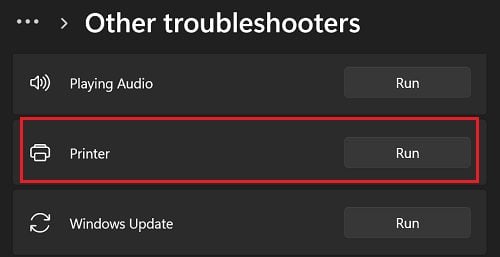
run-printer-troubleshooter-windows-11

Restart the Print Spooler Service

  1. Click on the Search icon and type services.
  2. Launch the Services app.
  3. Locate the Print Spooler service.
  4. Right-click on it and select Stop.
  5. Wait for a few seconds, right-click again on Print Spooler, and select Start.
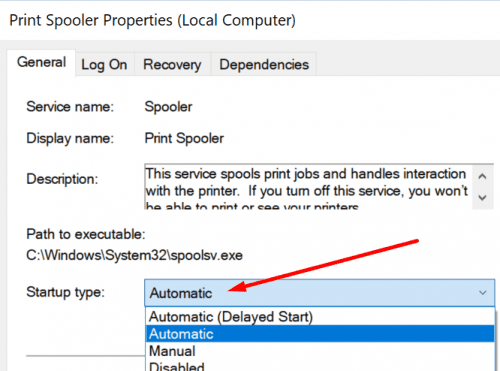
  6. Double-click on the service and set the Startup type to Automatic.set print spooler startup type to automatic
  7. Check if you can print.

Update Your Printer Driver

Install the latest printer driver updates and check if this solution solves the problem. Launch the Device Manager. Right-click on your printer and select Update driver.update microsoft xps printer drivers

If the issue persists, right-click again on your printer but this time select Uninstall device. Restart your computer to automatically reinstall the latest printer driver version. Check if you can print now.

Reinstall Your Printer

Go to Printers & Scanners and remove your printer. Then, navigate to Apps & Features, select your printer software and uninstall it. Restart your computer, and connect your printer again. Check if the printer takes your Print commands now.

Conclusion

If your printer stopped taking Print commands, run the Printer troubleshooter. Then, restart the Print Spooler service, and update your printer driver. If the issue persists, uninstall and reinstall your printer.

Did these solutions help you fix the problem? Did you find other ways to solve the issue? Let us know in the comments below.


Categories: Windows

Author Madalina Dinita

Madalina has been a Windows fan ever since she got her hands on her first Windows XP computer. She is interested in all things technology, especially emerging technologies -- AI and DNA computing in particular.

You Might Also Like

  • Active Directory logo

    How to Find Computer Locking Active Directory Account

    Mitch BartlettWindows
  • How-to-Use-Windows-File-Recovery

    How to Use Windows File Recovery to Recover Data

    Madalina DinitaWindows
  • windows-11-error-0x800f0950

    How Do I Fix Error Code 0x800f0950 on Windows 11?

    Madalina DinitaWindows
  • never-combine-taskbar-buttons-windows-11

    Windows 11: Enable Never Combine Taskbar Buttons

    Madalina DinitaWindows

Comments

  1. MUNGUTIMUDIT KELLY says:
    June 23, 2023 at 7:51 am

    My LaserJet P1102 has failed completely to respond to computer’s command

  2. saudat jan says:
    May 12, 2022 at 2:02 am

    my pc is not giving command to printer and download issues

Leave a Reply

Your email address will not be published. Required fields are marked *

  • how to fix error code 0x800f0922 windows 11

    How to Fix Error Code 0x800f0922 in Windows 11

  • service outage message on Xbox

    What to Do With a Service Outage Message on Xbox

  • signs your hdd is failing

    Signs That Your HDD Is Failing

  • how to fix error code 0x800705b4 in windows 11

    How to Fix Error Code 0x800705b4 in Windows 11

  • does chromebook need an antivirus

    Does Chromebook Need an Antivirus?

profile pic

The Experts Behind Technipages

My name is Mitch Bartlett. I've been working in technology for over 20 years in a wide range of tech jobs from Tech Support to Software Testing. I started this site as a technical guide for myself and it has grown into what I hope is a useful reference for all.

Learn More

technipages logo white
linkedin icon

Technipages is part of Guiding Tech Media, a leading digital media publisher focused on helping people figure out technology. Learn more about our mission and team here.

© 2026 Guiding Tech Media All Rights Reserved

  • About Us
  • Contact
  • Terms of Use
  • Privacy Policy

© 2026 Guiding Tech Media All Rights Reserved

Information from your device can be used to personalize your ad experience.
Do not sell my personal information.

Last Updated on November 4, 2021 by Mitch Bartlett