Skip to content
LogoTechnipages
LogoTechnipages
  • Topics
        • Android
        • Browsers
        • Gaming
        • Hardware
        • Internet
        • iPhone
        • Linux
        • macOS
        • Office
        • Reviews
        • Software
        • Windows
        • Definitions
        • All Recent Posts
  • Product Reviews
  • About

Fix: AirPods Microphone Is Not Working on Windows 11

Madalina DinitaDecember 16, 2021 Comments (0)
airpods-microphone-not-working-windows-fix

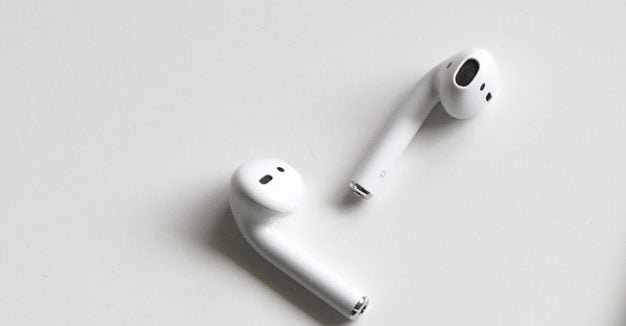
Your AirPods microphone may sometimes stop working on Windows. The earbuds can play sound fine, but there’s no option to select the AirPods mic. That can be a major issue, especially if you need to regularly attend video meetings. Let’s explore how you can quickly solve this annoying issue.

Contents

  • 1 What to Do If Your AirPods Mic Won’t Work on Windows
    • 1.1 Unpair Your Devices
    • 1.2 Allow Apps to Access Your Mic
    • 1.3 Set Your AirPods as Your Default Device
    • 1.4 Run the Audio Troubleshooter
    • 1.5 Use the Hands-Free AG Audio Option
    • 1.6 Conclusion

What to Do If Your AirPods Mic Won’t Work on Windows

Unpair Your Devices

To solve the problem, unpair your devices. Navigate to Windows Settings, select Bluetooth & Devices, and locate your AirPods. Click on the three-dots, and choose Remove device.
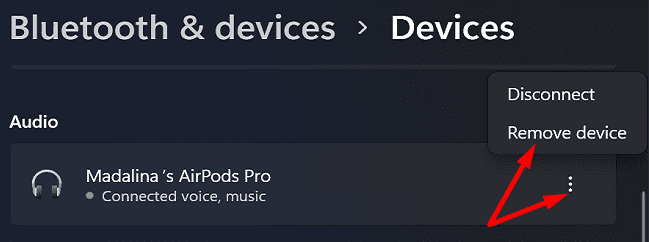
Put the earbuds back into the case, and restart your Windows computer. Then, pair your AirPods with your Windows computer again, and check if you notice any improvements.

Allow Apps to Access Your Mic

Check your privacy settings, and make sure apps can access your AirPods microphone.

  1. Go to Settings.
  2. Select Privacy & Security.
  3. Scroll down to Microphone.
  4. Make sure to enable Microsoft Access.windows-11-enable-microphone-access
  5. Then, let apps access your mic.
  6. Scroll down to the app that doesn’t capture your AirPods mic input.
  7. Make sure to toggle on the app so that it can access your mic.
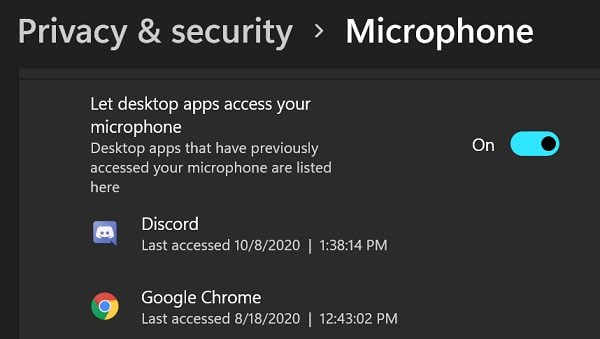
  8. Additionally, allow desktop apps to access your microphone.
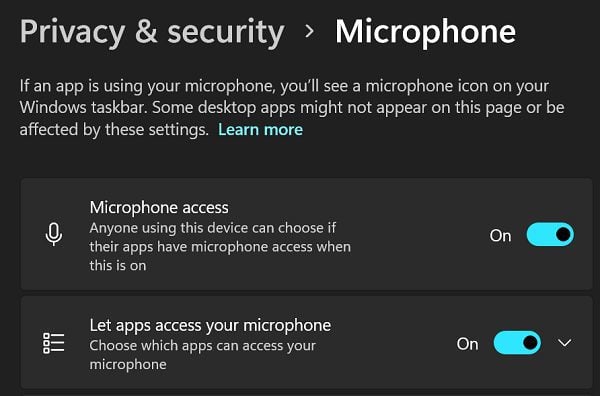
let-desktop-apps-access-your-microphone-Windows

Set Your AirPods as Your Default Device

Be sure to set your AirPods as your default playback and recording device.

  1. Navigate to Settings.
  2. Select System.
  3. Then, click on Sound.
  4. Scroll down to Input.
  5. Set your AirPods as your default device for speaking and recording.
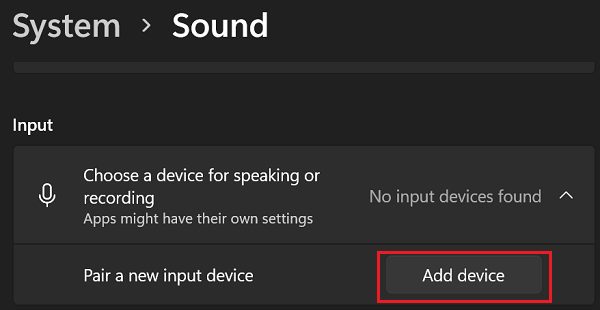
add-input-device-windows-11-sound-settings

Additionally, go to your app’s settings, and set your AirPods as your default microphone. For example, if you’re using Zoom, go to Settings, select Audio, and select your AirPods as your default microphone.
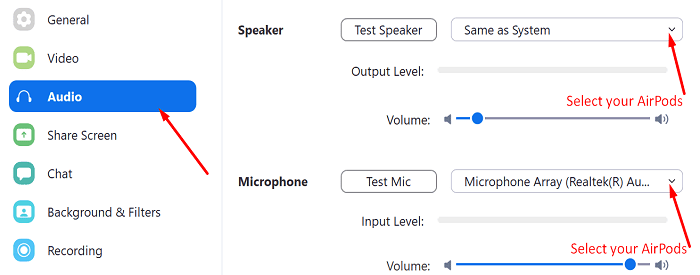
zoom-audio-airpods

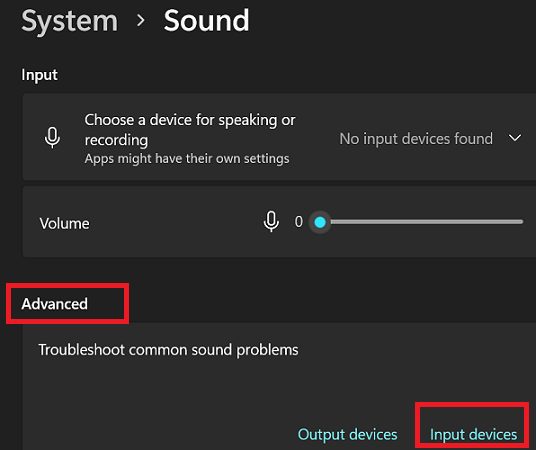
Run the Audio Troubleshooter

  1. Go back to System → Sound → Input.
  2. Scroll down to Advanced.
  3. Under Troubleshoot common sound problems, select Input.
  4. Follow the on-screen steps to run the troubleshooter.
windows-11-troubleshoot-common-sound-problems

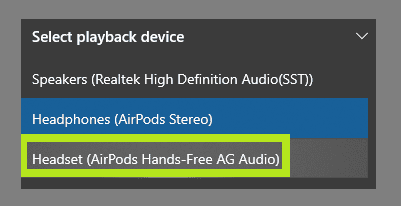
Use the Hands-Free AG Audio Option

Click on your Speaker icon. Then, select the Headset (AirPods Hands-Free AG Audio) option. Check if you can use your AirPods mic on Windows 11.
AirPods-Hands-Free-AG-Audio

Even if this workaround does the trick for you, the sound will probably be pretty terrible, as many users have confirmed. But at least you’ll be able to use your AirPods mic.

Conclusion

If you can’t use your AirPods microphone on Windows 11, first unpair your devices. Then, put the earbuds back into the case, and restart your computer. Additionally, check your Privacy settings, and let apps access your AirPods microphone. Set your AirPods as your default input device, and run the Audio Input troubleshooter. If the issue persists, use the AirPods Hands-Free AG Audio option.

We hope you managed to solve your AirPods mic issues with the help of this guide. Leave a comment below and let us know which solution worked for you.


Categories: Windows

Author Madalina Dinita

Madalina has been a Windows fan ever since she got her hands on her first Windows XP computer. She is interested in all things technology, especially emerging technologies -- AI and DNA computing in particular.

You Might Also Like

  • 4 Ways to Close Session in Windows 10

    Judy SanhzWindows
  • Windows 11 22H2 Download The Ultimate Guide (Photo: Courtesy of Microsoft)

    How to Open Services in Windows 11

    Judy SanhzWindows
  • iMovie Windows Header

    9 Best iMovie Equivalents for Windows 11

    Tamal DasSoftware
  • Remote Restart Shutdown Header

    How to Remote Reboot/Shutdown a Windows 11 PC

    Susan SheffieldWindows

Leave a Reply

Your email address will not be published. Required fields are marked *

  • unable to create notebook error in onenote

    We Were Unable to Create Your Notebook Error in OneNote – Common Fixes 

  • error code 0x800704f8 fix

    Error Code 0x800704f8 – How to Fix 

  • back button in browsers doesnt work

    What to Do if the Back Button in Browser Doesn’t Work 

  • could not find this item

    “Could Not Find This Item” When Trying to Remove Files

  • no graphics signal on first boot

    No Graphics Signal on First Boot – How to Fix

profile pic

The Experts Behind Technipages

My name is Mitch Bartlett. I've been working in technology for over 20 years in a wide range of tech jobs from Tech Support to Software Testing. I started this site as a technical guide for myself and it has grown into what I hope is a useful reference for all.

Learn More

technipages logo white
linkedin icon

Technipages is part of Guiding Tech Media, a leading digital media publisher focused on helping people figure out technology. Learn more about our mission and team here.

© 2026 Guiding Tech Media All Rights Reserved

  • About Us
  • Contact
  • Terms of Use
  • Privacy Policy

© 2026 Guiding Tech Media All Rights Reserved

Information from your device can be used to personalize your ad experience.
Do not sell my personal information.

Last Updated on December 16, 2021 by Judy Sanhz