

Encryption is the backbone of security and privacy. This is true for both data at rest and for your internet traffic. For example, the database of a password manager on your computer needs to be encrypted and require a password to unlock to be properly secure. Similarly, your web traffic should be encrypted to be secure from other people monitoring or modifying it.
For your web communications, encryption is taken care of by the HTTPS protocol. This protocol automatically negotiates the most secure possible connection between you and the webserver before transmitting your data.
Another key web protocol is DNS, or Domain Name System. This protocol is used to ask DNS servers to translate the human-readable URL that is the name of a website into the machine-readable IP address that is needed to communicate with the server. the problem is that DNS is an old standard, dating back to 1983 and it doesn’t offer any encryption protection at all. This means that someone was monitoring your DNS traffic, they could work out which websites you were browsing to, although they wouldn’t be able to tell what pages.
Even though they wouldn’t be able to see what webpages you’re specifically browsing to, the names of the websites you’re accessing can compromise your privacy. For example, if you browse to a website that discusses specific types of illness, it’s possible to guess that you or someone you know has that type of illness. Similarly, if you browse to the website of a lawyer that specializes in divorce cases, it’s a safe bet you’re at least considering getting a divorce.
DoH, or DNS over HTTPS is a relatively new solution to this issue. It simply makes an HTTPS connection to the DNS server and then transmits the DNS request securely ad privately. Given how new the protocol is, not every DNS provider offers it as an option, although the number will likely increase over time.
How to enable DoH in Chrome
To enable DoH in Google Chrome, you first need to open Chrome’s settings. To do so, click on the triple-dot icon just under the “x” icon in the top-right corner, then click “Settings” in the drop-down list.

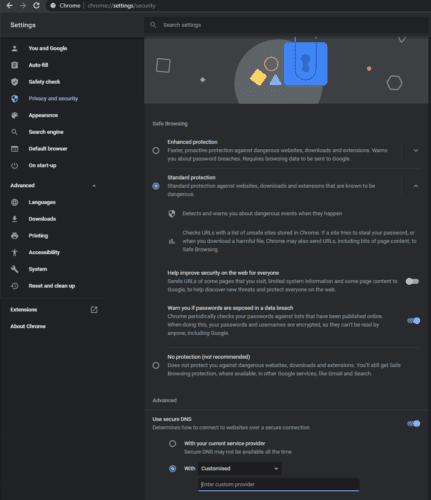
Next, click on “Privacy and Security” in the left column, or scroll down to the “Privacy and Security” section and click on “Security”. Then find the sub-section labelled “Use secure DNS” and click the slider on the right to the “On” position.
You may also want to specify which DoH provider to use, as your default ISP DNS service may not offer DoH support. To do so, select an option from the “With” drop-down box, or enter an IP address in the “Enter custom provider” text box and ensure that the bottom of the two radio buttons is selected.





Works in Chome 106.0.5249.119 (Official Build) (64-bit) on Windows 11 thank you!
The slider will not slide or do anything. I do not have a managed browser, does anyone know the registry key to make this thing work right? I click on it and it does nothing. It is not in the flags section anyplace.