Skip to content
LogoTechnipages
LogoTechnipages
  • Topics
        • Android
        • Browsers
        • Gaming
        • Hardware
        • Internet
        • iPhone
        • Linux
        • macOS
        • Office
        • Reviews
        • Software
        • Windows
        • Definitions
        • All Recent Posts
  • Product Reviews
  • About

Delete Saved Password in Firefox

Mitch BartlettSeptember 18, 2018 Comments (7)
Firefox Logo

Tired of Firefox storing old usernames and passwords that you don’t use anymore? You can delete saved passwords from Firefox using these steps.

These steps apply to Firefox for Windows, Linux, and Mac OS X.

  1. In Firefox, select the “Menu” Menu Button button located at the upper-right corner of the window, then choose “Options“.
  2. Select “Privacy & Security” on the left pane.
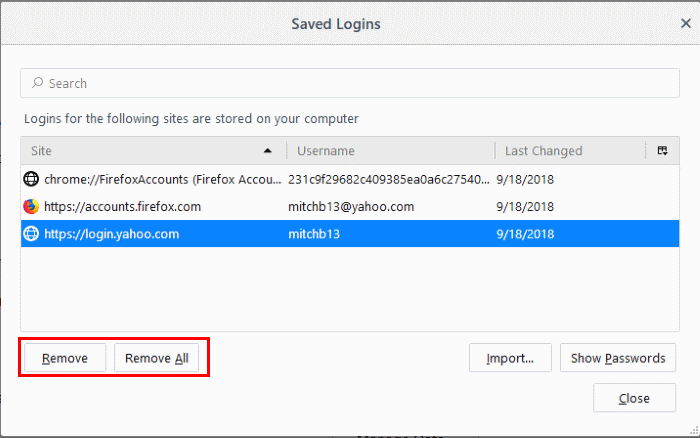
  3. Select the “Saved Logins…” button.
  4. Select the web site you wish to remove in the list.
  5. For individual site passwords, select the one you wish to delete, then select “Remove“. To clear everything, You can select “Remove All” to delete all saved passwords. Select “Close” when you’re done.
  6. If you want Firefox to no longer remember passwords in the future, uncheck the “Remember logins for sites” option.
Categories: Software

Author Mitch Bartlett

Through my career that spans over 20 years I have become an expert in Microsoft Systems Administration, Android, and macOS. I started this site as a technical guide for myself and it has grown into what I hope is a useful knowledgebase for everyone.

You Might Also Like

  • Best Lightroom Alternatives

    Mel HawthorneSoftware
  • Turn Off Listening Activity on Spotify

    MonaSoftware
  • How to Change Spotify Username

    Judy SanhzSoftware
  • Zoom

    How to Easily Create a Quiz on Zoom

    Judy SanhzSoftware

Comments

  1. Jacob says:
    September 11, 2019 at 4:54 pm

    I just deleted all mine by accident, how do I revert it? I need to know because all of my passwords are on firefox and I haven’t remembered any of them.

  2. Dan says:
    September 10, 2019 at 10:46 am

    This isn’t working. When I go the Saved Logins screen, there are no websites listed at all, and the removed options are grayed out. But when I go to Facebook, for example, and click in the login box, login options appear that I can select. Where are these coming from?

  3. Trung says:
    July 15, 2019 at 8:51 pm

    How to hide saved password by author?

  4. Frank says:
    July 15, 2019 at 11:05 am

    Not working. Items removed from the window, close window, open window, items all returned and unchanged.

  5. Marilyn Judy says:
    April 6, 2019 at 4:08 pm

    I don’t want to delete a password, I want to create a new one. I continue to create a new one over and over at the website but it doesn’t save it. Should I delete the site first and then it will remember the new password?

  6. Ian says:
    November 16, 2018 at 4:55 am

    YouTube isn’t listed.. where else is it storing the saves?

  7. ted says:
    October 16, 2018 at 7:30 pm

    ebay is not in the listed sites and that is the one i want to delete, where else can i look?

Leave a Reply

Your email address will not be published. Required fields are marked *

  • why is ram so expensive

    Why Is RAM Suddenly So Expensive?

  • how to fix error code 0x800f0922 windows 11

    How to Fix Error Code 0x800f0922 in Windows 11

  • service outage message on Xbox

    What to Do With a Service Outage Message on Xbox

  • signs your hdd is failing

    Signs That Your HDD Is Failing

  • how to fix error code 0x800705b4 in windows 11

    How to Fix Error Code 0x800705b4 in Windows 11

profile pic

The Experts Behind Technipages

My name is Mitch Bartlett. I've been working in technology for over 20 years in a wide range of tech jobs from Tech Support to Software Testing. I started this site as a technical guide for myself and it has grown into what I hope is a useful reference for all.

Learn More

technipages logo white
linkedin icon

Technipages is part of Guiding Tech Media, a leading digital media publisher focused on helping people figure out technology. Learn more about our mission and team here.

© 2026 Guiding Tech Media All Rights Reserved

  • About Us
  • Contact
  • Terms of Use
  • Privacy Policy

© 2026 Guiding Tech Media All Rights Reserved

Information from your device can be used to personalize your ad experience.
Do not sell my personal information.

Last Updated on September 18, 2018 by Mitch Bartlett