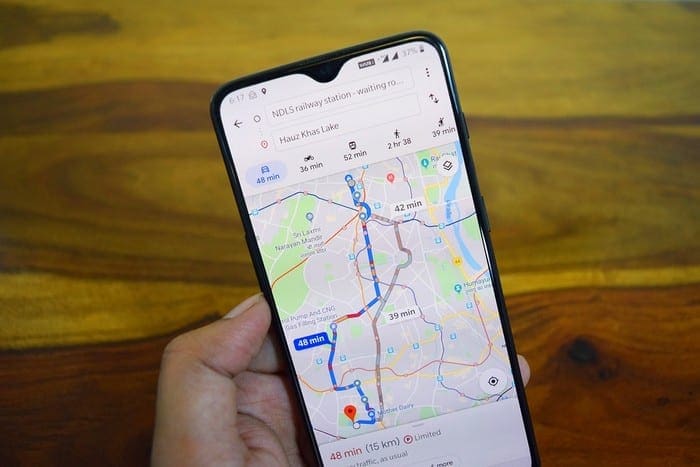
Google Maps is of great help when you’re on vacation, but it would be even better if the map you’re looking at is personalized for your needs. That way, you have everything you need at a glance.
Google knows that, and that’s why there’s an option to create your collaborative Google Map. The process is easy, and there is also an option to share your custom map.
How to Create Your Personalized Google Map
If you haven’t done so already, sign in to your Google account and go to Google Maps. To create your map go to:
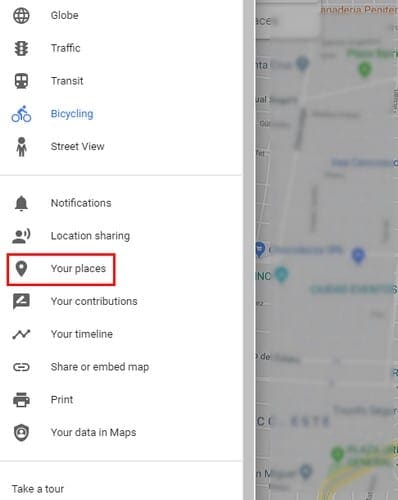
- Menu (three even lines)
- Your Places
- Maps
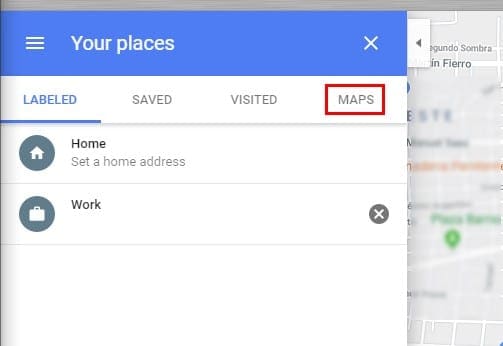
After clicking on the Maps tab, you’ll have an option at the bottom called Create Map (select this option). Any previously created maps will appear on this list.
Keep in mind that you’ll need to name your map, add a description (optional), and add a design. To add a design to your map, you’ll need to click on the drop-down menu to the left of the Base map option.
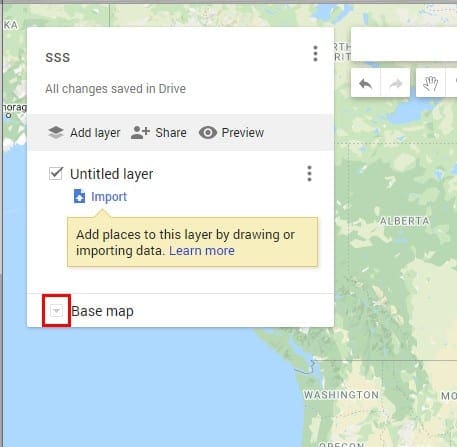
You can choose from options such as:
- Map
- Satellite
- Terrain
- Light Political
- Mono City
- Simple Atlas
- Light Landmass
- Dark Landmass
- Whitewater
Don’t worry, if you ever want to change the name or the design of your map, you can at a later time. Once you’ve personalized your map, it’s time to start adding some places to it.
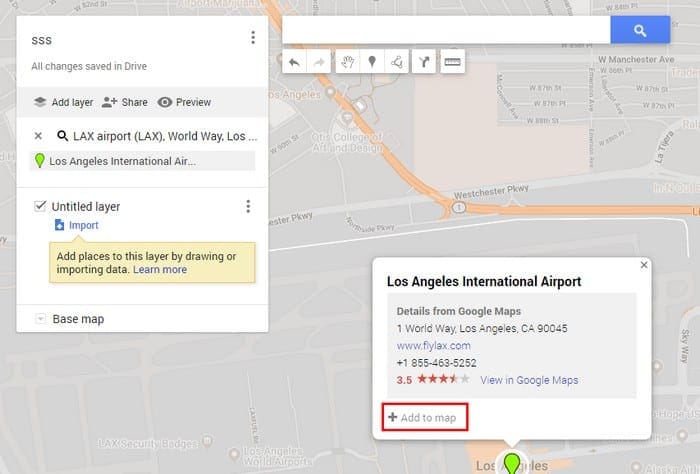
At the top, you’ll see a search bar where you can look for those places. The places you look for will have a pin on them, and if you want to add them to your map, click on the Add to map option.
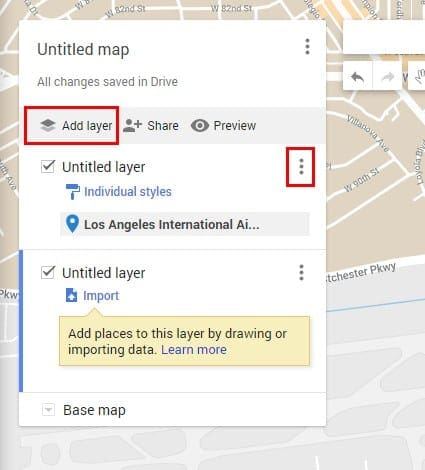
You can also add layers to your map. Layers are useful since they are ways to organize the content on the map. Adding a layer is easy, click on the Add layer option, and it will be added to your map automatically.
To name, delete, or show data on that layer, click on the three dots to the right.
How to Add Directions to Your Custom Google Map
If you decide to share your map, it’s also a good idea to add directions to places others may not be familiar with. To add a directions layer, click on the arrow icon that’s to the left of the ruler icon.
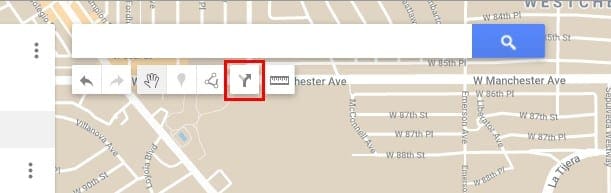
To add a starting point, click on the box with the A and type in the address or the name of your destination. In the B box, add the address of your destination. Google Maps will show you the best route as soon as your done typing the second address.
Beneath the search bar, you’ll also have other options such as:
- Draw a line
- Measure distances and areas
- Undo
- Select items
- Redo
Once your done creating your map, it’s time to share it. To the right of the Add layer option you used earlier, you’ll see the Share option. Click on the Share option, and if you haven’t named your map, it won’t let you share the map until you do so.
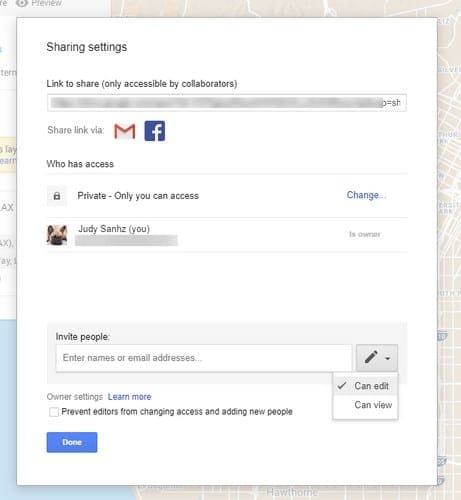
Once the naming part is out of the way you can share the map by sharing a link that’s provided, via Gmail, via Facebook, or you can invite people. If you decide to invite people by clicking on the drop-down menu next to the pencil icon, you can give those users permission to only view or edit.
Conclusion
By creating your own Google Map, the next time you go on vacation, getting organized is going to be a lot easier. You can create as many maps as you want and share them as much as you want. What will you be creating the map for? Let me know in the comments below.