Do you get hundreds of marketing emails from websites and apps to your personal Gmail? Stop such emails and enjoy other benefits by learning how to create a Gmail alias email.
You might’ve noticed that almost all websites, web apps, mobile apps, newsletters, downloads, etc., ask for an email before giving you access to the content. It’s a way to collect your email so that marketing teams can reach you with offers and promotions.
Do such emails annoy you or distract you at work or home? In most cases, yes! What do you do then? Do you create alternative emails? Of course not! You use alias emails in Gmail and keep the original email away from solicitation emails.
This article helps you to learn Gmail alias email setup, uses, and maintenance in easy English.
What Is Alias Emails in Gmail?

Gmail offers an email alias tool to keep your email secret and clutter-free. You can use it to avail of discount offers on eCommerce websites, sign up for free web apps, and more. Subsequent marketing and solicitation emails won’t clutter the primary inbox.
It has multiple names like the followings:
- Alternate email address
- Forwarding email address
The service is available for Gmail and Google Workspace email holders. In Gmail, you need to use temporary Gmail alias emails if you want to avoid creating multiple Gmail emails.
On the contrary, in Google Workspace, the admin can add up to 30 email aliases for you. You don’t need to do anything other than select the Gmail alias emails in the From field when sending emails.
Why Do You Need Alias Emails in Gmail?
There are endless reasons to use Gmail alias emails. The following list outlines some of the obvious reasons:
- You want to try out the best and free news apps for your Android, and the apps are asking for email verification. Here, it would be best if you used email aliases to escape the bombardments of marketing emails.
- You love technology newsletters and signup for those a lot. Use an alias email to filter them automatically to a newsletter folder in your Gmail.
- Signup for online promo codes, discounts, etc., without giving in your email.
- You own a small business and need to create different emails: billing@johndoe.com, sales@johndoe.com, info@johndoe.com, etc.
- You need to forward all the incoming emails of an employee who has left the business to a new employee who has just filled the vacant position.
How to Create a Gmail Alias Email for Personal Gmail
After reading all the benefits, you might wonder how to create an alias email address in Gmail, whether it is a complicated task, how to use it, etc.
Creating alias emails in Gmail is ridiculously simple if you follow these steps:
- Open Gmail in a web browser.
- Click the Settings menu.
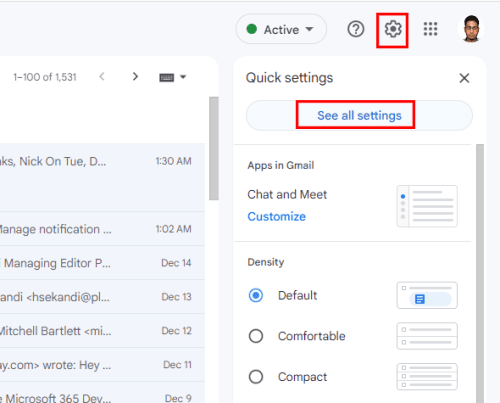
- Now, select See all settings.
- On the top menu bar, select Accounts and Import.
- Choose Add another email address in the Send mail as option.
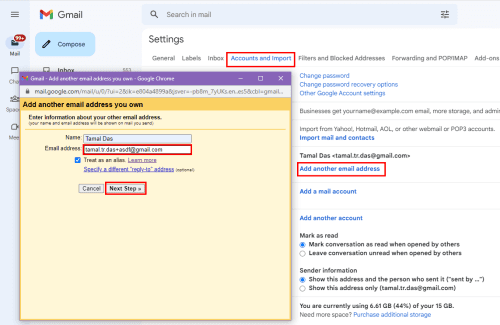
- Now, enter your email and add a period somewhere in the username. For example, if your email is johndoe@gmail.com, type john.doe@gmail.com.
- Alternatively, if your email already contains periods, put a plus (+) sign at the end of the username part and then add any gobbledegook such as asdf, qwerty, zxcvb, etc. For example, if your email is john.doe@gmail.com, type john.doe+asdf@gmail.com.
- Now, click the Next step button to complete the process.
How to Create a Gmail Alias Email for Work/School Email
If you’re a Google Workspace admin and want Gmail alias emails for your team, follow these steps. If you’re an employee and want the admin to setup alias emails for you, forward this article to your Google Workspace admin so that they can follow the steps below:
- Go to your Google Admin console. Only admins can do this.
- From the Admin console, navigate to Users by clicking Menu and choosing Directory.
- Choose a user name for whom you want to set up Gmail alias emails.
- Select Add Alternate Emails. You’ll find this under the user’s name on the left.
- Type in the alias user name, the part before @ sign. For example, supportdesk@johndoe.com for your primary email johndoe@johndoe.com.
- Click Save! By 24 hours or sooner, you’ll start receiving emails to your primary email from the alias email.
Unfortunately, Gmail apps on iPhone, iPad, or Android don’t support this feature. So, it would be best if you opened Gmail using a web browser to create a Gmail alias email on these devices.
How to Use Alias Emails in Gmail
Find below the steps to follow to use the newly-created alias emails:
- Click Compose.
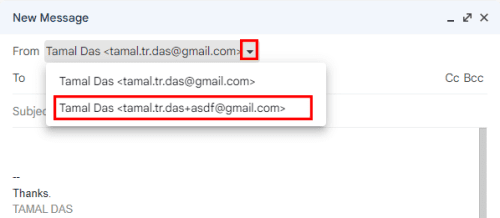
- Look for a drop-down arrow beside the Form field on the New Message card.
- Click the drop-down arrow to choose any of the alias emails in Gmail.
How to Filter Email Messages Using Gmail Alias Emails
The best part of alias emails is you can automatically route incoming emails to specific folders. Here’s how:
- Click the Show search options icon on the Gmail Search bar.

- Type in the alias email in the To field.
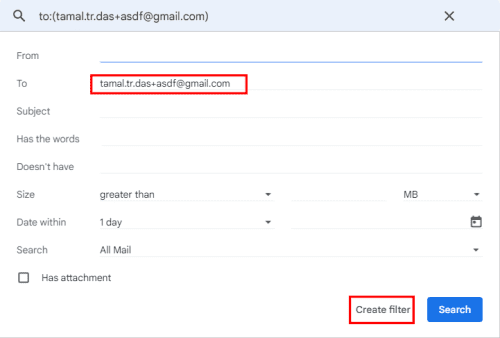
- Select Create filter.

- Choose one or more options from the following list that appears.
How to Delete Gmail Alias Email
You can repeat the same steps mentioned in the create Gmail alias section. Once you arrive on the alias emails screen, you’ll see a Trash Bin or Delete icon. You’ll see the Remove button beside the email aliases for the Google Workspace admin console.

Click the Delete icon or Remove button to delete email aliases from Gmail or Google Workspace.
Conclusion
Give it a shot! Now you know how to create a Gmail alias email effortlessly. You’ll experience a clutter-free and organized Gmail.
If you use different methods or have cool tips on Gmail alias emails, don’t forget to mention those in the comment section. Next up is how to schedule an email on Gmail.