

If you ever need to remember where you were last week, Google Timeline can help you out with that. It can give you your location history information, and it also lets you edit it as well.
Google Timeline can also save any pictures, but that depends on how you have your camera settings set up and that you have Web & App Activity on. Your Timeline is private, so only you can see it, but how can you create your own Google Timeline?
How to Create and See Your Google Timeline
To create a Google Timeline using your Android device, open the Google Maps app. Tap the menu lines and choose the Timeline option (the second one from the top).

If it’s the first time that you access the feature, you’ll see an Explore your Timeliness message. When you’re done reading, tap on the blue Let’s Go button to continue.
The Timeline will start showing you the places you visited that day. If you want to see where you were any previous days, tap on the drop-down to the right of the Today option.
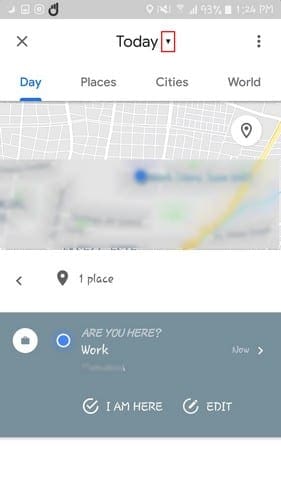
If you don’t see a place you visited, there’s a good chance that you didn’t have the location on. To see your Timeline from a different month, swipe to the sides.
Tap on the places organized into sections such as:
- Shopping
- Food and Drinks
- Attractions
Each visit will show you the number of times you visited, how far it is from home, and how long ago you visited. By tapping on the place you visited, you have the option of writing reviews so you can help others decide if it’s worth visiting or not.
Other places you’ll see on your Google Timeline will include:
- Sports
- Culture
- Hotels
- Airports
Tap on the bookmark icon to the right to save that location to lists such as:
- Favorite
- Memes
- Want to go
- Starred places
If you wish, there’s an option at the top to create a new list. By tapping on the dots to the far right, you’ll see options to either view the last visit or remove all visits.

Once you open a section such as the places you visited under the Shopping section, you’ll also see a Sort by drop-down menu where you can sort the places you’ve been to by Most Recent or Most Visited.
How to Edit Your Google Timeline
No service is perfect, and Google is one of them. If you see that there is a place you haven’t visited on your Timeline, you can edit it by turning on Web & App Activity. If you don’t have it on, you won’t be able to make any changes.
To turn on Web & App Activity go to:
- Menu
- Timeline
- Tap on the three dots
- Go to Settings and Privacy
- Under App History Web & App activity should be on
As long as you’re in this area, keep in mind that you can also make your Google Photos appear on your Timeline. Under the Your Timeline section make sure that the Google Photos option is toggled on. To edit somewhere you haven’t been to, but appears on your Timeline go to:

- Menu
- Timeline
- Locate the wrong place on the Timeline
- Tap on it
- Choose Edit
- Choose the correct location from the suggestions at the bottom or search for the proper location using the search tool at the bottom
Make Google Timeline Better When Using Battery Saving Mode
Whose not looking to save on battery life, right? For those times, when you’re using Device only mode or Battery saving mode, you can make Google Timeline better by going to:
- Menu
- Timeline
- Dots
- Settings
- Location
- Mode
- Battery saving or Device only mode
- Choose Yes
Conclusion
Google Timeline is a great way to keep track of your activities. That way, if you can’t remember if you ate a restaurant or not, you can always check your Timeline. What are your thoughts on the feature? Let me know in the comments below.



Have been using Google Timeline together with recording mileage at every fill up for SARS logbook for the past 2 years.
Makes it so-o-o easy!