If you mainly work on your projects on your Android device, then you sure use your Android device to loop videos. But, maybe because it’s more comfortable on your computer due to the bigger screen, you prefer to loop your videos online. Here are some online sites where you can loop your videos and for free.
Contents
1. Google Photos
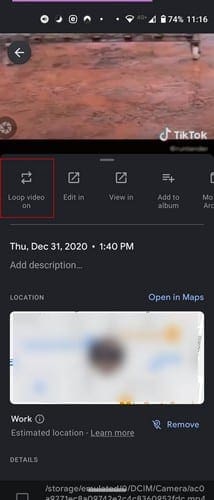
Yes, Google Photos has an integrated feature that allows you to loop your videos. Go to your Google Photos and open any video. Click on the dots at the top right and make sure the box for Loop video is selected.

If you ever want to turn it off, click on the box again. It’s also possible to loop video in Google Photos for Android. Find the video you want to loop and tap on the dots. But, this time, the loop option will appear from the bottom. The app will clearly let you know if the loop option is on.
2. Fastreel – Loop Videos Online
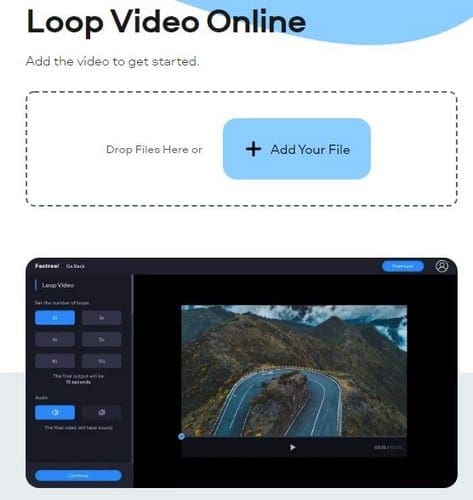
Fastreel is an option that will get the job done and loop your video. Once you’ve uploaded your video, you can choose the number of loops you want your video to have. You can choose from options such as:
- 2x
- 3x
- 4x
- 5x
- 8x
- 10x
The site also lets you remove the audio of the video as well. If you go Premium, you enjoy One-time premium export, Fast loading, No watermark, and YouTube Sharing. Remember that the video needs to be under 500MB. To the right, you’ll also see a window where you can preview your video. When you’re ready to download your video, click on the continue option. You have the option to download the video with or without the watermark.
3. Kapwing – Loop This Clip

As expected, Kapwing also gives you the option to loop your video as many times as you want. You can choose between:
- 2x
- 3x
- 4x
- 5x
- 8x
- 10x
How long the video will be shown below the loop options. If you want to edit your video a little, click on the trim video option. You can trim your video by using the sliders, and you’ll also see an option to add the cut.
4. Clideo Repeat Video with Online Looper
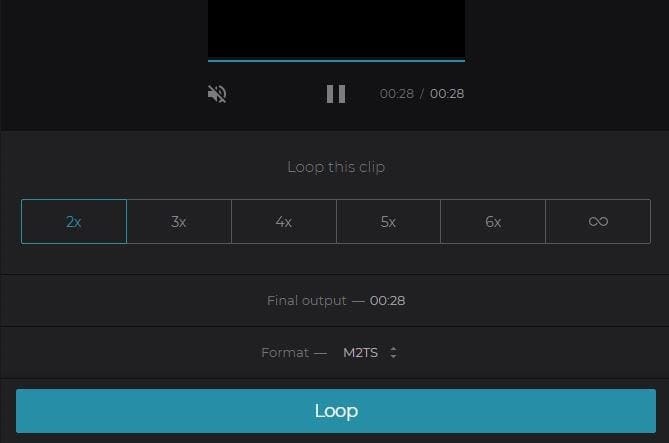
When you’re at Clideo‘s main page, upload the video you want to loop. The upload process is fast, so you won’t have to wait too long. In the next window your video will start playing, and you’ll see options such as looping your video two, three, four, five, or even six times. A looping option Clideo has that the others don’t is the option to loop your video indefinitely. If you choose this last option, your video will be turned into a GIF and have no sound.
Clideo will also show you the final output of the video and also gives you format options. For example, you can choose between keeping the former,3G2, 3GP, AVI, ASF, F4V, FLV, and M2TS. Once you’re done making your choices click on the looping sound. You’ll see a preview of what your video will look like and options to remove the watermark, edit the result, or download. If you choose to edit your video, the site will ask you to create an account.
5. Veed Video Looper
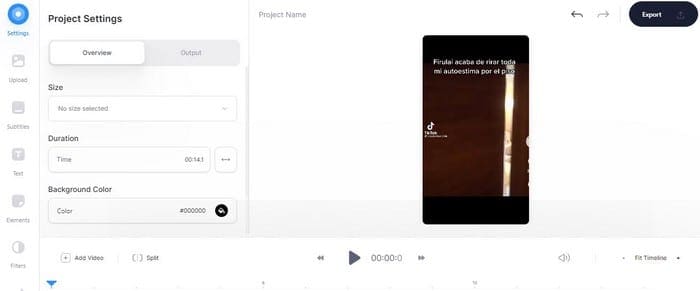
Saving the best for last. Veed is a feature-rich video looper that gives you what you need to loop your video and edit your video. With Veed, you can’t complain about the lack of options for your video.
In the Overview tab, you’ll see options to adjust:
- Size – You can choose from options such as Original, Square, YouTube, Landscape, Story, Tik Tok, Pinterest, LinkedIn, and more.
- Background color – You can choose from the already available colors or adjust the hex to create your own.
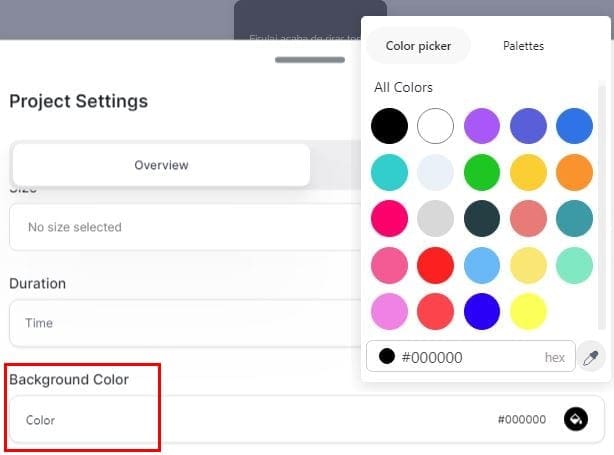
There are also custom output settings to choose from, such as:
- Draft
- Standard
- YouTube 720p
- Hootsuite Twitter
Use the sliders provided to adjust the FPS Limit and the Resolution. There’s also a slider to adjust the CRF or choose from Constant Quality or Constant Bitrate options. Can’t forget about the slider to encoder preset that can be set to fast render, standard, or smaller file.
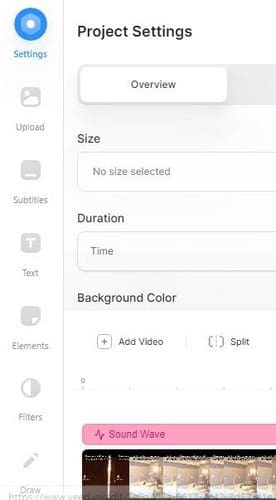
You can use other video features, including subtitles, text, Elements, filters, and draw. If you want your video to show the sound waves, click on elements, and choose the sound waves’ style. By clicking on filters, you’ll see a preview of what your video will look like with that filter.
Final Thoughts
When it comes to looping your video, you have quite a few options to choose from. But, not all of them offer the same features. That’s why it’s important to shop around before deciding which one you’re going to go with. Hopefully, you’ve found one that you like. Don’t forget to let me know which you like in the comments below.