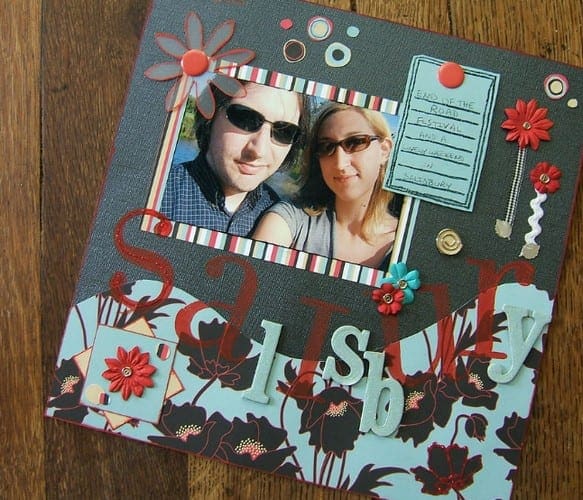
Creating a scrapbook is an excellent way of arranging and presenting your personal or family history. Since there is an app for just about everything these apps, you know that there are apps for creating scrapbooks as well.
Whether you’re looking for an app with basic features or an app that’s feature-rich, hopefully, you’ll be able to find something on this list. All the apps on the list are free and easy to use.
Contents
1. Project Life
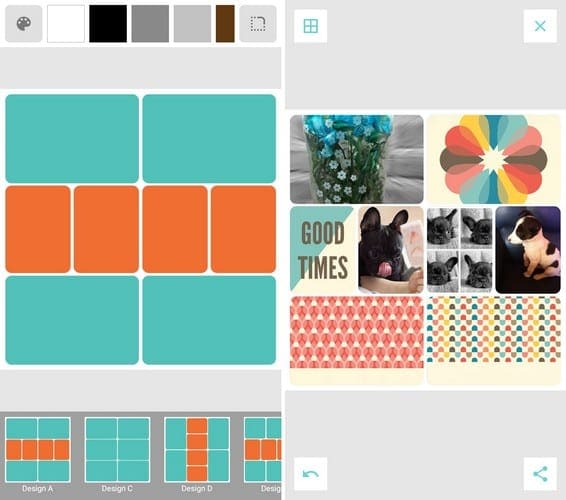
A popular app for creating scrapbooks on any Android device is Project Life. It’s an easy to use app with features that are a must in creating a scrapbook. You can import your pictures from either Dropbox, Google Photos, or your device’s gallery.
The app features other useful features such as zoom, rearrange, and crop, drag-n-drop, zoom-in, change font style/color/ size, modify background color, various page layouts, add text with speech-to-text, corners can be rounded, and lots of card and kit designs available.
At the bottom right, you’ll see arrows that allow you to either undo or redo something you’ve added to a square. To change the layout, tap on the grip icon at the top left and swipe left at the bottom for more options.
2. Scrapbook

Scrapbook is a straightforward app with a limited amount of options. If you’re looking for an app that doesn’t bombard you with too many features, Scrapbook is a good option. The app does have a large variety of stickers for you to add to your images.
You can choose from clothes, hearts, food, jewelry, purses, and more. There are options to flip your images up/down and from side to side. It’s also possible to add text to your scrapbook and change the font, color, and background.
3. Photo Scrapbook
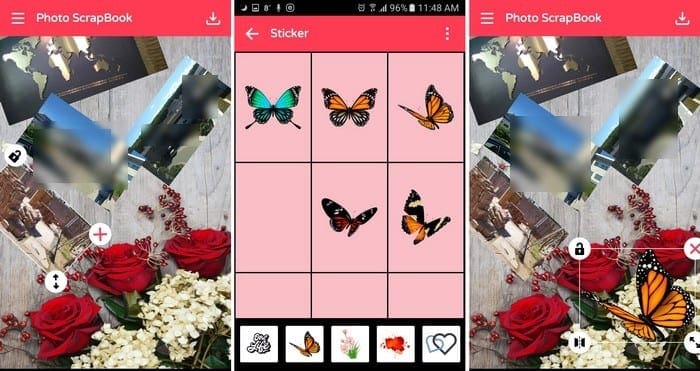
Unlike other apps, Photo Scrapbook lets you add text to your scrapbook without any in-app purchases. Your text can be added in a large variety of fonts, colors, and it’s also possible to adjust the text size, text position, border size, and border-color.
Tap on the three-lined menu option to change the background, add another image, add a pattern/blurred/color background, crop image, add a frame, filter, border-image, and stickers.
The sticker collection on this app is excellent. You can add stickers such as hats, love-themes stickers, accessories, emojis, animals, flowers, and other objects. When you’re done with your creation, tap on the download option at the top right. The app will save what you’ve made to your device’s gallery.
4. Pic Collage – Your Story & Photo Grid Editor

Pic Collage – Your Story & Photo Grid Editor app can also help you create a scrapbook, but its free content is limited. For example, when choosing a background, there are more paid background options than there are free ones. The good news is that you get about 70 backgrounds for free, but when you compare it with the hundreds you have to pay for.

It’s still a scrapbook app worth trying since the options you can use for free are nice ones. The app also offers cards with themes for your scrapbook. Just to mention a few, you can choose from card-themes such as the First day of school, Artistic stories, School, Summer, Planner, Family, Love, Awareness, and more.
The sticker pack for this app is limited, but they’re nice. If you want to purchase additional stickers, you can buy them for a dollar each.
5. Photo Collage: Scrapbook
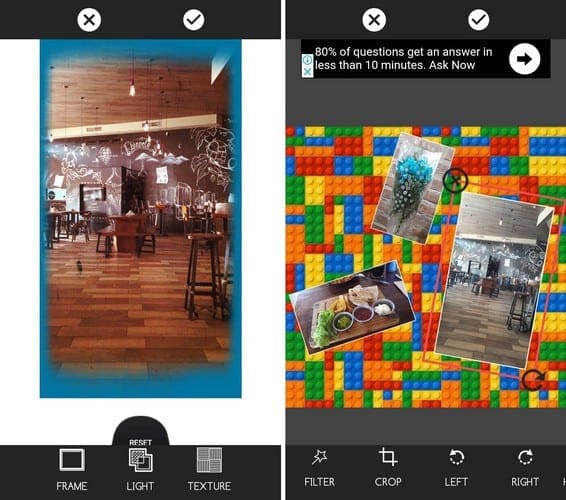
Photo Collage: Scrapbook also has the features you would expect a scrapbook app to have. It allows you to add filters, frames to individual images, zoom in/out, flip images, crop pictures, add a background, rotate images in sorts of directions.
Besides offering scrapbook options, the app also allows you to create a video collage, photo mirror, photo collage, photo shape, and there is also an option to blur the background, but you’ll need to install another app for these options.
Conclusion
Making a scrapbook is a lot of fun, and it’s a great way to let go of all that stress. Whether you decide to create one the old fashion way or on your Android device: have fun. Which of the scrapbooking apps are you going to start with? Let me know in the comments below.