Some videos are funnier when you see them in slow motion. For example, the video of your friend throwing some cake on someone else needs to be enjoyed as much as possible and slow motion would be perfect. In that case, you’re going to need apps that can change the speed of your video.
There are various apps you can choose from, but some may not offer enough options. Other apps may offer too many when you’re only looking for an app with basic editing options. In the following list, you’ll find all sorts of free video editing apps for Android that allow you to change your videos’ speed. All of them are free to use,, and there is no need to create an account either.
Contents
1. Fast Motion: Speed up Videos with Fast Motion
One popular app that will help you change your video’s speed is Fast Motion: Speed up Videos with Fast Motion. The app is free to use, and you don’t have to create an account o use it. When you first open the app, you can edit the video if you want. If not, tap on the Next button at the top right.
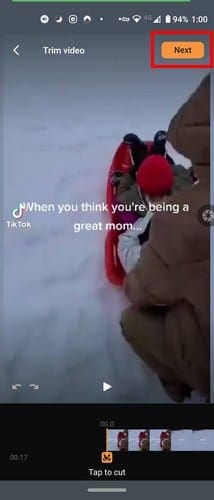
The app will ask you if you want to speed up or slow down your video in the next step. Choose an option, and it’ll be applied at the beginning of the video. The video that has the effect will be highlighted in blue or red, depending on the option you chose. The app will apply a default speed but if you want to change it, tap on the part of the video that’s highlighted and choose a rate displayed right above your video.
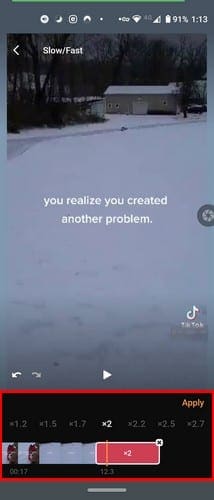
When you’ve got the right speed for your video, tap on the Apply option. The app also lets you apply effects to your video. You can choose from:
- Filters
- Bright, Contract, and Saturation
- Frames
- Text
- Emojis
- Voice over
- Music
Once you’re done adding the effects, you can save your video to your device gallery.
2. ViVa Video – Video Editor and Video Maker
You may have heard about this app, Viva Video. It’s a popular video editing app you can use for free. Once you’ve chosen the video whose speed you want to change, you’ll see a series of editing options. As long as you’re here, feel free to take advantage of the great editing options the app has to offer.
To adjust the video’s speed, tap on the speed icon that will be near the right.

Once you tap on the speed icon, a slider will appear. Use this slider to adjust how fast or slow you want your video to be. As soon as you adjust the slider, the Viva video will start playing a preview of the video. If you’re not happy with the results, you can always re-adjust, but if you are, tap on the green checkmark at the bottom right.

Once the new speed has been added, you can continue to edit your video or save it. The save option will be at the top right.
3. Video Speed: Fast Video and Slow Video Motion
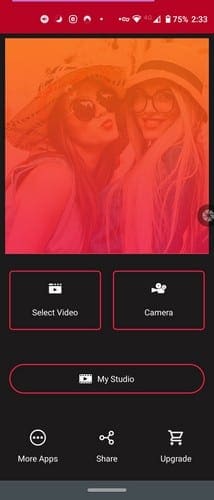
Once you’ve chosen what video you want Video Speed to adjust, you have the option of trimming your videos. Move the sides until you’ve cut the video to your liking. Below the trimming tool, you’ll see the available speeds.
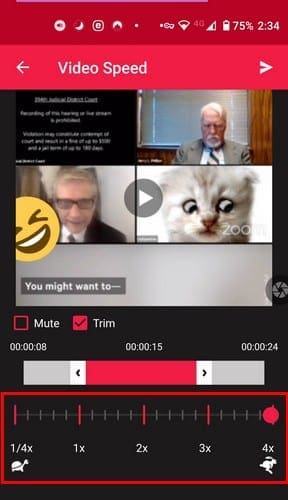
To adjust the video’s speed, you can directly tap on the speed number or tap on the red circle and slide it. There’s also a mute option, just in case you want to remove the video’s audio. Once the video is done processing, at the top right, you’ll see a music icon. If you change your mind and want to add music to your video, select this option.
4. Vizmato

Unlike the other apps, Vizmato doesn’t allow you to adjust the speed to a specific number. Apparently, there is one speed for slow motion and fast forward. Once you’ve set the white to the part of the video you want to add the effect to, select the slow or fast option at the bottom.
The app will start marking in orange or red (depending on the option you chose) the entire video unless you stop it. Simply touch the video reel and manually move it. That way, you’re in control of how much of the video will have this effect.
The app allows you to add both effects to the video, and if you change your mind and want to erase the effect, select it and tap on the trash icon. The app has other great video effects you can try as long as you’re using the app.
When you’re done with your video, tap on the Preview option at the top. If you feel you need to make more changes, just tap the back button at the top left. If not, then go ahead and see your video.
5. Slow Motion
If you’re looking for an app that keeps things simple when it comes to features, then you just might like Slow Motion. The app gives you the option to record a new video or choose one from your device’s gallery. The app will also ask you what editing method you want to use. You can choose from Advanced or Simple.

Let’s say you chose The Simple option. At the bottom you’re going to see the speed options you can add to your video. If you paused your video, you’ll need to tap on the play button to see a preview. If you don’t pause your video, it’ll just continue to loop. At the bottom, you’ll also see an option to trim your video if you want.

When you’ve made the necessary changes to your video, tap on the green download button at the top right. Before it’s saved, the app will show you some final processing options such as:
- Filter
- HD quality
- Include audio from movie
- Add Music

Don’t forget tot ap on the Start processing option to finish up your video.
Conclusion
When it comes to adjusting the speed of your video, you have quite a few options to choose from. So if you don’t feel like paying for an app you don’t have to. Which app on the list do you thinkn you’re going to go with? Let me know your choice in the comments below.