Skip to content
LogoTechnipages
LogoTechnipages
  • Topics
        • Android
        • Browsers
        • Gaming
        • Hardware
        • Internet
        • iPhone
        • Linux
        • macOS
        • Office
        • Reviews
        • Software
        • Windows
        • Definitions
        • All Recent Posts
  • Product Reviews
  • About

How to View Desktop Web Pages on Kindle Fire

Mitch BartlettDecember 8, 2018 Comments (5)

The Amazon Kindle Fire may display the mobile version of a web page instead of the full version. On a tablet like this, I like to always get the full-featured version of a website since I have a strong Wi-Fi connection and a big screen. You can set the Kindle Fire’s Silk browser to always display the full desktop version of web pages with this setting.

5th Generation and Newer Fire Models

  1. Open the Silk browser.
  2. Visit the website you wish to view in full desktop mode.
  3. Select the “Menu”  icon located at the upper-right corner on the address bar.
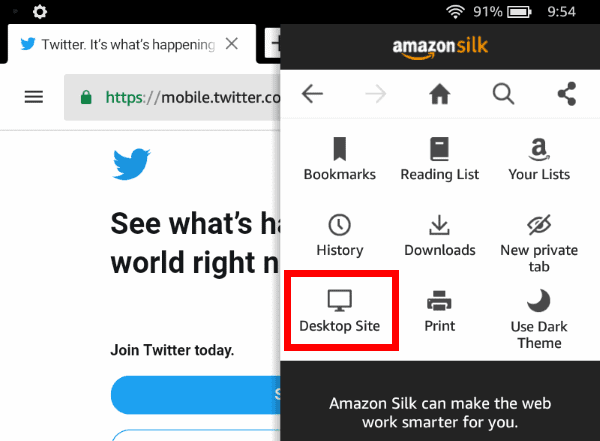
  4. Select “Desktop site“.

Older Versions of Kindle Fire

  1. Open the “Browser“.
  2. Tap the “Menu” button and select “Settings“.
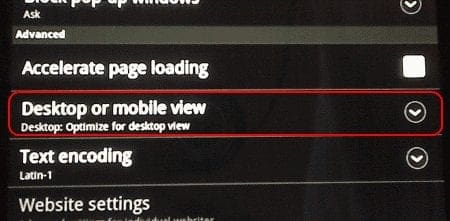
  3. Scroll down and tap the “Desktop or mobile view” setting.
    Kindle Fire Browser desktop or mobile view setting
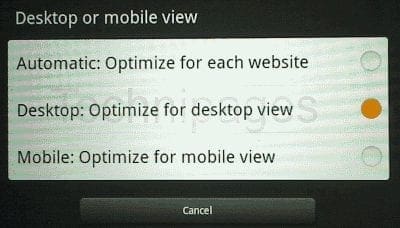
  4. Choose “Desktop: Optimize for desktop view“.
    Kindle Fire change to full version of web page setting

The Kindle Fire will now only display full version of web pages and never display the mobile version.


Categories: Android

Author Mitch Bartlett

Through my career that spans over 20 years I have become an expert in Microsoft Systems Administration, Android, and macOS. I started this site as a technical guide for myself and it has grown into what I hope is a useful knowledgebase for everyone.

You Might Also Like

  • microsoft-solitaire-error-124

    How to Fix Microsoft Solitaire Error 124 on Android

    Madalina DinitaAndroid
  • Measure-Distance-Walked-Google-Maps

    How to Access and Erase Your Google Maps History

    Judy SanhzAndroid
  • Android-Auto-Communication-Errors

    How to Fix Android Auto Communication Errors

    Madalina DinitaAndroid
  • fix-media-storage-draining-battery-android

    Fix: Media Storage Is Draining Battery on Android

    Madalina DinitaAndroid

Comments

  1. Stephanie Tackett says:
    March 10, 2023 at 11:13 am

    I have to CONSTANTLY hit DESKTOP SITE on my Amazon Fire Tablet due to HACKING INTERFERENCE.

  2. Tricia says:
    June 11, 2020 at 11:10 pm

    When I click on desktop site it don’t change. It sstill looks the same.

  3. Stan says:
    May 30, 2019 at 10:11 pm

    As of 2019 May 30, YouTube will not stay in desktop ( “www.” reverts to “m.” ). Silk is in desktop (dropdown options show “mobile site”, meaning that you are in desktop mode)
    Kindle Fire, 5th generation.
    It was fine yesterday

  4. She Thompson says:
    January 27, 2019 at 12:41 pm

    I have a Kindle Fire 8 2018 version and I have to constantly hit desktop site from all sites that I visit. It does not stay on the desktop version. How do I keep it there or is that even possible? I’m beginning to think not.

  5. Luis Saltiel says:
    December 27, 2018 at 8:28 pm

    I’m trying to do the same, but using an Amazon Fire tv Cube. I can’t scroll sideways on Silk nor on Firefox, which makes the box useless for viewing tv websites. Any suggestions?

Leave a Reply

Your email address will not be published. Required fields are marked *

  • browser screen goes black

    Browser Screen Goes Black Intermittently 

  • computer heating up in hyper v

    Computer Heating Up When Using Hyper-V – How to Fix 

  • clipchamp unexpected application error

    Clipchamp Unexpected Application Error: Here’s the Solution 

  • winload.efi file missing error

    Winload.EFI File Missing Error on Boot – How to Fix

  • fix error 0x9cfc7550

    How to Fix Error 0x9cfc7550 (We Couldn’t Create a New Partition) in Windows 

profile pic

The Experts Behind Technipages

My name is Mitch Bartlett. I've been working in technology for over 20 years in a wide range of tech jobs from Tech Support to Software Testing. I started this site as a technical guide for myself and it has grown into what I hope is a useful reference for all.

Learn More

technipages logo white
linkedin icon

Technipages is part of Guiding Tech Media, a leading digital media publisher focused on helping people figure out technology. Learn more about our mission and team here.

© 2025 Guiding Tech Media All Rights Reserved

  • About Us
  • Contact
  • Terms of Use
  • Privacy Policy

© 2025 Guiding Tech Media All Rights Reserved

Information from your device can be used to personalize your ad experience.
Do not sell my personal information.

Last Updated on December 8, 2018 by Mitch Bartlett