

If your Zoom camera is inverted or side-ways, that will first put a big smile on your face. For a strange reason, upside-down images are always fun to watch. But if you’re attending a work-related Zoom meeting, there’s no time to put on a funny face. You need to solve the problem so that people don’t get distracted by the inverted image and actually pay attention to what you’re saying.
Contents
How to Fix Upside down Zoom Camera Images
Rotate Your Camera
If your Zoom camera is upside down or sideways, most likely, this is because of your current settings. You can quickly change the camera orientation directly from the app’s settings.
It does not matter how you actually mounted your webcam. You can always control the image orientation from the settings section. Use the method below before the meeting starts.
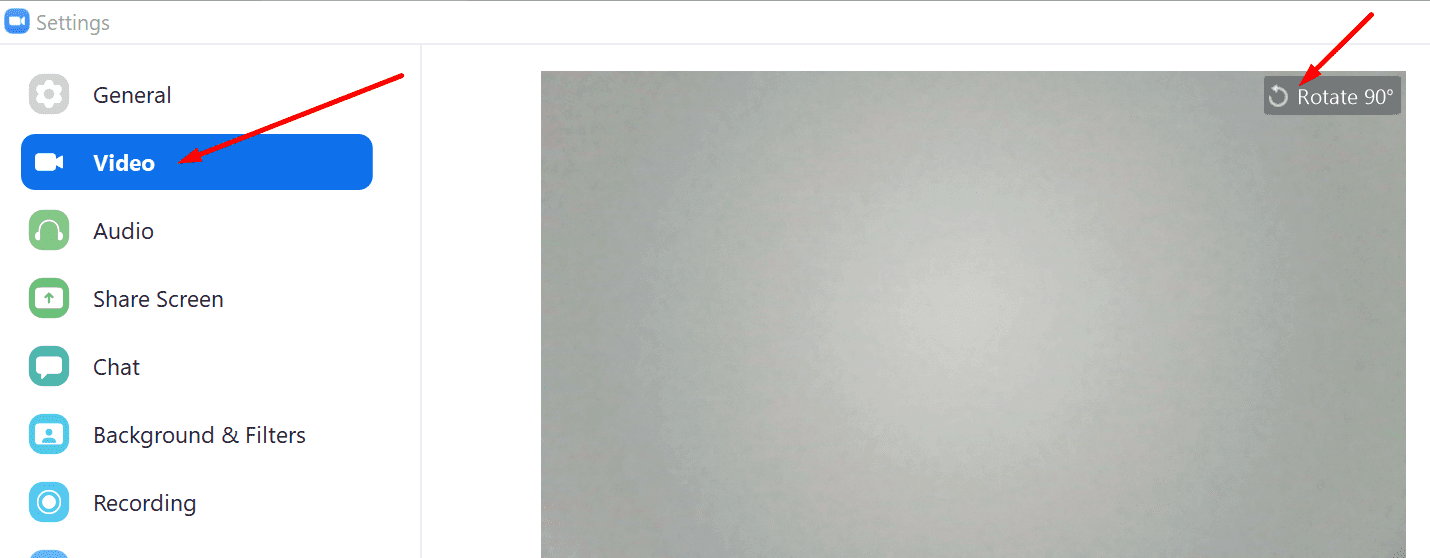
- Click on your profile picture and go to Settings.
- Then select Video.
- On the preview of your camera, there’s a Rotate 90° option. Click on it until the camera image is displayed correctly.
If you’re already in a meeting, the steps to follow are a bit different.
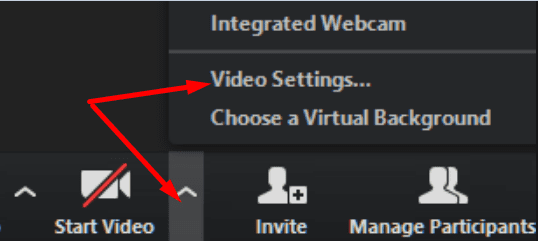
- Locate the Stop video option. There’s a down arrow next to it.
- Click the arrow and select Video Settings.

- The preview of your camera should now appear on the screen.
- Hit the Rotate 90° button to fix your image.
Why Is My Zoom Video Backwards?
Many users are also wondering why their videos are backward. This becomes obvious when you’re writing something on a piece of paper and then hold it in front of the camera. The writing appears backward.
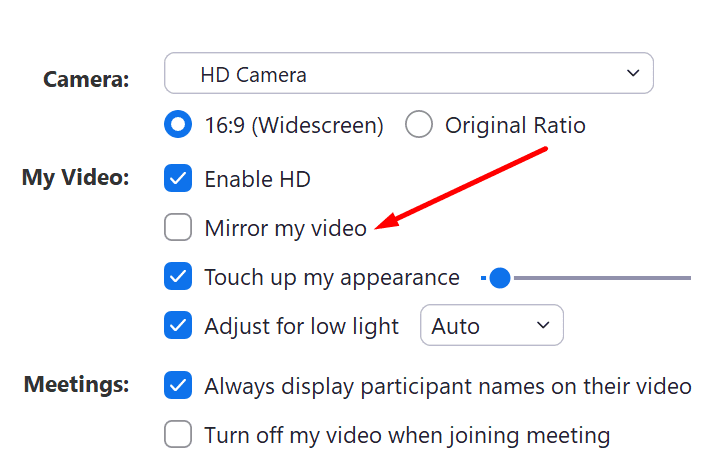
This is because Zoom mirrors your videos by default. After all, that’s how the image would look like if you were standing in front of a mirror. However, if you don’t like that, you can go to Video Settings and uncheck Mirror my video.
Conclusion
If your Zoom camera is upside down, you can use the Rotate 90° option to display the image correctly. On the other hand, if your video is backward, you can disable the option that mirrors your video.
There you go, we hope this guide was useful to you. If you’d like to add anything on this topic, feel free to drop us a comment below.





My video has been opening sideways the past month or so.
I just updated my zoom now, and my video displays correctly – FINALLY!
I hope this was the fix – updating
How can I avoid rotating it every time I sign into zoom. Each time I rotate it manually to 90 whenever I sign in. I need a permanent solution please
My camera has been sideways for about a month now by default. I can manually fix it, but I would like to know why this started happening suddenly? This hadn’t been the case for the past year.
my video is sideways in Zoom only,. I can manually change it once on, but it does not save. How do I make it permanent?
no help, since there is no option on my video settings to rotate 90 degrees. Not there at all, so the video is still upside down. Maybe this only works on PCs, not Macs.
Hi can you help me please? Everytime I sign into zoom, my camera is always sideways and I have to rotate manually, is there any way I can fix this permanently?
No, this is a temp fix. Everytime I start a meeting, I am always sideways. Please help.
The sideways view just started happening. I rotate it to landscape but now everytime I sign onto Zoom it still comes up sideways. I have to keep changing it. Is there a permanent fix
Whenever I need tech help, your page comes up .. and it’s always spot on .. thanks!
What devices and/or platforms is this article relevant to? Specifically I am trying to do this on an iPad, whereas this article seems only relevant to a Mac or PC.
I appreciate your well written articles! I frequently end up on one of your articles when I am searching for answers. Thank you!
No.because I am using iPad not computer.
My video is sideways on zoom meeting