If you’re still telling your friends when they should start and stop watching a video, there’s no need to do that. YouTube has a feature where you can create a clip from the video you’re watching, so you don’t have to add that additional information. It’s also a great option to send yourself clips of things you want to save for later. You’ll see that there is a valuable tool you can use that allows you to send the amount of video you want.
How to Create a YouTube Clip
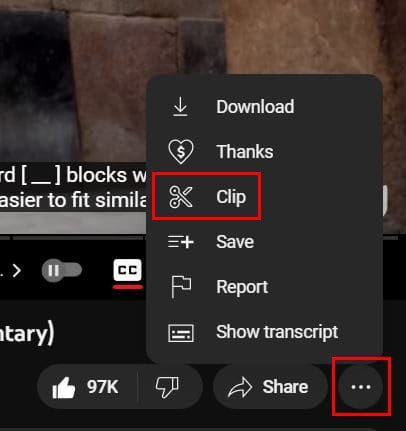
You’ll need to sign into your account to create a clip from a YouTube video. The option to create a clip will only be visible if you’ve signed in. So if you don’t see it, that could be the reason why. Once you have found the video, you want to make a clip from, click on the dots to the right of the Share button and choose the Clip button.
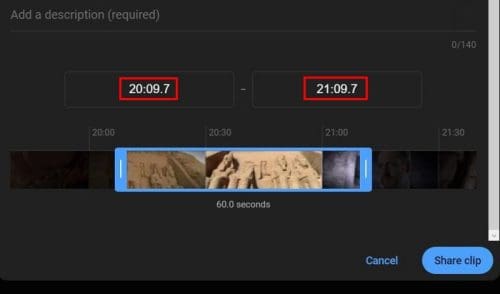
In the next window, you’ll see an area where you can add a description. Below that, you’ll see a window you can adjust the sides to make the clip as big as you’d like. Make sure that the part of the video you want to include is inside that time frame. If you don’t feel like moving the sides of the window and want to add a more precise time, you can manually by entering the time above the window.
Once you have the clip ready, don’t forget to click on the blue Share clip button at the bottom right. If you get a message saying you cannot create the clip, check to see if you forgot to add a description. You can’t leave that area empty. When the clip is ready, copy the link you’re given and share by using whatever app you want.
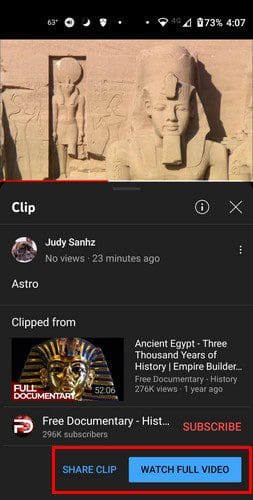
When the other person accesses the link, they will be taken to YouTube, where they will only see the part you sent them. But, if they want to see the full video, they will see a button to click on. They will see the description you added and a scissor icon indicating it’s a clip.
If you ever need to share the video again but can’t find it, YouTube has an area where you can see all your clips. The clip will have the option to delete or share it in that area. To view your created clips, click on the three-lined menu and go to Library. Your clips will be at the bottom. To view all your clips, click on the See all option on the right.

Creating and Sharing a Clip on Your Android Phone
Creating a YouTube clip on your Android device is more accessible. The Clip option is right below the video, even though you’ll need to swipe left a little to see it. Tap on it, and you’ll see the same options you would on the desktop. You’ll need to create a name/description for the clip, and they will share it.
For example, you can share through WhatsApp, and when the other person gets the link, the video will have a scissors icon. That will indicate that the video they are getting is not complete.
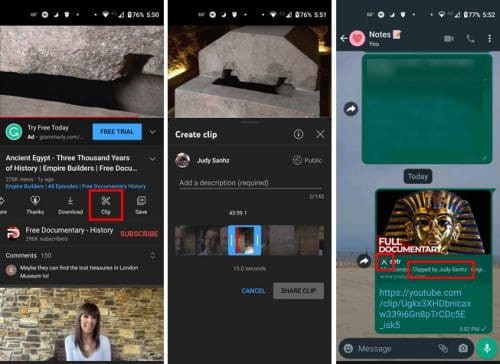
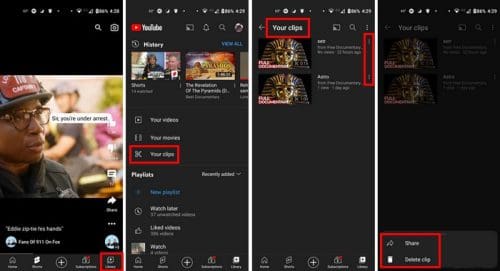
When the other person is done watching the video, it’ll play in a loop. To view your created clips, tap on the Library option at the bottom right. When you do, tap on the Your Clips option, it’ll be the third one down from the list. You’ll see your videos from the most recent. If you see a clip you want to erase or share, tap on the dots to the right and choose one of those two options.
Conclusion
Creating clips on YouTube is a great way to share specific parts of a video with others. Before, you would have to tell them from what minute of the video they would have to click on. When the video is done, it’ll simply loop and start over. Even better, it is a feature you don’t have to pay for. How useful do you find YouTube Clips? Share your thoughts in the comments below, and don’t forget to share the article with others on social media.