

You’re expecting a message from a friend. When you finally hear the notification sound, you rush to check your phone to only see you didn’t get the message you are waiting for. Since you get the same notification sound for all your WhatsApp messages, there’s no way to know whose message it’s from. Or, is there?
Contents
How to Customize Your WhatsAppNotification Sounds
The good news is that WhatsApp has a large variety of notification sounds to choose from. It even allows you to add a notification sound of your own, whether you have them on your Android device or get it from a third-party app. Let’s see how you can change the notifications sound for all your contacts or only a few of them.
Open WhatsApp and open the contacts whose notification sound you want to change. Tap on the dots at the top right and choose View Contact.

Once you’re in the contact’s settings, look for and tap on the Custom notifications option. It should be the second one down.
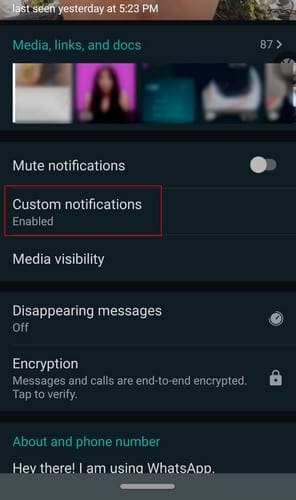
At the top, you’re going to see a box for the Use custom notifications option. Check that box, and more options will become available. Tap on the notification tone and choose from the options WhatsApp has to offer, or you can tap on the add ringtone option at the very end and choose one from your device.

How to Install New Notifications Sounds for WhatsApp
If you have an app like Zedge installed, you’ll see the app icon after tapping on the notification sound option. Tap on the Zedge icon and go to the ap’s notification sound section. Look for a tone you like and download it. Don’t forget to set it as a tone or add it to the media folder.

As long as you’re in the notification section of WhatApp, you can also turn on or off the notifications’ vibrate option. If you don’t want to miss a single notification, you can also toggle the Use high priority notifications.

How to Change Notification Sound for All WhatsApp Contacts
If you want a fresh start for all your WhatsApp contacts, tap on the dots at the top right and go to Settings.
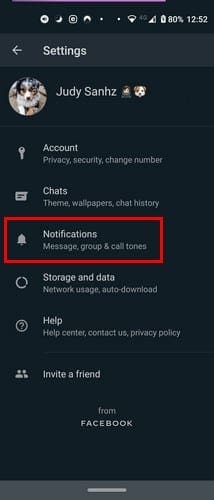
Tap on the notifications option, and you’ll end up in the notification settings. Tap on the Notification tone option and choose your new tone.
How to Change Notification Sound for WhatsApp Groups
Who isn’t in a WhatsApp group, right? If you’re in quite a few, you might be interested in giving each group their own notification sound. That way, you know if it’s worth picking up your phone or not.

Open WhatsApp and open the group whose notification sound you want to change. Go to group info by tapping on the group name on the top or tapping on the top right dots. The Custom notifications option will be the second one on the list. Check the box for the Use custom notifications option at the top. If you don’t check the box for this option, the other notifications options won’t be available.
To change the notification sound, tap on Notification tone and choose your new sound. You can choose your new sound from your Android device or a third-party app you’ve already installed.
Conclusion
A change every now and then is okay. That way, you can enjoy the latest notification sounds out there. If you ever miss the sounds you use to use, you can always go back and change them. How often do you switch between notification sounds? Share your thoughts in the comments below.





I’d like to turn off push notifications for one of my group chats, but keep them for the other group chats. I can see no way to do this. When I go to Group Info, there is no “Custom Tone” option. I have an iphone 7 running iOS 15.7.1.
Thanks been wandering in the menue minefield for days , since a new phone..
none of these procedures work on my a32 android phone
Why was the first time I used WhatsApp there was no charge?