
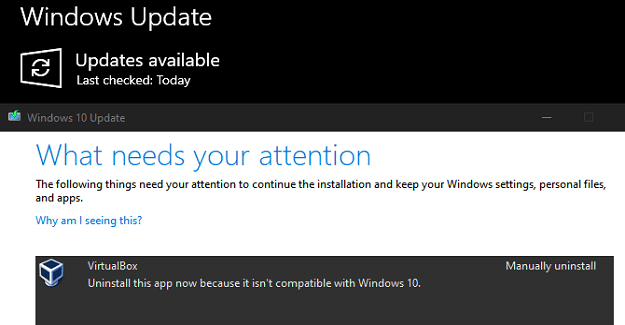
Your Windows computer may sometimes get stuck while installing the latest updates. The device may occasionally prompt you to manually uninstall VirtualBox as it’s not compatible with Windows. Unfortunately, uninstalling Virtualbox won’t help you get rid of the error.
The update process often halts at 35 percent even after removing VirtualBox. After a couple of minutes, a pop-up window prompts you to uninstall Virtualbox again. Let’s see what you can do to fix this problem.
Why Do I Need to Uninstall VirtualBox Before Updating Windows?
If the VirtualBox version you’re running is not compatible with the Windows OS version you’re trying to install, the update process will get stuck halfway through. That’s why your computer invites you to manually uninstall VirtualBox.
However, some apps that used VirtualBox might still be conflicting with the update process even after uninstalling the hypervisor. You need to find the problematic programs and move them to a non-OS drive. If this approach doesn’t work, you’ll need to remove conflicting apps.
Fix: Windows Update Prompts Me to Manually Uninstall VirtualBox
Determine Which App Is Blocking the Update
Windows Setup automatically runs a compatibility check to ensure you don’t have any incompatible apps with the OS version you’re trying to install. To identify the culprit, you need to examine a hidden log file.
- Launch File Explorer and click on the View tab.
- Check the Hidden items box.
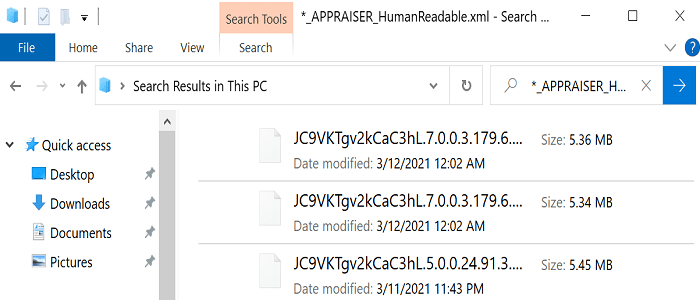
- Then click on This PC and enter *_APPRAISER_HumanReadable.xml in the search box.

- Identify all the file names that have this term at the end.
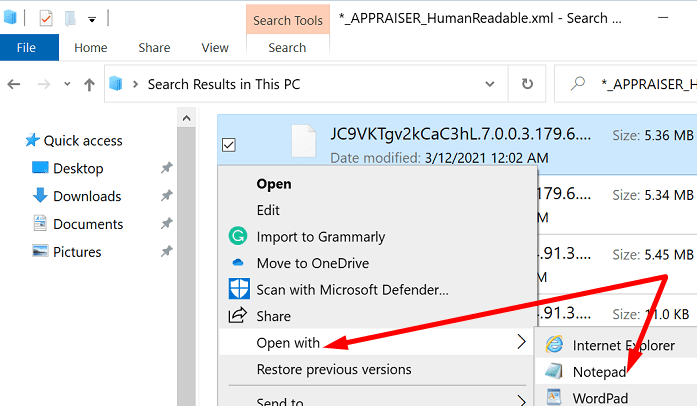
- Right-click on the _APPRAISER_HumanReadable.xml extension and open the respective file in Notepad.

- Then press CTRL and F and search for DT_ANY_FMC_BlockingApplication.
- Locate the entries that have the value set to True.

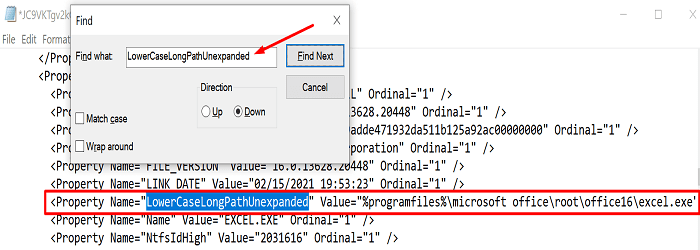
- Press CTRL and F again. This time, search for LowerCaseLongPathUnexpanded.
- Note: The value shows the file path of the program that’s blocking the update.
- After that, select the file path listed in the LowerCaseLongPathUnexpanded value field. Copy it to Notepad.

- Then paste that file path into File Explore’s address bar. Hit Enter to go to the respective location.
- Locate the blocking.exe file. You can either delete that program or move it to another drive (non-OS drive).
- Restart your computer and check for updates again.

List of Programs Known to Block Windows Update
Many Windows users noticed that certain apps and programs often tend to conflict with Windows Update. Some of them include:
- Bluestacks, LDPlayer, and other Android emulators
- Dell Storage Drivers
- Infineon TPM
- Kaspersky Antivirus
- Linux Live
- Microsoft Office apps (surprisingly)
- Nero
- Norton Ghost
- PGP 8.1
- Realtek PCI-E Card Reader
- Roxio
- Sonic Studio DLA Application
- Spy Sweeper
- Symantec Endpoint Protection
- Trend Micro
- Webroot/McAfee
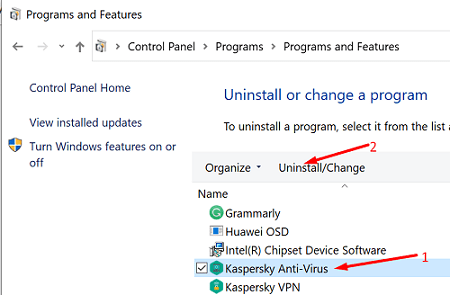
If you installed any of these programs, go to Control Panel, select Uninstall a program and remove them.
Completely Uninstall VirtualBox
Make sure to remove all VirtualBox files from your computer when you uninstall the tool.
- Go to Control Panel and select Uninstall a program.
- Then select VirtualBox and hit the Uninstall button.
- Uninstall all the emulators installed on your machine as well.
- Note: You can reinstall them after upgrading to the latest Windows OS version.
- If you’ve got a software uninstaller at hand, run it to remove all VirtualBox traces.
- Restart your computer. Check if you can install the latest OS updates.
Conclusion
If you can’t install the latest Windows updates because you need to uninstall VirtualBox first, remove the tool and all the emulators uninstalled on your device. Then check if other programs or files are still using VirtualBox. They could also block the update. Uninstall these programs as well.
Did you manage to fix the problem? Let us know in the comments below.



I am using S2012 R2 Standard and it fails to recognise VirtualBox and therefore I am unable to see anything to remove. I also have HyperV installed separate to VirtualBox v. 7.0.6 – will this prevent it from running or me from seeing it to remove it?
Unable to find VirtualBox. Upgrade says it is preventing the install, but I am unable to find VirtualBox.
virtual box is not getting uninstall
Too all pour souls, if you like me keep installers of the blocked programms they are detected too, so if you have a virtual box installer they are forbidden as well
The post by Alex – many thanks! – was the key for me. Did the same thing, problem solved.
Was updating to Windows 11. Run into this error, but Virtualbox was not anywhere on an app list. (No not Oracle either.) Went to Oracle, found the latest version of Virtual Box, installed it and walah now the install of Windows 11 is going fine.
Thanks. This worked.
In my case, the problem was caused by VirtualBox and LinuxLive USB Creator.
I saw in that xml file that LL USB is related to Oracle, so I uninstalled it, and it worked fine after that (with no further edits).
I came back to 10 after 15 minutes still…