
You make all sorts of changes to your ProntonMail account. For example, you enable two-factor authentication and revoke old sessions to stay safe. But there are other changes you can make to your account. You can add your personal touch by changing the layout and the theme. You can also add some color and change how your text looks.
How to Personalize Your ProtonMail Account
To make your ProtonMail account look the way you want it to, let’s start by changing the theme. There isn’t a long list of options, but the available ones are good. To access the themes, click on the cogwheel at the top right and choose theme.
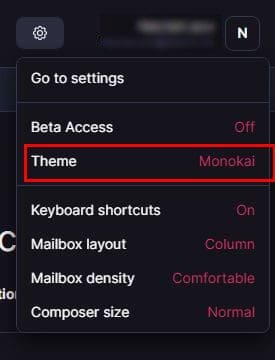 Once you’re in theme, you can choose from seven themes. For example, you can choose from themes such as:
- Proton
- Classic
- Carbon
- Monokai
- Snow
- Contrast
- Legacy
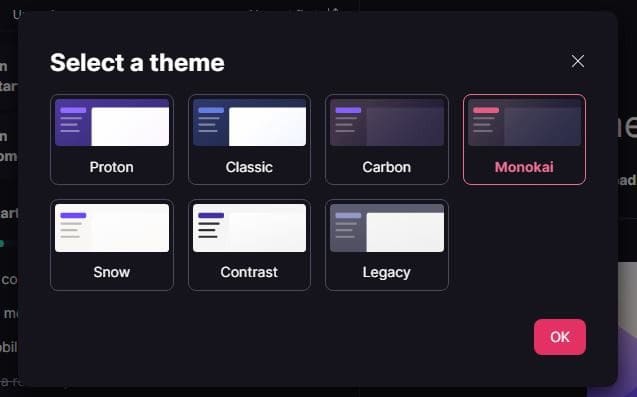
Once you’ve chosen your color, don’t forget to click on the OK button. You can change the color at any time by following these steps. Hopefully, ProtonMail will add more colors and even allow images to form part of the theme.
Change Mailbox Layout
There’s also the option of changing the layout of your inbox. To do this, click on the cogwheel at the top and choose the Mailbox layout option.
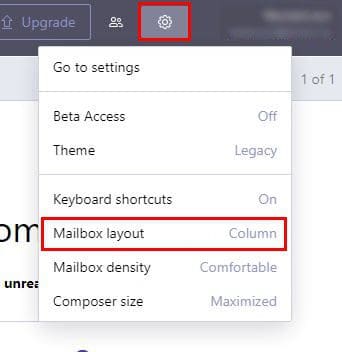
There are two layouts to choose from. You can choose from the Column or Row option. The column row allows you to click on the email and view it on the side without losing sight of the other unread messages.
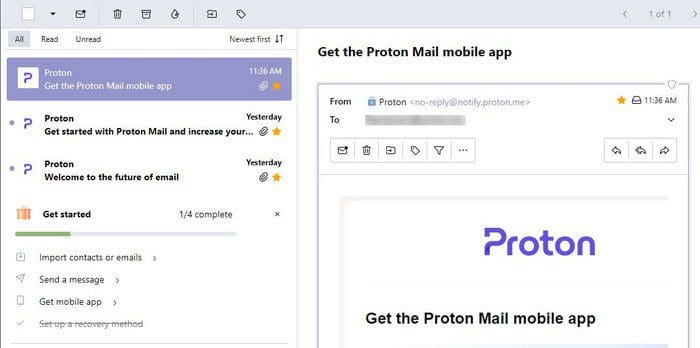
Then you have the Row look that when you click on an email, it takes up the whole page when you open it.

You can also change the inbox density. Click on the cogwheel again and choose Mailbox Density. There are two options to go with: Comfortable and Compact. If you like to save as much space as possible, then the compact option is the best for you.
Resize the Compose Windows
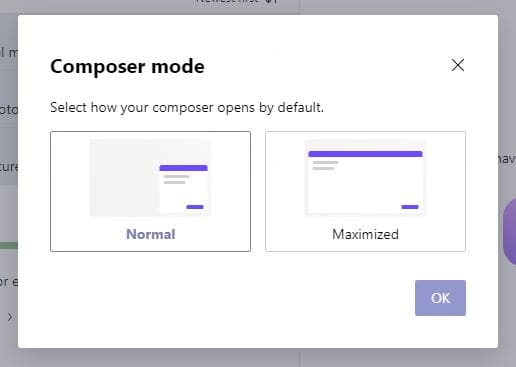
The size of the composer window can also be changed. Click on the cogwheel and go to Composer Size. You can choose from Normal or Maximized. If you choose the standard size, the composer window will only take up a small space to the right. But if you go with the Maximized option, as the option says, it will take up the entire screen. You can switch back at any time.
Other Composing Details
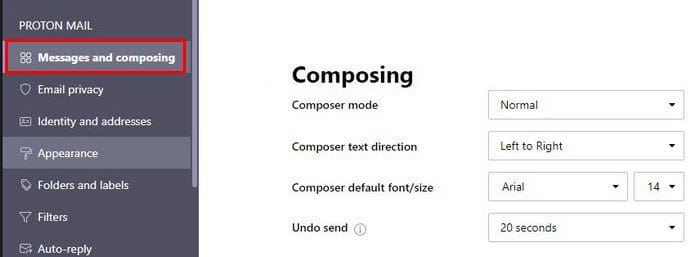
You can make other useful changes by going to Settings and then Messages and composing. For example, go to the Composing section once you’re in Messages and composing. You’ll see options such as:
- Composer mode – You can choose from normal and plain text.
- Composer text direction – Set it right to left or left to right.
- Composer default font/size – Just like the options says, you can change things such as the font style and size.
- Undo Send – You can choose from times such as 0 seconds, five seconds, 10 seconds, and 20 seconds.
Conclusion
It’s possible to give the ProtonMail inbox the color you like, but the theme is not like the Gmail theme, where you can see a picture that forms part of the theme all over the background. At least you’re not stuck looking at only one color all the time. You can also change how compact or not the inbox looks too. What other customization options would you like ProtonMail to have? Let me know in the comments below, and don’t forget to share the article with others on social media.



Proton Mail fonts in my browser dispay gibberish. Can I turn off html display fonts? Other apps this works and is an option