
If you’re not 100 percent satisfied with the specs most computers offer nowadays, you can build your very own rig. Of course, this requires in-depth understanding of hardware, how a computer works, and how to connect various pieces of hardware.
Many users who upgraded their motherboard encountered error 99 at the bottom right of the screen the first time they booted up their rig.
If you’re experiencing the same error and you have no idea how to fix it, you’ve come to the right place.
Contents
Troubleshooting Motherboard Error 99
Make sure everything is properly connected
Make sure all the hardware components have been properly inserted — there should be no loose wires or loose pieces of hardware.
Ensure your GPU is properly seated and the power connection is working as it should.
Disconnect other peripherals
If you’ve got other USB devices connected to your computer, remove all of them.
If error 99 was triggered by some input/output issues or a power issue, disconnecting all the peripherals should do the trick. It’s as simple as that.
Clear the CMOS battery
Perhaps the most common trigger for error 99 is the temporary data that your CMOS battery failed to flush out in between startups. This leads to inconsistencies between the UEFI or BIOS settings.
To solve this problem, you need to open your PC case and then manually remove the CMOS battery. Depending on your device, this may prove to be quite a complex operation. Some laptop modems may require you to take everything apart in order to reach the CMOS battery. If you’re not very tech-savvy, it’s best to have a professional help you out with that.
But roughly, these are the steps to follow:
- Power off your computer and make sure to unplug the power cord.
- Open the case and locate the CMOS battery on the motherboard.
- Gently use a toothpick or your fingernail to remove the battery from the slot.
- Leave the battery out for one minute — that should be enough time for your motherboard to clear all the CMOS battery data.
- Insert the battery back and put back the case making sure everything is connected properly.
- Plug the power cord back in and boot up your device.
Reset your BIOS/ UEFI settings
BIOS and UEFI are two different low-level software types that start right-after you boot up your computer to prepare the hardware for the OS launch.
Sometimes, resetting your BIOS or UEFI settings (depending on your computer configuration) may fix motherboard error 99 if you randomly get this error code.
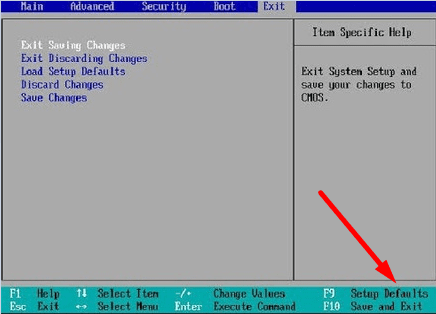
Method 1 – Use the dedicated BIOS key
- Enter your BIOS settings by pressing the Del key, the Esc key, or one of the F keys depending on your motherboard menu.
- Locate the Reset to Default, Setup Defaults, or Factory Default menu — again, the name may vary depending on your motherboard.

- Select the Load Setup Defaults option to reset your settings.
Method 2 – Use the troubleshooting menu
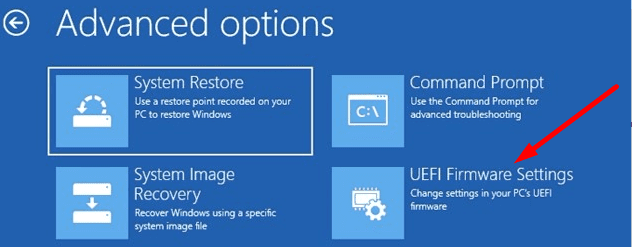
- On Windows 10, press the Shift key and click on Restart.
- Then, click on the Troubleshoot option.
- Select Advanced options.
- Click on the UEFI Firmware Settings option.

- Select Restart to enter the UEFI settings.
- Select the Restore Settings option to reset your BIOS/ UEFI settings.
- Press F9 if the Restore Settings option is not visible.
Let us know if you managed to fix motherboard error 99 with the help of this guide.




Hi, first i apologize for my English
I do everything step by step, but my PC don’t even start the bios, I don’t know what to do and everything works (or i think so) before the “99” error everything works correctly.