

Error code 0x80071160 may sometimes prevent you from installing the latest Windows updates on your machine. If this is only a temporary issue, restarting your computer and router should be enough to fix it. If the problem persists, pursue the troubleshooting steps below.
Contents
How Do I Fix Error Code 0x80071160 on Windows?
Run the Windows Update Troubleshooter
Running the built-in Windows Update troubleshooter is the first solution you should use to fix Windows Update errors. Microsoft has developed this tool specifically to fix update errors.
Go to Settings, and select System. Then, click on Troubleshooter, and select Other troubleshooters. Let the Windows Update troubleshooter scan your computer and fix error code 0x80071160.
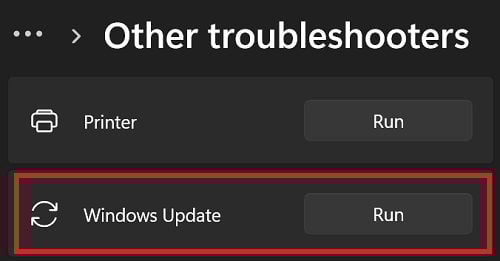
Then, restart your computer, and check if the error persists.
Restart the Update Services
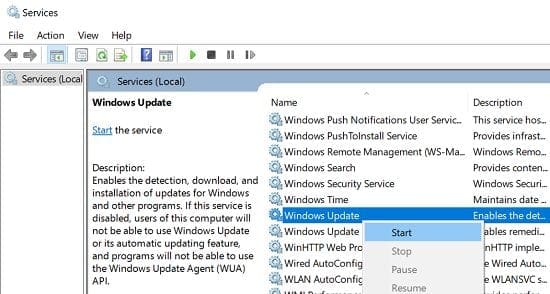
Make sure the Windows Update and Background Intelligent Transfer Services are running on your machine.
- Click on the Search icon and type services.
- Double-click on the Services App.
- Right-click on the Windows Update service.

- If the service’s status is Stopped, select Start.
- Then, double-click on the Background Intelligent Transfer Service.
- Restart the service if it’s not running.
Reset the Windows Update Components
Additionally, you can also use Command Prompt to reset the Windows Update components.
- Launch Command Prompt as an admin.
- Run the commands below to stop the Update Services:
net stop bitsnet stop wuauservnet stop appidsvcnet stop cryptsvc
- Run the following commands to delete the qmgr*.dat files created by BITS:
Del "%ALLUSERSPROFILE%\ApplicationData\Microsoft\Network\Downloader\*.*"
- Press Y to confirm your choice.
- Enter the commands below to clear the Windows Update cache:
rmdir %systemroot%\SoftwareDistribution /S /Qrmdir %systemroot%\system32\catroot2 /S /Q
- Then, enter the following commands to restart the Update Services:
net start bitsnet start wuauservnet start appidsvcnet start cryptsvc
- Check for updates again.
Run DISM and SFC to Repair System Files
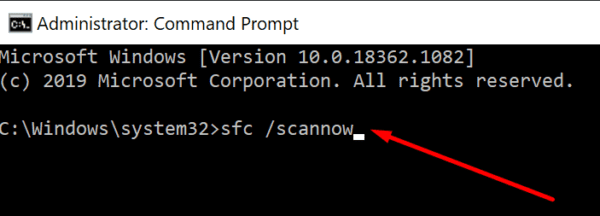
If some of your system files got corrupted, don’t be surprised if you can’t install the latest Windows updates. Run DISM and SFC to repair your system files, and check for updates again.
- Launch Command Prompt with admin privileges.
- Then, run the following commands:
DISM.exe /Online /Cleanup-Image /Restorehealthsfc /scannow
- Restart your computer, and check if you can install the latest updates.
Manually Download the Updates
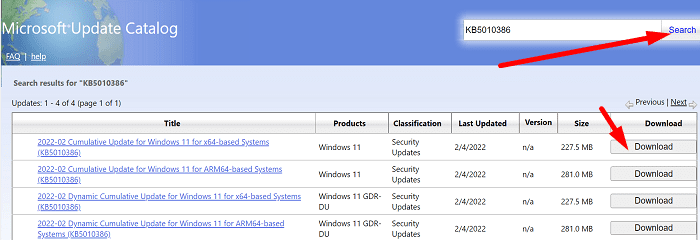
If nothing works, try to install the problematic updates manually. If you’re trying to install a cumulative update, go to the Microsoft Update Catalog website. Enter the KB number of the update in the Search field and hit Enter. Select the update you’re interested in and hit the Download button.
If error code 0x80071160 pops up when you’re trying to install a new OS version, use the Update Assistant to upgrade your computer.
Conclusion
If error code 0x80071160 is preventing you from updating Windows, run the Update troubleshooter, and restart the Update Services. If the issue persists, reset the Windows Update components. Additionally, run DISM and SFC to repair faulty system files. If nothing works, install the problematic updates manually.
Did you manage to solve the problem and update your computer? Hit the comments below and let us know which solution worked for you.



Yes. It did help. The issue was resolved. Thanks a lot.
this really helped, no cap lmao