Skip to content
LogoTechnipages
LogoTechnipages
  • Topics
        • Android
        • Browsers
        • Gaming
        • Hardware
        • Internet
        • iPhone
        • Linux
        • macOS
        • Office
        • Reviews
        • Software
        • Windows
        • Definitions
        • All Recent Posts
  • Product Reviews
  • About

How to Fix Windows 10 Update Error 0x80004005

Madalina DinitaJune 26, 2021 Comments (0)
Windows-10-Update-Error-0x80004005-Fix

The list of Windows update errors is endless. For this reason, many users often postpone updating their computers for as long as they possibly can. Error code 0x80004005 is one of the most common Windows 10 update errors. If you’re looking for a solution to fix this error, pursue the troubleshooting steps below.

Contents

  • 1 How Do I Fix Windows 10 Update Error 0x80004005?
    • 1.1 Stop Updates for 7 Days
    • 1.2 Run the Update Troubleshooter
    • 1.3 Run SFC and DISM
    • 1.4 Close Background Apps and Disable Your Antivirus
    • 1.5 Restart the Update Service
    • 1.6 Conclusion

How Do I Fix Windows 10 Update Error 0x80004005?

Stop Updates for 7 Days

Surprisingly, some users managed to fix this issue simply by hitting the option that says “Pause updates for 7 days“. But you don’t have to wait for seven days. Instead, wait for a few minutes, then check for updates again.

windows-10-update-error-0x80004005

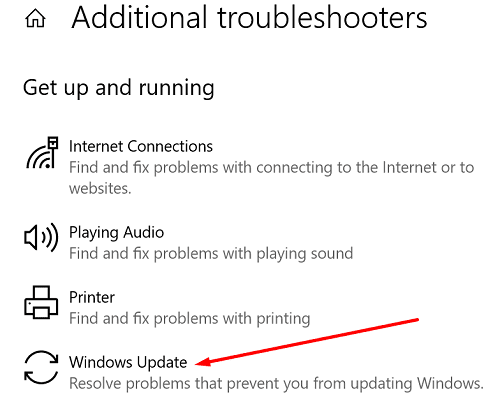
Run the Update Troubleshooter

Run Windows 10’s built-in troubleshooter to automatically detect and fix the issues blocking the updates.

  1. Go to Settings, and select Update and security.
  2. Then click on Troubleshoot.
  3. Go to Additional troubleshooters.
  4. Click on Windows Update and run the troubleshooter.
  5. Check if you can install the newest updates.
Run SFC and DISM

Corrupted Windows system files may prevent you from installing the latest updates. Run the System File Checker and DISM to fix corrupted system files.

  1. Launch Command Prompt with admin rights.
  2. Run the sfc /scannow command and hit Enter.
  3. Then run the following two commands:
    • Dism /Online /Cleanup-Image /CheckHealth
    • Dism /Online /Cleanup-Image /RestoreHealth
  4. Check if the problem is gone.

Close Background Apps and Disable Your Antivirus

The programs and processes running in the background might be interfering with the Windows Update service. Disable all of them and check the results.

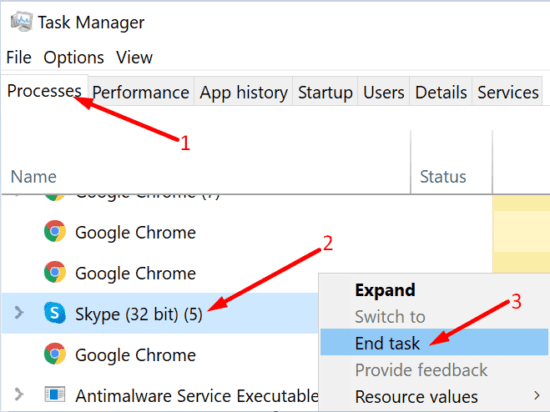
Launch the Task Manager, and click on the Processes tab. Next, Right-click on the process you want to close and select End task.end task skype task manager
To disable your antivirus, go to Windows Security, and click on Virus and threat protection. Next, go to Manage Settings and disable real-time protection.
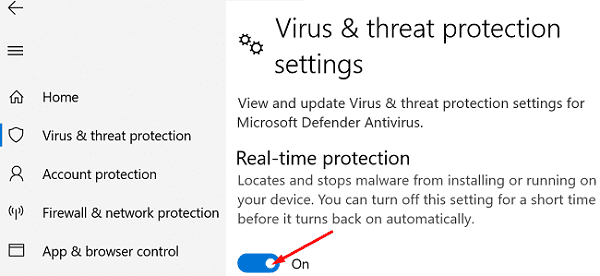
windows-security-real-time-protection

Restart the Update Service

Make sure the Windows Update Service is running on your machine. Then, try restarting the service and check the results.

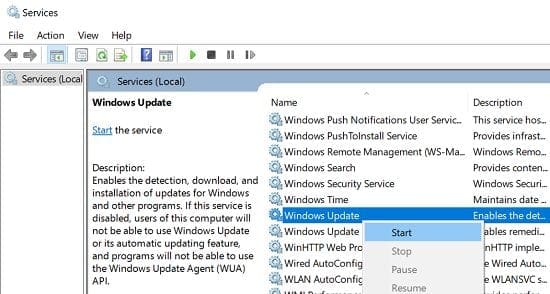
  1. Type “services” in the Windows Search bar and double-click on the Services app.
  2. Locate the Windows Update service. If it’s disabled, right-click on it and select Start.restart-windows-update-service
  3. If the service is already running, disable it and wait for two minutes. Then re-enable it, and check for updates again.
Alternatively, you can also use Command Prompt to restart the Windows Update service. To do that, run the following commands one by one:

  • net stop bits
  • net stop cryptsvc
  • net stop wuauserv
  • net stop msiserver
  • Ren C:\Windows\SoftwareDistribution SoftwareDistribution.old
  • Ren C:\Windows\System32\catroot2 Catroot2.old
  • net start bits
  • net start cryptsvc
  • net start wuauserv
  • net start msiserver

Conclusion

If error code 0x80004005 prevents you from installing the latest Windows 10 updates, run the Windows Update troubleshooter. If the problem persists, run the SFC and DISM commands and close all the background apps. Additionally, restart the Windows Update service and check the results. Finally, hit the comments below and let us know if these methods helped you fix the problem.

Categories: Windows

Author Madalina Dinita

Madalina has been a Windows fan ever since she got her hands on her first Windows XP computer. She is interested in all things technology, especially emerging technologies -- AI and DNA computing in particular.

You Might Also Like

  • How to Add Holidays to Outlook Calendar on Windows and Web App

    How to Add Holidays to Outlook Calendar on Windows and Web App

    Susan SheffieldOffice
  • How to Print Labels From Excel Using MS Word Mail Merge

    How to Print Labels from Excel Using MS Word Mail Merge

    Susan SheffieldmacOS
  • Win 11 Two Finger Scroll Header

    How to Fix Two-Finger Scroll Not Working Issue on Windows 11

    Susan SheffieldWindows
  • How to Keep Task Manager Always on Top on Windows 11

    Judy SanhzWindows

Leave a Reply

Your email address will not be published. Required fields are marked *

  • browser screen goes black

    Browser Screen Goes Black Intermittently 

  • computer heating up in hyper v

    Computer Heating Up When Using Hyper-V – How to Fix 

  • clipchamp unexpected application error

    Clipchamp Unexpected Application Error: Here’s the Solution 

  • winload.efi file missing error

    Winload.EFI File Missing Error on Boot – How to Fix

  • fix error 0x9cfc7550

    How to Fix Error 0x9cfc7550 (We Couldn’t Create a New Partition) in Windows 

profile pic

The Experts Behind Technipages

My name is Mitch Bartlett. I've been working in technology for over 20 years in a wide range of tech jobs from Tech Support to Software Testing. I started this site as a technical guide for myself and it has grown into what I hope is a useful reference for all.

Learn More

technipages logo white
linkedin icon

Technipages is part of Guiding Tech Media, a leading digital media publisher focused on helping people figure out technology. Learn more about our mission and team here.

© 2025 Guiding Tech Media All Rights Reserved

  • About Us
  • Contact
  • Terms of Use
  • Privacy Policy

© 2025 Guiding Tech Media All Rights Reserved

Information from your device can be used to personalize your ad experience.
Do not sell my personal information.