Trying to save as much storage space on your Android device is a never-ending battle. You try only to have apps you use and back up heavy files to the cloud. But, duplicates can also take up unnecessary space and cause performance issues.
Erasing those duplicate files manually would take forever. Good thing some apps can find duplicate files for you. You never know; maybe an app you already have installed has that feature, and you notice it. Here are some apps and ideas you can try to get rid of those duplicate files.
Contents
Free Android Apps to Find and Remove Duplicate Files
An app you might already have installed is Google Files. To find and erase duplicate files with this app, open it and tap on the Clean tab at the bottom left.

Once you tap on the Select files for Duplicates, the app will show you all the duplicates you have on your device. It’ll also show you which files is the original and which one is the duplicate. You’ll see an option for the app to only choose the duplicate files at the top right.

Once you’re ready to part ways with the duplicate files, tap on the blue delete button at the bottom. That’s all there is to it. Now you won’t have to deal with those annoying duplicate files anymore.
Remo Duplicate File Remover
Duplicate files are not always just pictures. They can also be files and videos. A free app that can help you erase all sorts of duplicate files is Remo Duplicate File Remover. When you first install the app, it’ll start scanning your device. The time of the scan is going to depend on how many files you have.
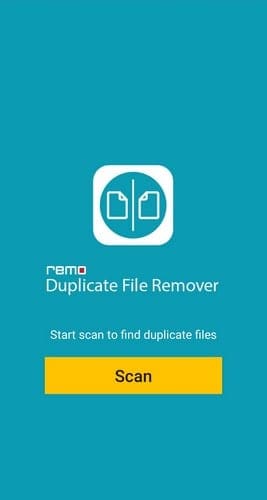
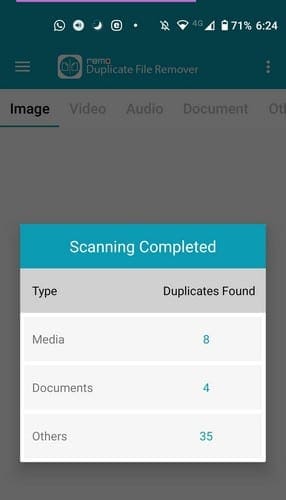
Once it’s done, it’ll tell you how many duplicates you have and what file type they are. The app is straightforward to use since it indicates where all the options you need are located.
After showing you the results, it’ll already have all the duplicate files selected. The only thing you have to do is tap on the trash icon at the bottom to erase the file. To void any mistakes, the app will ask you to confirm the deletion, just in case you change your mind about a file at the last minute.
You’ll see different file formats that have duplicates for you to erase by sliding to the sides. If you see a file you want to keep, you can unselect it to be erased.
Duplicate Files Fixer and Remover
Duplicates Files Fixer and Remover can also get the job done. When you first open the app, you can choose what kind of scan you want. You can choose from:
- Scan audio
- Scan Videos
- Pictures
- Documents
- Full duplicate scan
- Scan junk
- Scan Similar Pictures – Pro Only
If it finds any duplicate files, it’ll list them and select the duplicate file for you.
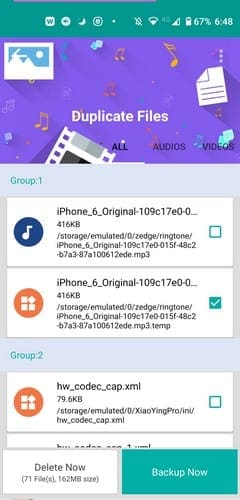
Make sure to take a look at the files that have been selected. If you’re ok with erasing those files, go ahead and tap the white delete now button.
Conclusion
These are three useful apps that can help you eliminate those duplicate apps that only take up useful storage space. The app that stays on your device will depend on the additional features the apps offer, but they all get the job done. Which app do you think you’re going to try first? Let me know in the comments below.