
Skip to content
LogoTechnipages
LogoTechnipages
  • Topics
        • Android
        • Browsers
        • Gaming
        • Hardware
        • Internet
        • iPhone
        • Linux
        • macOS
        • Office
        • Reviews
        • Software
        • Windows
        • Definitions
        • All Recent Posts
  • Product Reviews
  • About

Fix Zoom: Files from Unknown Sources Error

Madalina DinitaFebruary 3, 2021 Comments (1)
zoom-error-files-from-unknown-sources

Zoom may sometimes stop working when you’re trying to convert your recordings. One particular error often prevents users from converting recordings into a usable format on their devices. And this error is: “Files from unknown sources. Converting the following files may put your device and personal data at risk“.

After this error pops up on the screen, Zoom gives users two options. They either hit the Convert Anyway button or click on Do not convert. However, if they click on Convert Anyway, the recording conversion process remains stuck at 0% no matter how long they wait.

Contents

  • 1 How to Fix Files from Unknown Sources Error on Zoom
    • 1.1 Use the zTscoder.exe File
      • 1.1.1 Manually Launch zTscoder
      • 1.1.2 Launch zTscoder from AppData
    • 1.2 Conclusion

How to Fix Files from Unknown Sources Error on Zoom

Use the zTscoder.exe File

One of the quickest methods to force Zoom to finish the conversion process is to launch the zTscoder executable file. There are two simple methods you can do that.

Manually Launch zTscoder

  1. Double-click on the ‘double_click_to_convert‘ file link in your Zoom error window.
  2. Next, click on Open with and go to More apps.
  3. Then click on Look for another app on this PC. Basically, you’re telling Zoom that you want to manually select that program.look for another app on this PC
  4. The zTscoder.exe file is located under C:\Users\UserName\AppData\Roaming\Zoom\bin.
  5. Double-click on the zTscoder.exe file to launch it.zTscoder.exe file zoom
  6. Go back to the error window. Hit the ‘double_click_to_convert‘ file link. This should launch the video conversion process.

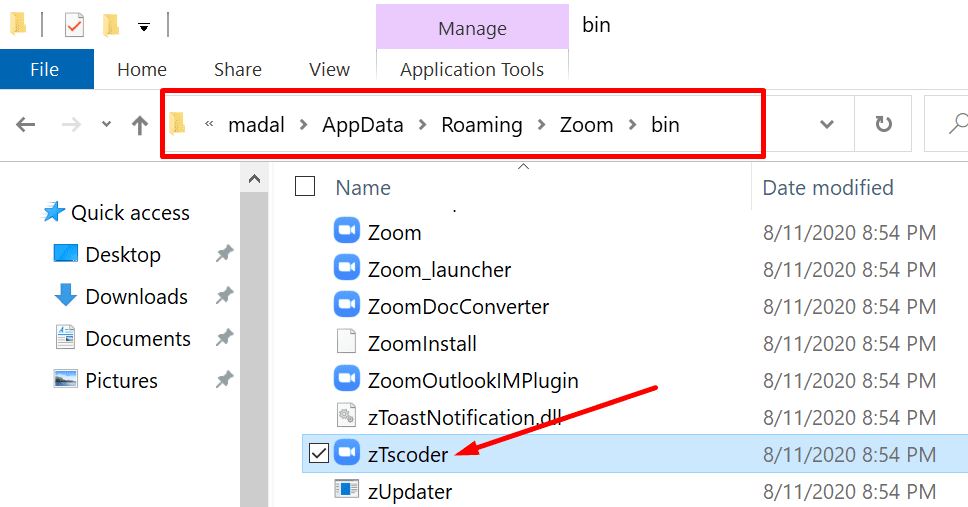
Launch zTscoder from AppData

Alternatively, you can go straight to C:\Users\UserName\AppData\Roaming\Zoom\bin and double-click on zTscoder to launch the executable file. Then, you can double-click on the ‘double_click_to_convert‘ link in the Zoom error window.

To avoid any software conflicts, make sure to close all background programs while converting your Zoom recording. Additionally, ensure you have enough free space on your device to store the file.

Conclusion

If Zoom fails to convert your recording because it comes from an unknown source, you can force the process by launching the zTscoder.exe file. Drop us a comment below and tell us if you managed to convert your Zoom recording.


Categories: Software

Author Madalina Dinita

Madalina has been a Windows fan ever since she got her hands on her first Windows XP computer. She is interested in all things technology, especially emerging technologies -- AI and DNA computing in particular.

You Might Also Like

  • Magnifying Glass

    What is File Extension XPS and How to Open It

    Kat ArmstrongmacOS
  • Google Sheets: Add Multiple Lines of Text in Single Cell

    Kat ArmstrongSoftware
  • File Header

    What Are BZ2 Files?

    Mel HawthorneSoftware

Comments

  1. Yves Claveau says:
    January 24, 2022 at 3:52 pm

    Good Afternoon Mitch:
    Thank you for making this Web page available. You made my life WAY easier.

    There is one change since the time you posted this page. I could not double click on ‘double_click_to_convert‘ file link in the Zoom error window.. I had to go to the File Explorer, right click on one of the two files (double_click_to_convert_01.zoom or double_click_to_convert_02.zoom) and select Open with … From there I could select the computer program you recommend in your Web page.

    Best regards,

    Yves Claveau
    Montréal (Canada)

Leave a Reply

Your email address will not be published. Required fields are marked *

  • roblox error 280

    Having Trouble With Roblox Error 280? Here’s What to Do

  • hard disk smart command error

    Hard Disk SMART Command Failed – How to Fix 

  • files automatically deleted on click

    Files Getting Deleted Automatically? Here Are Some Reasons Why

  • error 400 when signing in

    Encountered Error 400 When Signing In to Microsoft? Here’s What You Can Do 

  • unable to create notebook error in onenote

    We Were Unable to Create Your Notebook Error in OneNote – Common Fixes 

profile pic

The Experts Behind Technipages

My name is Mitch Bartlett. I've been working in technology for over 20 years in a wide range of tech jobs from Tech Support to Software Testing. I started this site as a technical guide for myself and it has grown into what I hope is a useful reference for all.

Learn More

technipages logo white
linkedin icon

Technipages is part of Guiding Tech Media, a leading digital media publisher focused on helping people figure out technology. Learn more about our mission and team here.

© 2026 Guiding Tech Media All Rights Reserved

  • About Us
  • Contact
  • Terms of Use
  • Privacy Policy

© 2026 Guiding Tech Media All Rights Reserved

Information from your device can be used to personalize your ad experience.
Do not sell my personal information.

Last Updated on February 3, 2021 by Judy Sanhz