
Many Windows 11 users complained about slow connection issues. Unfortunately, these problems started occurring shortly after installing the latest updates. If your connection is really sluggish compared to before the update, follow the steps below to solve the problem.
How to Speed up Your Internet Connection on Windows 11
Run the Internet Troubleshooter
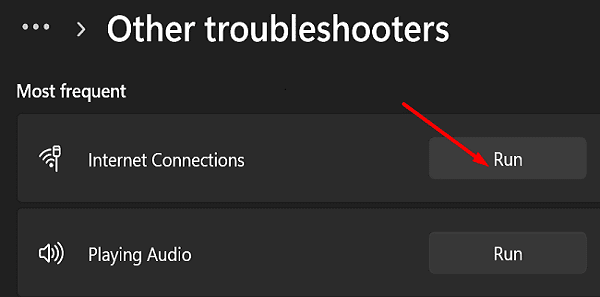
Go to System, select Troubleshooter, and then click on Other troubleshooters. Launch the Internet Connections troubleshooter and check if you notice any improvements.
Update or Reinstall Your Network Driver
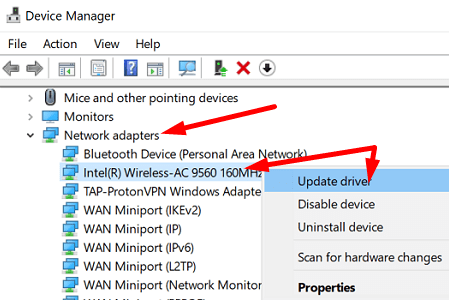
- Launch the Device Manager.
- Then expand the list of Network Adapters.

- Right-click on your Wireless drivers and select Update driver.
- Check your Internet connection.
- If the issue persists, right-click again on your wireless driver and select Uninstall driver.
- Restart your computer and check the results.
Reset Your Network Settings
Try resetting your network settings and check if you notice any improvements.
- Go to Settings.
- Select Network & Internet.
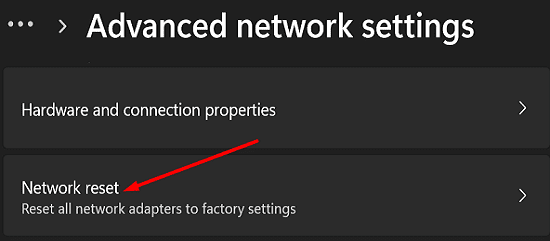
- Scroll down to Advanced network settings.
- Then select Network reset.

- Click the Reset now button.
- Click Yes to confirm your choice.
- After you do that, launch Command Prompt with admin rights.
- Enter the following commands one by one, and press Enter after each command:
netsh int tcp set global autotuninglevel=disablenetsh int ip resetnetsh advfirewall resetnetsh winsock resetipconfig / flushdnsipconfig / releaseipconfig / renew
- Restart your computer and check your Internet speed.
If the issue persists, unplug your router and leave it unplugged for two minutes to drain flea power. Plug your router back into the wall outlet, and wait until your computer goes back online.
Disable Your VPN or Use a Different VPN
If you’re using a VPN that’s not perfectly optimized for Windows 11, you may sometimes notice that your connection is a bit sluggish. Disable your VPN, and check if you notice any improvements.
Your VPN can slow down your connection. Let’s not forget that VPN programs encrypt your connection. That should not be a problem for modern computers. However, low-spec computers and old routers may not handle the data encryption process that quickly. Switch to a different VPN service and check if you can speed up your connection.
By the way, if you’re using a dinosaur of a router, you may want to upgrade to a new device that supports faster download and upload speeds.
Tweak Your Bandwidth Settings
- Navigate to Settings.
- Select Windows Update.
- Go to Advanced options.
- Then scroll down to Delivery Optimization.
- Disable the option that says Allow downloads from other PCs.
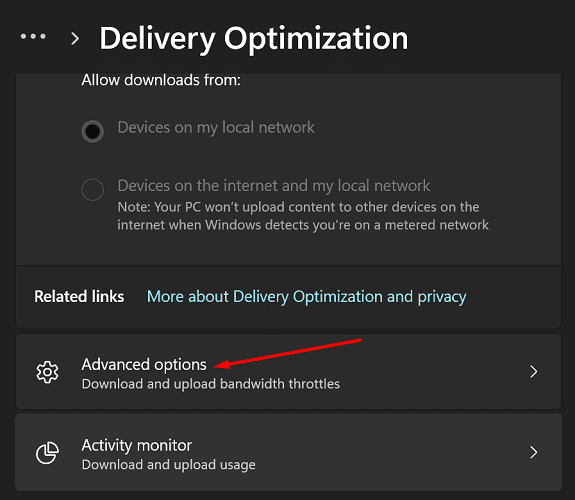
- Scroll down to Advanced options.

- Tweak your bandwidth download and upload settings.
Contact Your ISP
If the problem persists, contact your ISP. As a quick reminder, you can only download data as fast as your ISP lets you. Sometimes, your ISP may throttle your bandwidth which will make your connection even slower.
Conclusion
To improve your Internet speed on Windows 11, first, run the Internet troubleshooter. Then update or reinstall your network driver. Make sure to reset your network settings and disable your VPN. Additionally, tweak your bandwidth settings and contact your ISP.
Did you manage to speed up your Internet connection? Which of the methods above worked for you? Comment down below.





No help I’m afraid. The interesting thing about the whole mess is that a significant number of upgraders to Win11 are having this problem, yet Microsoft are being as useful as a chocolate teapot. They seem to be in denial.
Back to Win10 for me until this is sorted..
Following this article and the CMD prompts decreased my DL speed from 720 to 100mbps!!! Now I have to so a full system restore! Thanks for nutin!
So, at my place i have 1.2Gib internet connection, and I used to get close to a 1000mg download hardwired with windows 10.
But I updated to windows 11 a week ago and now I’m only getting 100mg tops.
I tried all the troubleshooting on this article and still not what I should be getting. (I get the speeds I’m supposed to with other devices like my phone, work MacBook pro)
Does anyone know a solution to this problem?
Hi,
this is very helpful, especially conclusion.
Because i have started zenmate VPN in my chrome and it was running in the background all along for almost 10 days.
all my devices are running with high internet speeds except for my laptop which got recently updated from windows 10 to windows 11. I have tried so many other ways just like you suggest.
what I should have tested is to test the internet speed with different browsers.
That would have solved my issue.
Thank you very much for the conclusion.
This fixed my upload speed problem, which increased from 30Mbps.
I would suggest that you also visit the intel website to download the latest drivers – Microsoft Windows 11 wouldn’t allow me to update the drivers via the Device Manager menu.
Thank you for your help here.
n o help at all, at least you address the issue, Microsoft is useless
Resetting network settings has helped a bit but my husband is still getting more than double what I am on his old Mac laptop.
Thank you!!! The Reset Network worked!! SOOOOO fast now (and it was fun typing the commands….felt like a programmer a little ;) )
Appreciate the guidance.
No help here. It’s definitely not my internet. Other devices, even wireless ones download over 10 x faster than my Windows 11 PC – and it’s wired. Hoping its just issues with NIC drivers but if I get no resolution soon will probably be going back to Windows 10. Windows 11, thus far, isn’t worth the headache.
Those command prompt commands did the job for me. Speed went from 0.4 Mbps to 12 Mbps. Thanks for the heads up.
Resetting my network settings definitely helped! .asp webpages are not as fast as .aspx, but much better!
Thanks!
Nothing helps. Windows 11 is just slower. Garbage.