
Multi-monitor configurations are advantageous, especially when you’re working with a lot of data. You can display different sets of data on separate monitors to quickly track specific information. The extended desktop feature allows you to do just that. You can show your computer desktop across multiple screens.
But this feature may not always work. Sometimes, the option is not available, or one of the displays is constantly disconnecting. Let’s see how you can fix this issue.
Contents
Fix Extended Desktop Issues on Windows 10
Quick Fixes
- Update Windows 10. Make sure your computer is up to date. Installing the latest OS version can fix a wide range of issues, including extended display glitches. Go to Settings → Update & Security → Windows Update → Check for updates.
- Press the Windows Key + Ctrl + Shift + B. This shortcut alerts the system something’s wrong with the GPU. The OS will then restart your GPU driver.
- Disconnect all peripherals. This includes any external devices and accessories that may conflict with your monitors. Unplug or disconnect your external keyboard, mouse, storage device, USB flash drive, dongle, etc. Restart your computer and check if the issue is gone.
- Check the cable connection. Ensure the cable connecting your computer to your monitor is properly connected. Test with a different cable if you’ve got one at hand. Maybe your current cable is faulty.
- Use a different port. Plug your monitor into a separate video output port. Check if that solved the problem.
⇒ Important Note: If you use a display splitter to extend your desktop to two monitors (or more), it won’t work. The splitter does not create separate independent signals; it only duplicates the same signal to your external monitors. Use a docking station or USB adapter instead and check if you can extend your desktop now.
If the issue persists, continue with the troubleshooting solutions below.
Switch to a Different Graphics Card
This method applies only to systems equipped with more than one graphics card. You can try switching to your computer’s default GPU or set a specific GPU for the programs you’re running in extended desktop mode. Additionally, you can also change the default GPU for your device.
Here’s how you can set up your computer to use a specific GPU while the extended desktop mode is on.
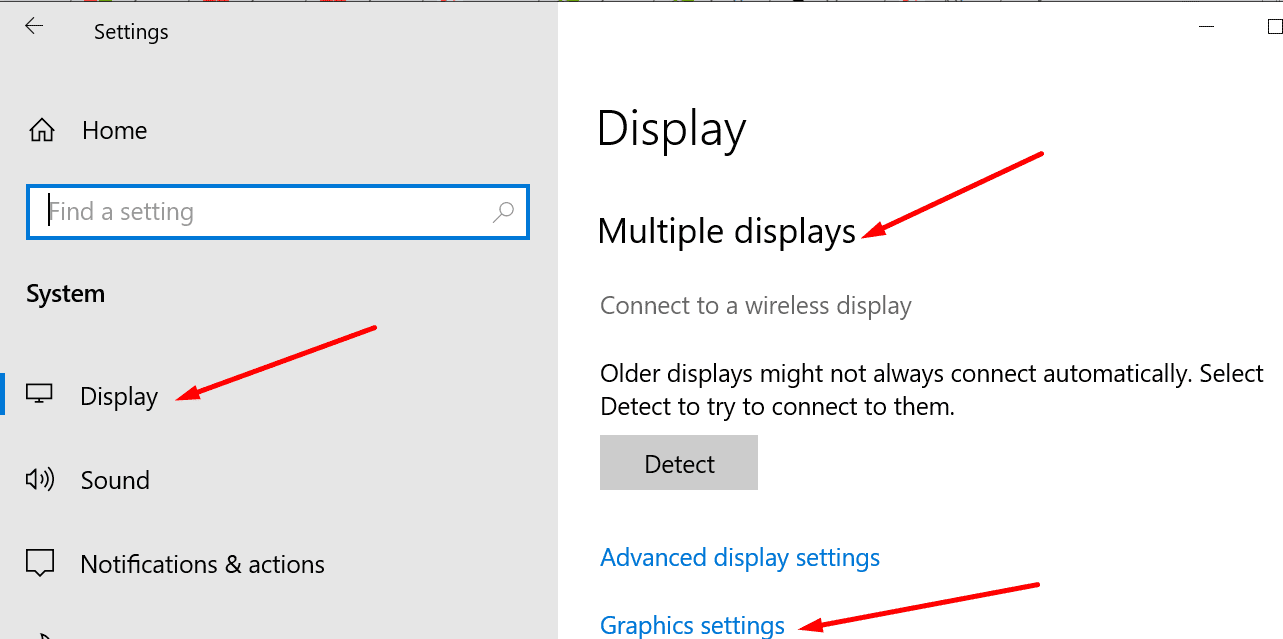
- Go to Settings → System →Display.
- Scroll down to Multiple displays and select Graphics settings.

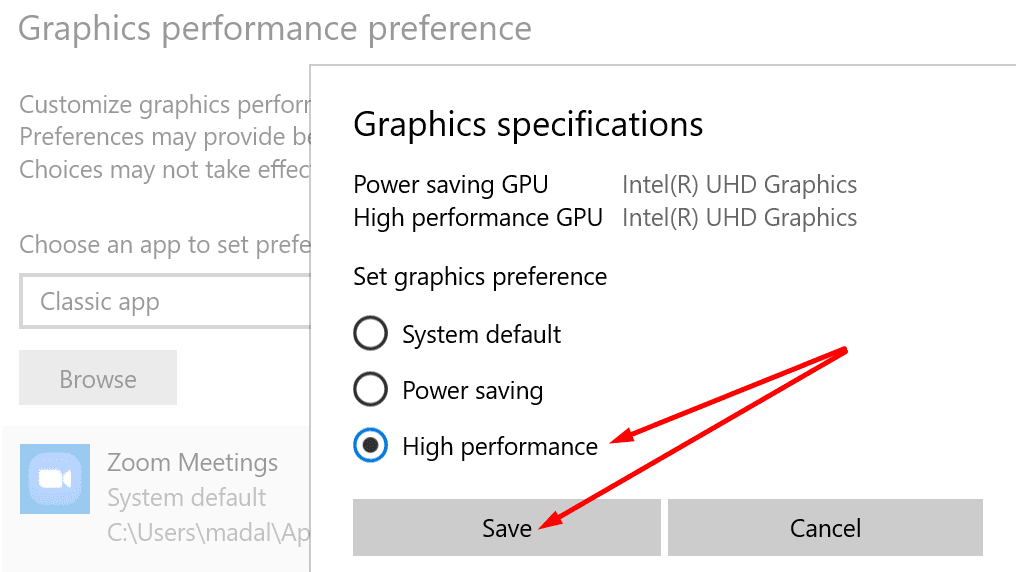
- Select the program(s) you’re running in extended desktop mode.
- Then select the Options button.
- Select the GPU settings you want to use for that program. Enable the High-performance option to use your most capable GPU in extended desktop mode.

- Apply the changes and check if the extended desktop mode is working now.
Speaking of your GPU, it’s worth mentioning that some GPU models don’t support more than one external monitor. Go to your GPU manufacturer’s website and check your GPU’s specs and capabilities.
Update or Reinstall Your GPU Driver
If your GPU driver is outdated or corrupted, you’ll encounter all sorts of display-related issues. Install the latest GPU driver version or reinstall your driver and check if this method solved your extended desktop problem.
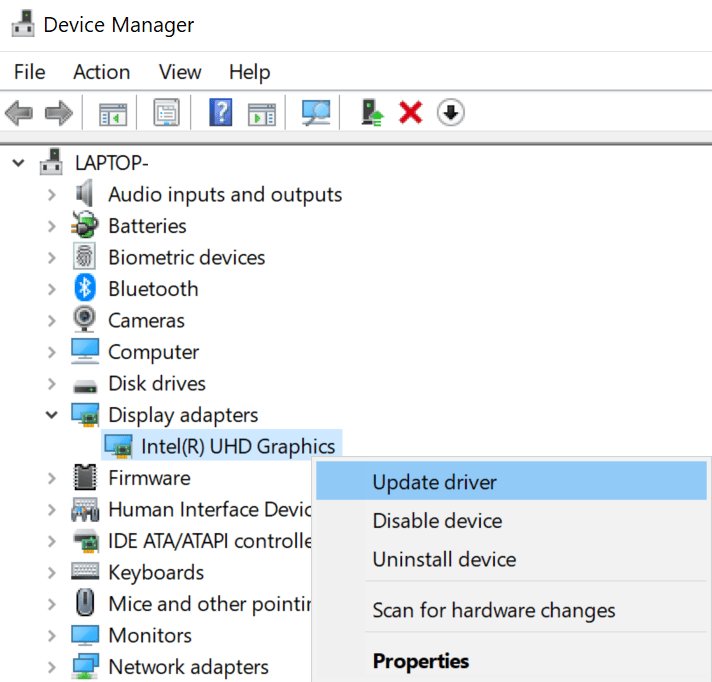
- Launch the Device Manager and expand your Display adapters.
- Then right-click on your GPU and select Update driver.

- Restart your computer and check if you can extend your desktop.
- If the issue persists, go through the same steps and select Uninstall device.
- Restart your machine again and check again.
Uninstall the Latest Updates
On the other hand, if this problem occurs shortly after you update the OS, try rolling back your GPU driver.
- Launch the Device Manager and right-click on Display adapters again.
- Then select Properties.
- Click on the Driver tab and roll back the driver. The option may be greyed out for some users.
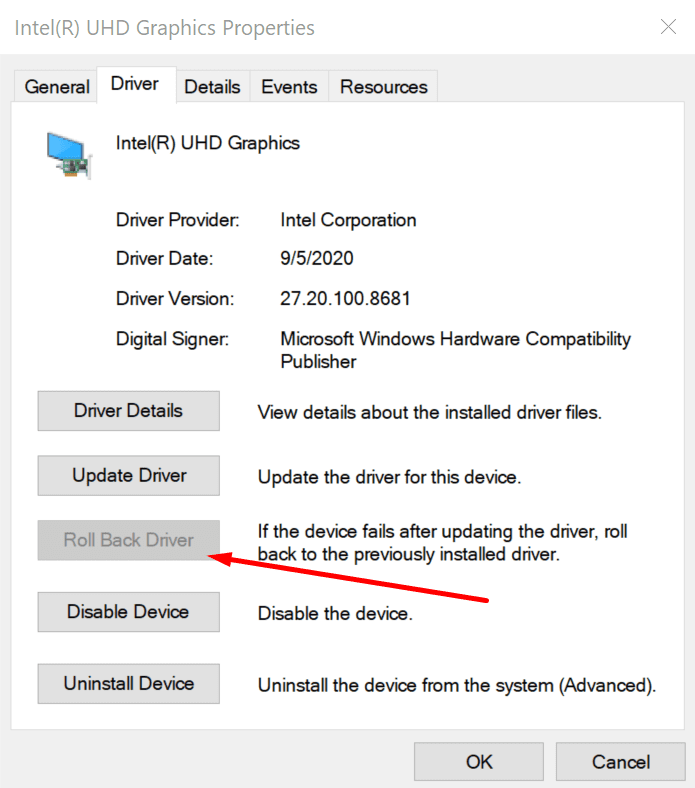
There have been many cases when various Windows 10 cumulative updates caused issues with display drivers.
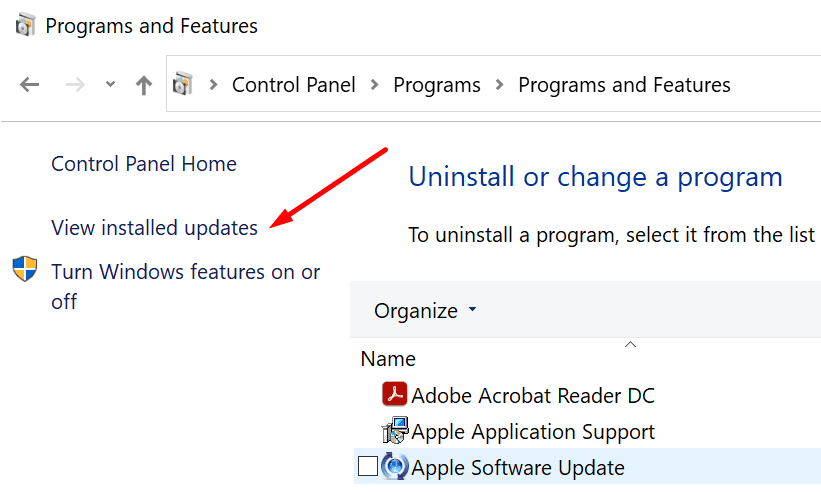
- Go to Control Panel, and under Programs, click on Uninstall a program.
- Go to View installed updates.

- Select and uninstall the latest updates. Restart your computer.
Use the Same Refresh Rate
Make sure to set the same refresh rate for all your monitors. Some GPUs don’t support different refresh rates.
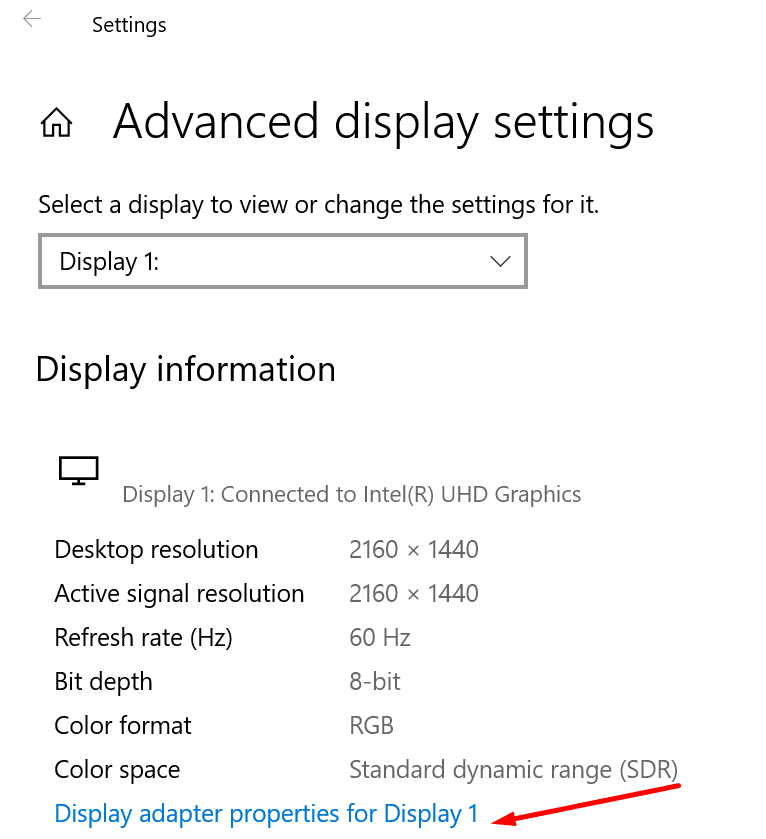
- Go to Settings and select Advanced display settings.
- Then click on Display adapter properties.

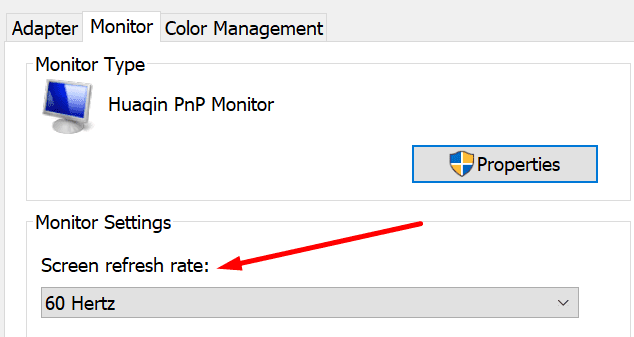
- Click on the Monitor tab and check your Screen refresh rate.

- If your monitors use different refresh rates, set them to the same rate.
Conclusion
If you can’t enable extended desktop mode, check your cable connection and update your GPU drivers. Additionally, set your GPU to the high-performance mode and use the same refresh rate on all your monitors.
We hope you managed to solve this problem with the help of this guide. Hit the comments below and let us know which solution worked for you.



Thank you so much, the “use the same refresh rate” part worked for me. it was really helpful.
HI, I had my laptop with extended screens, using the laptop as No 1 and a projector as No.2. This stopped working (possibly after an update but I’m not sure). I tried going back to only screen 1, Changing it and then restarting etc. but when I need to use extended screen again and plug in the projector, all the icons normally on screen 1 now show on screen 2 and I can only control the laptop from screen 2. Extended screen doesn’t set up any more. Will the steps in this article fix this problem?
Thank you so much! Changing the refresh rate fixed the issue for me.