
Skip to content
LogoTechnipages
LogoTechnipages
  • Topics
        • Android
        • Browsers
        • Gaming
        • Hardware
        • Internet
        • iPhone
        • Linux
        • macOS
        • Office
        • Reviews
        • Software
        • Windows
        • Definitions
        • All Recent Posts
  • Product Reviews
  • About

Discord: How to Use Spoiler Tags

Mel HawthorneNovember 24, 2020 Comments (0)

As a communication app with text capabilities, Discord includes a number of markdown features to style text. The most recently added markdown feature is the spoiler tag. The spoiler markdown allows you to hide text or an image behind an overlay. Users that are ok with spoilers can click on the overlay to reveal the spoiler, while users that want to avoid the spoiler can avoid it.

To hide a spoiler, you need to use the spoiler markdown syntax. In Discord, this is the “pipe” or “vertical slash” character “|”, more specifically two of them “||”. To mark text as a spoiler you need to place two pipe characters on either side of the spoiler. This works for both the entire message or just part of it.

For example, if you want to hide the word “spoilers” in the message “Hiding spoilers is good manners” you would write it as “Hiding ||spoilers|| is good manners”. Everything between the two pairs of pipe characters will be hidden by the spoiler overlay.

Tip: If the spoiler tags are working correctly, you can see a subtle effect around the affected text in the message composer bar.
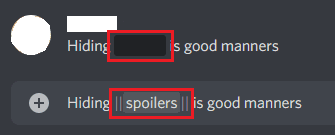
You can hide text behind a spoiler overlay by placing a pair of pipe characters on either side of the spoiler text.

If your keyboard doesn’t have the pipe key on it, you can still mark text as a spoiler by highlighting it before you post the message, then clicking the eye symbol on the right of the popup bar.

Note: The popup bar isn’t 100% reliable, in our testing it didn’t appear if you selected text via the keyboard, using shortcuts like “Ctrl + A” or using shift and the arrow keys. It does seem to work reliably if you highlight text with the mouse instead.
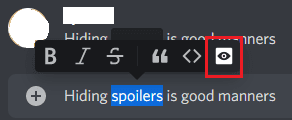
Highlight text then click the eye symbol in the popup bar to mark it as a spoiler.

You can also mark images as spoilers by ticking the “Mark as spoiler” checkbox in the bottom-left of the image upload popup.
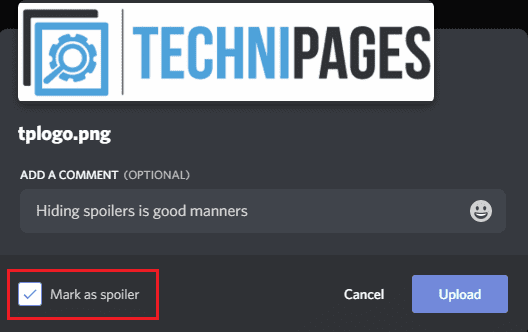
To hide an image behind a spoiler overlay, tick the “Mark as spoiler” checkbox in the bottom-left corner of the image upload box.

You should keep in mind that ticking “Mark as spoiler” for an image upload doesn’t mark the caption as a spoiler too. If the caption includes a spoiler you still need to separately use the markdown for that as well.

When you mark an image as a spoiler it doesn’t hide the caption at all, you have to manually hide that too by using the same syntax as before.

Categories: Software

Author Mel Hawthorne

You Might Also Like

  • How to Remove Apps from Microsoft Teams

    Madalina DinitaSoftware
  • unable to record zoom meeting fix

    Why Can’t I Record Zoom Meetings?

    Madalina DinitaSoftware
  • Fix Microsoft Teams Error Code caa30190

    Microsoft Teams Error Code CAA30190

    Madalina DinitaSoftware
  • How to Fix Dropbox Preview Not Working

    Madalina DinitaSoftware

Leave a Reply

Your email address will not be published. Required fields are marked *

  • system32 folder opens on startup

    System32 Folder Opens on Startup – How to Fix

  • browser keeps opening hp support

    Browser Keeps Opening HP Support Assistant Tabs 

  • camera not working in vmware

    Camera Not Working in VMware – How to Fix

  • browser screen goes black

    Browser Screen Goes Black Intermittently 

  • computer heating up in hyper v

    Computer Heating Up When Using Hyper-V – How to Fix 

profile pic

The Experts Behind Technipages

My name is Mitch Bartlett. I've been working in technology for over 20 years in a wide range of tech jobs from Tech Support to Software Testing. I started this site as a technical guide for myself and it has grown into what I hope is a useful reference for all.

Learn More

technipages logo white
linkedin icon

Technipages is part of Guiding Tech Media, a leading digital media publisher focused on helping people figure out technology. Learn more about our mission and team here.

© 2026 Guiding Tech Media All Rights Reserved

  • About Us
  • Contact
  • Terms of Use
  • Privacy Policy

© 2026 Guiding Tech Media All Rights Reserved

Information from your device can be used to personalize your ad experience.
Do not sell my personal information.

Last Updated on November 24, 2020 by Mitch Bartlett