

I went through the trouble of making a killer playlist on my Apple iPhone. This playlist took quite a bit of time to create and contained hundreds of songs I currently love listening to. After jamming out to this playlist, I thought “Wow, these songs I selected would make a great playlist for when I listen to music on my computer!”
I attached my iPod to my computer, fired up iTunes and created a new playlist called “Rawk”. I then selected the playlist on my iPhone and tried to drag and drop them to the playlist on the computer. It didn’t work though. iTunes doesn’t let you copy a playlist from your iPhone to your local computer. Nor will it allow you to drag individual songs to from an iPhone to a computer playlist.
What a bummer! I just had to find a workaround for this. Fortunately, I was able to find one rather quickly. You can do the following.
Note: This tutorial has been revised to reflect iTunes version 12.
- Connect your iPhone, iPod Touch, or iPad to your computer.
- From the “Devices” section, expand the selections under your device.
- Select the playlist you wish to export.
- Select “File” > “Library” > “Export Playlist…” to export the playlist to a text file. Give the export a name, then select “Save“.

- Select the “Songs” option on the left pane under “Library“.
- Select “File” > “Library” > “Import Playlist…“, then select the text file created in step 5.

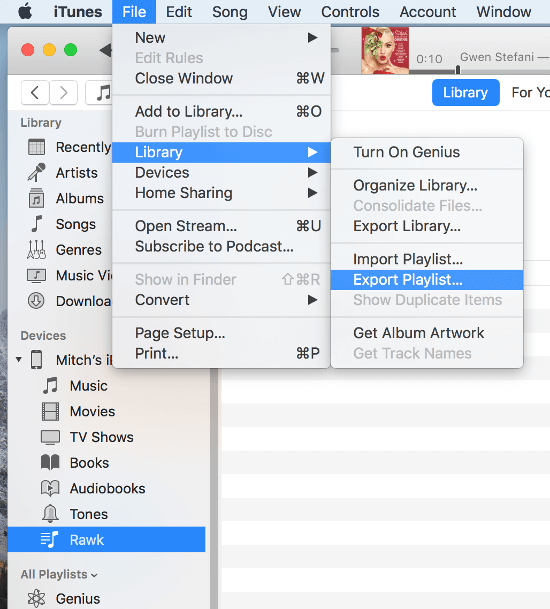
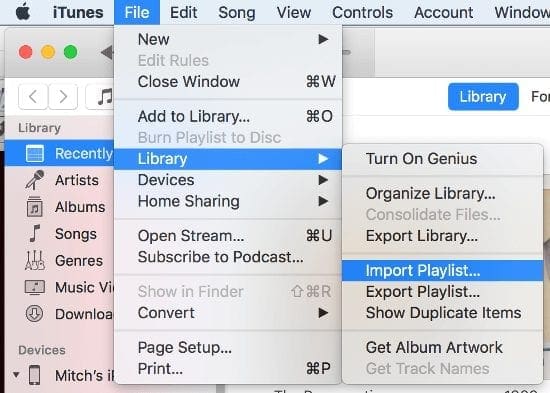
There you have it. You have successfully added a playlist from your Apple iOS device to iTunes on your computer.
FAQ
Why do I get an error that says “Some of the songs in the file were not imported because they could not be found”.
This tutorial assumes that the actual music files exist on your PC as well as the device. If they don’t, you will need to transfer the music files to the PC you’re working with. If they only exist on your device, you will need to research how to extract music files from your device.

Bummer, doesn’t work (anymore?). Even tho I was (somehow?) able to perform/complete each step, it didn’t seem to take. Tried Several times, over and over, to no avail. I was So hopeful, too! Oh, sure, the alleged “playlist” (title ex/im-ported) appeared to move around… alas, the actual songs didn’t seem to want to tag along. Thanks tho, you’re great for sharing this anyhow.
This article was SO helpful! We had been trying all kinds of drag/drop, copying/pasting, etc etc. Once I followed these instructions, it was done in <3 minutes!!!
What Ruth said. There’s no option to select a dropdown under the iOS device any more.
Thank goodness I read this. Thank you. It worked with iPod classic and iPad.
Never lose a playlist again. Followed instructions to the letter.
Amazing clear instructions
Thanks again
This is just what I wanted to do. Thank you!
Saviour!
With the MusCanv tool, you can transfer playlists Easily.
Have music on my I pad,recently purchased—want to transfer it to my sony mp3 via an android computer using Xp program. Thanks in advance.
This advice no longer works because iTunes no longer exists on the newer OS. There is no dropdown menu for the device.
i’ve been messing with playlists since they were called mixtapes, and this is the handiest trick for the modern age. thanks.
Thank you very much for your advice. It works. My playlist I have created over a period of 10 years is back on my PC.
Thank you! My dad has been a DJ for decades. Years ago, he lost all his iTunes playlists and had to recreate them from scratch. It took weeks. Because of your article, we took an iPad with the playlists on it and we were able to get them all back one by one in only an hour. What a great help this has been! Five star advice.
Thanks a million for this amazing solution. It worked like a charm. Perfect solution to problem I’ve been trying to solve for 7 months.
Thanks a lot, man! I’ve been going crazy since I made a mistake updating to the newest version of Itunes. This one couldn’t see my iPod classic and when I reverted back to the older version I lost all my playlists. I tried everything other than paying for ripoff programs which could do nothing anyway. Your advice saved the day.
This is interesting, but the playlist on my iphone 12 mini isn’t showing up on my computer to be able to be exported. According to my computer my playlist doesn’t exist, though it is on my iphone and functional.
What am I missing?
I can’t figure out how to see the list of playlists once I’ve selected the device in iTunes. Has it changed since this article was posted?
It didn’t work for me.
Thank you thank you ???? Mitch for this thread
You have saved me hours and hours of work I literally was shaking when I had lost my playlists and shaking even more when I seen your answer hoping it would work and it did!! I use my playlists to use with BackTrax and I was even more grateful when it had saved all the lyrics.!! I now export any new playlist As I go along.
Thank you again ????
Thanks for sharing this Mitch!
I’ve worked in I.T. for the thirty years and just spent two hours clicking around in iTunes trying to figure this out. The clunky design and operation operation of iTunes never cease to amaze me. It shouldn’t be this hard!
I appreciate this information. I had purchased an early version of TouchCopy and lost it when I had to reinstall my operating system. The registration number was shown as being invalid, so I contacted the publisher who told me that version is out of date, so I would have to purchase the newer one, This just was not fair, so I decided to see if there was another way to copy my ipod playlist to my itunes library and found this! To my amazement, it worked and I didn’t have to spend another $40. Thanks again for sharing this method.
YES!!! You are awesome!!! Playlists were from as far back as Snow Leopard. But, thanks to this tutorial and an ancient iPod, I have my playlists viable on Sierra once more. :D
Thank you. Your solution is very straight forward. Instructions were easy to follow.
I bought iMazing didn’t work and I spent $19 .
thank you very much …it worked aleluiaaaaaaaaaaaaa
Thanks, saved me a long process trying to re organize my itunes. Great step by step instructions. It worked fine for me.
One big issue is that with apple music you can’t do this trick anymore. It see the lists, at least I don’t see them. I did found some workaround by installing an old iTunes version from a GitHub repo. Now I can dlw all of this again. iTunes and music a re really crap in terms of use freedom
Thank you, it worked perfectly. I can’ t thank you enough. I have spent months on my playlist and then my computer basically blew up. So this allowed me to import from my iphone :)
At last, a solution that actually answers the question. Works like a dream, well explained, easy to use & the explanation about a possible error message makes life so much easier when not all songs copy over. Well done. As for long-winded, complicated forums… well!!! THANK YOU.
Hi
It moves the playlist but it is empty. Does anyone have a solution for this?
Thank you so very, very much. I’ve tried to figure out how to backup/transfer my playlists for quite some time, and this method worked perfectly!
This was so stupidly easy, I don’t know how I’ve never though of it, but thank you for taking the time to post it!!!!!!
This is great. Thank you, THANK you, THANK YOU. What a blessing of a time saver this is. It works so smoothly and all my playlists imported perfectly…plus your instructions were written so a relative tech illiterate such as myself could understand them.
Wish I had known about this last year. I have an old iPhone 4s which I began using using basically as an iPod, once I got my 6s. Usually iTunes would allow me to update the 4s with my latest playlists with no problems. Then for some reason (maybe the version 12 of iTunes?) early last year it started taking the old playlists off my 4s and overwriting my library playlists, automatically. I don’t know how or why but it took me days to recreate those lists.
Since all my playlists have been revised recently, I decided to try and update the 4s lists again. Bad move. Even though I did not sync or apply anything, iTunes still automatically took the 4s playlists and overwrote some of my library lists again. After spending several hours last night updating them, I was heartsick.
Luckily, I had updated the 6s last night with the latest playlists after I finished. Thanks to you, I was able to save hours of re-creation, not to mention a really bad mood and a sore neck, by exporting the playlists from my 6s and importing them back into iTunes. For one final time…thank you so much.
This is brilliant! Thank you so much for sharing. Been wanting to solve this issue for years.
HI to all, because of rights Apple does not allow to take all of your music from an IPOD and aspire them into your computer library. Frustrating, until i found the application AnyTrans. this application lets you take the device content and move to the mac, the iTunes library, an external disk, a cloud storage. It also does other functions not related to this device to MAC movement of songs…..works great….
I could kiss ya on the lips!
I don’t know if anyone else has found moving iTunes files around between my iPod and my computer endlessly frustrating? It seem as if with my very first iTunes PC/Ipod combination I could do EVERYTHING by pointing, clicking, dragging and dropping. It was very intuitive in terms of buying music from iTunes to the computer, moving music to my iPod, backing up, syncing between the two, creating and modifying playlists on either, etc. But with every one of those endless ios updates for iTunes, it got harder and harder. Sometimes losing entire chunks of music and having to painfully rebuild playlists from scratch.
I’ve been trying to move a playlist from my iPod to my PC so I could burn an old fashioned CD for a friend for HOURS.
I do not know how your “workaround” works, but it WORKED! This migraine instantly disappeared.
Hi, As I moved to another country within Europe, I need to change my account and banking data to the new country.
Apparently this move will set all my playlists back to zero.
So I would like to just have a textlisting of my playlists, they are not huge at the moment.
Any clue apart from screenshots?
I think iTunes has changed a lot since their last update
Can’t seem to find “Songs” anywhere under “Library” Was fine up to there. Any clarification of where “songs” is and how to access would be great and appreciated.
Thanks,
Sounds all good but the “Export Playlist” option is greyed out. So I cannot do it.
I have used the “Export Playlist” (text) as a backup method for many years and it has worked flawlessly. Of late, when I do the process, I find that occasionally the “Export Playlist” option is greyed out and unusable. I recently added Apple Music, and do not know if this is a factor. Do you have a possible explanation for this?
I am trying to transfer music from one iPod to another.. not sure what I am doing wrong but I just can’t get it to work
Problem that I have is my playlist which I created on my iOS device doesn’t even show up in iTunes (Windows 10), so there’s no way to select the playlist to export it. I tried it on a friends computer (using his iPhone to create the playlist) and same thing — playlist created on iOS won’t even show up in iTunes (Windows 10).
Thank you so much!
Wow! After an hour researching and performing so many fixes, I found your instructions. It worked the first time. Many, many thanks.
Thank you for posting this! It has been a nightmare trying to figure this out! I’ve been stubbornly using an old janky laptop because it at least had my old playlists. You saved me days of work!
Thank you! This worked perfectly! And, so simple, too!
This seems like a great fix. Unfortunately, when I get to the part where you’re supposed to click “Export Playlist” it’s grayed out. Any ideas for this?
My itunes playlists disappeared when I reinstalled Windows and itunes…I tried to restore them through the many suggestions I was reading…then I turned to your approach – It worked so well and easily – thank you very much!
I have 2 issues. One is that the “Run” playlist on my iPhone is not showing when I connect it to my iTunes.
The other is mostly unrelated but maybe you can help? I have a NAS device on my home network and have set it up to share the music on it. I can choose that Music list in iTunes and see some of the playlists set up there. I want to copy one of those playlists to my MacBook and/or iPhone library but cannot figure out how. I selected the playlist and there was no Duplicate option. I selected all the songs and copied to a new playlist. That playlist name shows in my MacBook iTunes library but none of the songs are there. Any ideas on how to get my NAS, my MacBook, and my iPhone to all work together without duplicating all the music on my NAS to my MacBook?
The perfect tool to migrate playlist is MusConv, give it a try and enjoy all your playlist, visit it here: musconv(dot)com.
did not copy all of the songs on my playlist other than that it worked well
Yay! Worked like a charm! Thanks!
After you import the playlist where does the file show up? When I expand all playlists doesnt show the playlist I imported
Thank you! This worked! I appreciate your help!
Wonderful!!
Question: Can I export multiple playlists or do I have to do it one by one? Does anyone have a solution for this?
Thank you! Lifesaving! Worked a treat!
Worked perfectly!!! Thank you soooooooo much for sharing your expertise. :)
This is great! Thank you so much!
thank you thank you thank you
Perfect!! Thanks!
Thank you!!! This was exactly what I was looking for! And it was easy even for someone who is not particularly tech-y. Cannot tell you how much I appreciate this or how much time, effort and tears you have saved me! THANKS!!!!!
Awesome! Quick and simple! Wish I had found this post sooner!
perfect!
Try checking out Transfer your tracks and playlists to Apple Music, Spotify, Google Music with MusConv, it’s a website that allows you to transfer your music from one service to another
From beginning to ending these instructions worked!! Thank you!!
My iPhone playlist does not show up when in iTunes , so I cannot do any of these steps.
Playlists on my phone don’t even show up in iTunes on my computer so there is nothing to select and export. Anyone else have the same problem?
Thank you so much! Now I can rescue my SilentFilmDj-Sets from my iPhone. This helped me a lot with my business of setting sound to Silent Movies, after loosing my Mac at my last Flight (ist was stolen). To copy the mp3s on my Mac I used iFunbox (free for Mac and PC). T A N K S for S H A R I N G ! ! !
I really get so frustrated with how Apple sets up their devices and media management tools.
I set up a lot of playlists on my macbook and synched my ipod and iPhone to that library. So everything is cool until I have to reformat and reload my OS on my Macbook. I have absolutely NO way to re-initialize my music library with playlists off my mobile devices now. The synch only works in one direction.
Sure, I can spend days exporting/importing playlists one at a time, but jeeze. I thought these Apple tech wizards were suppose to be Geniuses. They build their products and software to work one way and one way only. This is just a single example of Apple-think. I have similar issues managing pictures and videos. It’s maddening.
i am trying to rebuild my iTunes library. i have to reimport my entire library into a fresh library, thereby losing all of the playlists, metadata, etc.
will this work if the device with the playlists is not SYNCED to the library in question?
meaning, can i just plug my iPhone into what is actually my ‘new’ library (even though it’s actually my ‘old’ library) and copy the playlists over?
does that make sense?
Only one by one unfortunately.
Wonderful! Thanks so much for this!
Question: is there a way to export multiple playlists all at once? Or must it be exported one-by-one?
Outstanding!!! Can’t think you enough for salvaging my sanity.
when i get to importing it, it says the songs could not be found. any idea?
Perfect, Mitch! Thanks so much for your help! :)