Subscribe Subscribe | Subscribe Comments RSS

Google
 

Mac Tips

Leopard: Enable Guest Account

Enable the Guest account in Mac OS X Leopard.

1. Open System Preferences.

2. Open Accounts under the System section.

3. Select Guest Account on the account list (You might have to expand Other Accounts).

4. Check the box for Allow guests to log into this computer.

You can make a program automatically open upon login in Mac OS X Leopard.

1. Open System Preferences.

2. Open Accounts under the System section.

3. Click on your username.

4. Click Login Items.

5. If you want to disable the program from starting at startup, click on the program in the list and then click the minus (-) button. To enable a program to start at startup, click the plus sign (+) and browse to the application you wish to load.

Leopard: Enable Printer Sharing

How to enable printer sharing in Mac OS X Leopard.

1. Open System Preferences.

2. Open Sharing under the Internet & Network area.

3. Under the Services area, check the box for Printer Sharing.

Don’t want Spotlight to search certain folders on your Mac? Here’s how to stop it from searching them in Mac OS X Leopard.

1. Open System Preferences.

2. Open Spotlight in the Personal section.

3. Click Privacy.

4. In the area for Prevent Spotlight from searching these locations: Click the plus sign (+) and select the folder you wish to exclude from Spotlight. Alternately you can drag and drop folders into this list as well.

Setup Mac OS X Leopard to restart automatically when the system loses power due to a power failure.

1. Open System Preferences from the Finder.

2. Open Energy Saver under the Hardware section.

3. Click Show Details.

4. Click the Options button.

5. Check the box for Restart automatically after a power failure.

Leopard: Enable AppleTalk

How to add your Mac to an AppleTalk network.

1. Open System Preferences from the Finder menu.

2. Select Ethernet on the left side.

3. Click Advanced.

4. Click the AppleTalk tab.

5. Select Make AppleTalk Active.

6. Select your AppleTalk Zone.

7. Click Apply.

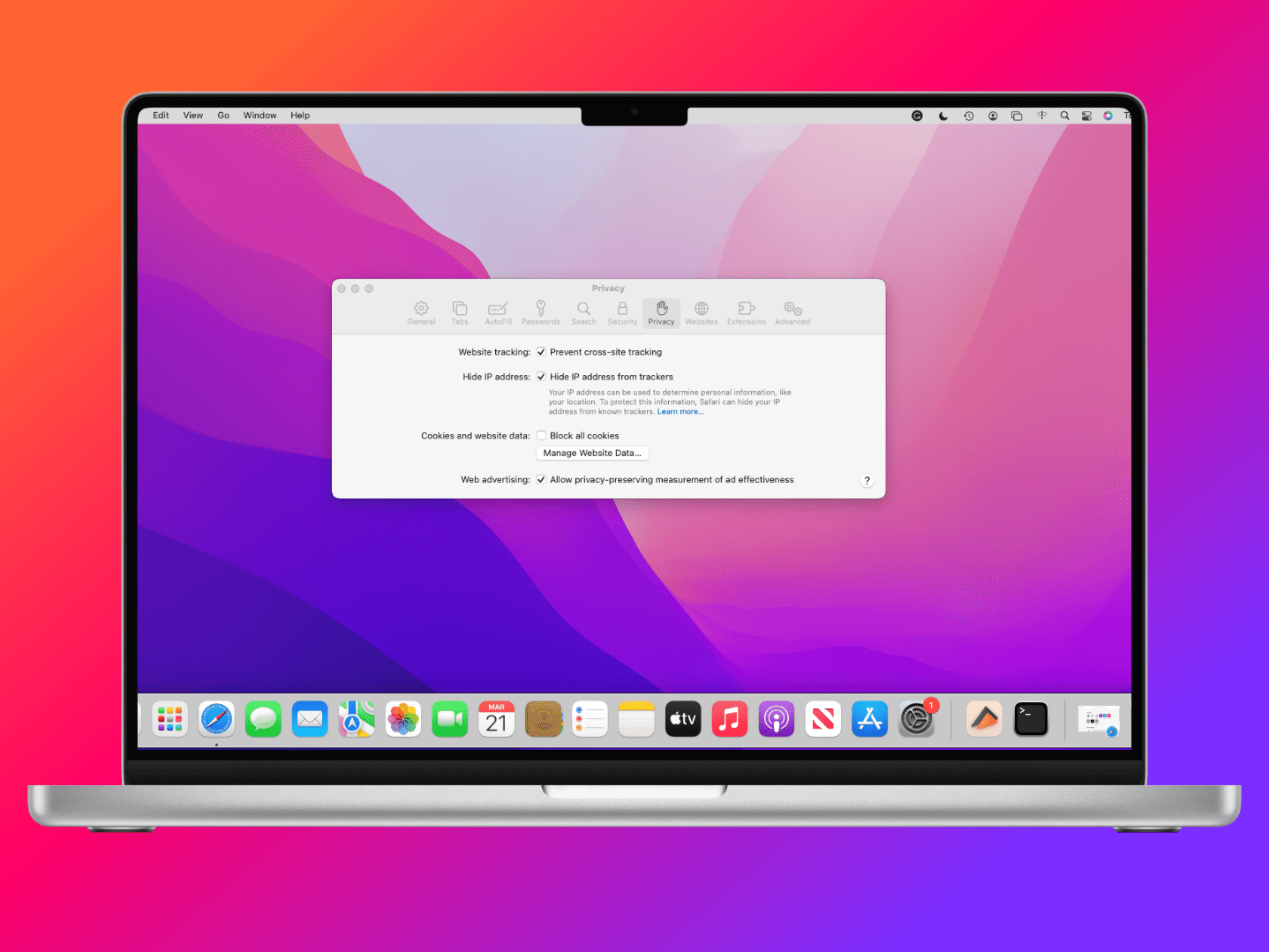
How to enable or disable the pop-up blocker in Safari for Mac.

1. Click Safari > Preferences.

2. Click on Security at the top of the window.

3. Check the box Block pop-up windows to enable this feature. Uncheck it to disable it.

How to setup Safari to automatically remember usernames and passwords.

1. Select Safari > Preferences.

2. Click Autofill at the top of the window.

3. Check the box for Usernames and passwords.

Now your usernames and passwords should be stored from now on.

Leopard: Enable Web Sharing

Allow others to access your Sites folder (/Users/username/Sites) over the Internet.

1. Open System Preferences.

2. Open Sharing under Internet & Networking.

3. Check the box for Web Sharing.

Now others will be able to see your Sites from the web address http://YourIPAddress/~shortusername

OS X Leopard: Find MAC Address

Where can I locate the MAC address for my network card for my Mac under OS X Leopard?

1. Open System Preferences.

2. Click Network at the top portion of the window.

3. Click Ethernet on the left.

4. Click the Advanced button.

5. Click the Ethernet tab. Next to Ethernet ID is the MAC address.

By default, the printer icon will appear in the Dock when you print and stay there unless you disable it.

When the printer icon appears in the Dock after a print job, right-click/control-click on it and select Auto Quit.

This will prevent the icon from appearing in the Dock forever for all future print jobs.

Source: 10.5: Auto remove printer icon from Dock after print

Are you constantly losing track of what time it is? Set your Mac to announce the time to you.

1. Open System Preferences.

2. Under the System area select Date & Time.

3. Click the Clock button.

4. Check the box for Announce the time and select how frequently you would like your mac to announce the time.

How to enable or disable the magnification of the items on the Dock in Mac OS X Leopard.

1. Open System Preferences.

2. Under the Personal area, select Dock.

3. Check Magnification to enable it. You can also set the size of the magnification. Uncheck Magnification to disable it.

OS X Leopard: Enable Auto Log Out

For security purposes, you might want to set OS X Leopard to automatically log you out of your system after a certain amount of minutes.1

1. Open System Preferences under the Finder menu.

2. Under the Personal area, select Security.

3. At the bottom of the window, select Log out after x minutes of activity.

OS X Leopard: Disable Dashboard

Want to disable the Mac OS X Leopard Dashboard? Use these steps:

1. Open Terminal from the Utilites folder.

2. Type:

defaults write com.apple.dashboard mcx-disabled -boolean YES

and press Enter.

3. Restart the Mac and the Dashboard will be disabled.

Would you like to stop the message: The application program name quit unexpectedly from appearing when a program crashes? You can do this using the Terminal application.

1. Open Terminal from the Utilites folder.

2. Type:

defaults write com.apple.CrashReporter DialogType none

and press Enter.

To enable it again in the future, use defaults write com.apple.CrashReporter DialogType prompt

Don’t have a transparent menu bar in Leopard? You can enable it with the following steps.

1. Check to ensure that you are updated to System 10.5.2.

2. Open System Preferences.

3. Open Desktop & Screen Saver under the Personal section.

4. Check the box for Translucent Menu Bar.

How to add a Stack for Recent Things to your Dock in Mac OS X 10.5 Leopard

1. Launch Terminal from the Utilities folder.

2. Type the following and press Return or Enter on your keyboard.

defaults write com.apple.dock persistent-others -array-add ‘{ “tile-data” = { “list-type” = 1; }; “tile-type” = “recents-tile”; }’

3. Now you can either restart your Mac or kill and restart the dock by typing the following and pressing Return or Enter after each of these commands.

defaults write com.apple.dashboard mcx-disabled Boolean YES;killall Dock

defaults write com.apple.dashboard mcx-disabled Boolean NO;killall Dock

Now you should have a nice Recent Things Stack added to your dock.

How to clear cache, history, cookies, stored usernames and passwords, etc. in Safari for Mac.

1. In Safari, click Edit > Reset Safari…

2. You will get a Reset Safari screen. Check the items you wish to reset. You can select:

  • Clear History
  • Empty the cache
  • Clear the Downloads window
  • Remove all cookies
  • Remove all website icons
  • Remove saved names and passwords
  • Removed other AutoFill form text
  • Clear recent web searches
  • Close all Safari windows

3. Click Reset when you’re done.

You may want to turn off Spotlight to increase system performance or to prevent it from indexing personal data. Here’s how to do it under Mac OS X Tiger.

Launch Terminal from the Utilites folder.

To disable Spotlight, type the following and press Return:

% sudo launchctl unload /System/Library/LaunchDaemons/com.apple.metadata.mds.plist

To disable it permanently, type this instead:
% sudo launchctl unload -w /System/Library/LaunchDaemons/com.apple.metadata.mds.plist

To enable Spotlight type the following and press Return:
% sudo launchctl load /System/Library/LaunchDaemons/com.apple.metadata.mds.plist

To enable it permanently, type this instead:
% sudo launchctl load -w /System/Library/LaunchDaemons/com.apple.metadata.mds.plist

For instructions on how to do this in Mac OS X Leopard, see How to completely disable Spotlight.