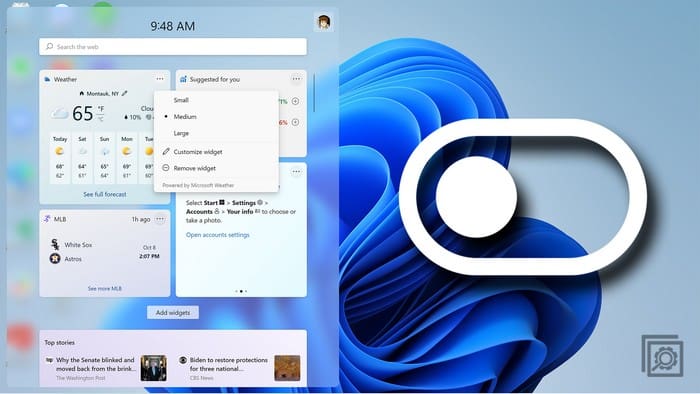
The widgets on Windows 11 can be helpful. But they can be distracting and can also clutter your Taskbar. By disabling the widgets, you can help save RAM, which is great if it’s something you’ve been struggling with. The good news is that turning off widgets in Windows 11 takes little time. Keep reading to see what steps to follow.
Contents
How to Disable Windows 11 Widgets Using the Taskbar Settings
To access the widgets, you would generally hover the cursor over the weather icon in the bottom left-hand corner. Hovering over the weather icon is OK when you do this intentionally, but how often have you done that accidentally? Then you have to deal with the widgets appearing. But if you want to get rid of this, here are the steps to follow to turn off the widgets by going into settings.
If you’re in a hurry and need to turn off the widgets immediately, use Taskbar Settings. To access Taskbar Settings, right-click on the Taskbar and choose Taskbar Settings. Under the Taskbar Items, you’ll see the option to toggle off Widgets. The path you followed to get here is Settings > Personalization > Taskbar. As long as you’re there, you’ll also see the option to toggle on or off other options, such as Task View, Chat, Pen Menu, Virtual Touchpad, and more.

Turning them back on is as easy as repeating these steps and toggling the option on again. This method is your best option if you feel uncomfortable using the Registry or the Group Policy Editor, which only Windows 11 Pro and Enterprise users can use.
How to Disable Windows 11 Widgets Using Group Policy Editor (Only for Pro and Above Users)
If you have Windows 11 Pro or Enterprise, you can disable widgets using the Group Policy Editor. To open the Group Policy Editor, press the Windows + R keys and enter gpedit.msc, and press enter. Suppose you have trouble opening the Group Policy Editor with that keyboard shortcut. In that case, you can also open it by opening the PowerShell by right-clicking on the Windows Start menu and choosing Terminal (Admin).
When the PowerShell opens, type gpedit.msc and press enter. You have two ways to open the Group Policy Editor if one way were to fail.
When the Group Policy Editor Windows appears, go to:
- Computer Configuration
- Administrative Templates
- Windows Components
- Double-click Widgets
- Double-click Allow Widgets
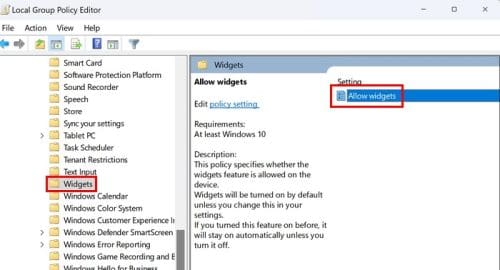
When the window appears, choose disabled, followed by the Apply button. You’ll need to restart your computer, and if you ever want the widgets back, follow the same steps but choose the Not Configured option to enable them. That’s all there is to it.
How to Disable Widgets in Windows 11 Using the Registry
If you know you’re way around the Registry, there is a change you can make there to make the widgets go away. It’s always a good idea to create a backup of your Registry just in case something unexpected should happen. You can do this by opening the Registry by pressing the Windows + R keys, entering regedit, and pressing Enter.
Once the Registry is open, click the File option at the top left and choose the Export option. Remember to give the backup a name with the date you created it. Click the Save button, and you’re good to go. If anything should happen, you have a recent copy of your Registry. Once you’ve made your backup of your Registry, go to:
HKEY_CURRENT_USER on the left sidebar, navigate to Software > Microsoft > Windows > CurrentVersion > Explorer > Advanced.
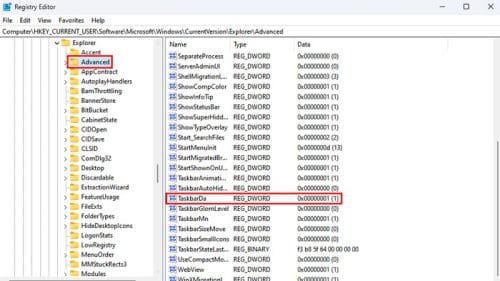
Look for and double-click on the TaskbarDa, and in the dialogue box, change the value from one to zero to turn off the widgets. Change it to one if you ever want to turn them back on.
What You’ll Be Missing Out on if You Turn Off Widgets
By turning off widgets on your Windows 11 computer, you’ll miss out on information on topics of interest. Indeed, you can always inform yourself from other sources, but you run the risk of forgetting to check and miss out. If you’re unhappy with the widgets you see, you can always change them to your liking. If that’s your case, turning them off is not the answer. With a few changes here and there, you can only get the news you want to see.
You won’t have useful widgets for topics such as:
- Weather
- Traffic
- Watchlist
- Tips
- ToDo
- Photos
- Sports
- Entertainment
- Calendar
- Esports
Further Reading
As I mentioned earlier, if you want to disable the widgets because they are not showing you the info you want, there is something you can do about it. In this article, you’ll see how to customize the Windows 11 widgets only to see info about topics you like. You might also want to read about what tips you can follow if the widgets were ever to stop working correctly.
Conclusion
Windows 11 widgets are meant to be helpful, but that is not always the case with all users. Some users can’t imagen a day without them, while others wish they never existed. One way you can make them disappear is through your computer’s settings. You can easily toggle them off or on. Maybe a time without them is good to see if they are something that makes your daily routine easier for you. Which method do you think is your preferred way? Let me know in the comments below, and remember to share the article with others on social media.