

If you’re running Windows 10 and Google Chrome is your default browser, you may be surprised to see just how many processes the browser is running in the background. For example, even if you only open two or three tabs, the Task Manager lists tens of processes associated with your browser. Let’s explore why this is so and what you can do to get rid of these processes.
Why Does Google Chrome Have So Many Processes in Task Manager?
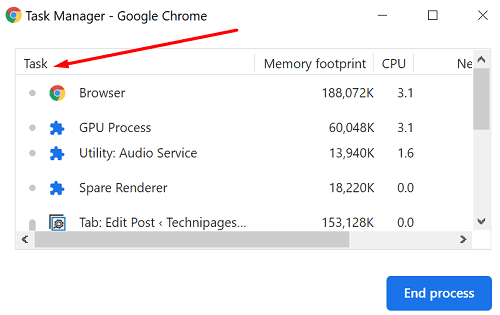
First of all, let’s review how Google Chrome works. The browser creates three types of processes: tabs, renderers, and plug-ins. In other words, it uses a multi-process architecture. To check what processes are running on Chrome, go to More tools and then select Task Manager.
There are two main advantages to using this architecture. If a particular process stops working, the other processes won’t be affected. And secondly, by running separate processes simultaneously, the browser becomes more responsive.
In other words, having multiple processes visible in the Task Manager is not a problem. Chrome was designed to work like that. But there’s something you can do to reduce their number.
How Do I Stop Multiple Chrome Processes?
Disable or Delete Unnecessary Extensions
The number of active Chrome processes depends on how many extensions you’ve got installed. Click on More options, select More Tools, and then click on Extensions. Disable all the extensions that you don’t really need during your current browsing session.
Or, better yet, uninstall all the extensions that you no longer need or use. Keep in mind that browser extensions usually eat up a lot of computer resources.

End Problematic Processes
Go to More tools, and select Task Manager to check what Chrome processes are running on your computer. Select the process you want to close and hit the End process button. Ensure not to close any essential processes as this will brick Chrome, forcing you to restart the browser.
Open Fewer Tabs
Chrome opens separate processes for every tab, renderer, and extension running in the browser. Obviously, a straightforward solution is to open fewer tabs. If you no longer need a tab, hit the X button to close it. Keeping tens of tabs open won’t make you more productive, on the contrary.
Clear Your Cache and Cookies Regularly
Make sure to clear Chrome’s cache and cookies regularly. In this manner, you’ll remove all those temporary files that might be interfering with your current session.
Click on Chrome’s menu, go to History and then select Clear browser data.

Conclusion
Chrome is built on a multi-process architecture. The browser opens different processes for every tab, renderer, and extension you use. To reduce the number of Chrome processes running on your machine, disable or delete unnecessary extensions. Additionally, use the Task Manager to close redundant processes and regularly clear your cache.
By the way, if you’re thinking about switching to a different browser, these guides will come in handy:





Ironically, opeing and viewing this page increased my running processes from 13 to 29
« Why Does Chrome Open So Many Processes? »
so it can keep mining and whoring your data in case one stops/goes wrong. #duh #biggestspambizintheworld
I have no idea what a renderer or extension is or how to find them :)