

Microsoft Teams error code caad0009 is a rare sign-in error. It indicates the service could not validate your credentials or recognize your device. Although it occurs quite rarely, this error primarily affects work and school accounts. And it only occurs on the desktop app. So, the good news is that the Teams app should work on mobile and on the web.
Let’s see what you can do to fix this problem and log in to your account.
Contents
Solutions to Fix Microsoft Teams Error caad0009
Run the App as Admin
Make sure you launch the Teams app as an administrator. If this login error is triggered by insufficient permissions, this quick workaround should fix it.
- Right-click on the Teams shortcut and select Properties.
- Then click on the Compatibility tab.
- Check the option called Run this program as an administrator.

- Launch Teams again and check if the error caad0009 is gone.
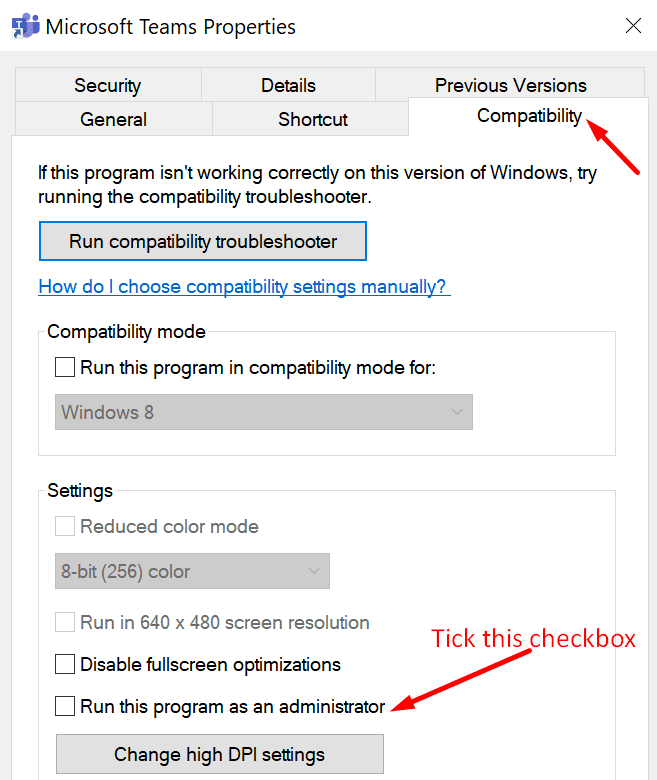
Additionally, enabling Windows 8 compatibility seems to have helped many users. Maybe this quick workaround does the trick for you as well.
Basically, the steps to follow are the same. Instead of running the app as an admin, go to the Compatibility Mode section and select Windows 8.
Clear All the Cache
By this, we mean clearing all the cache files, not just the local cache files.
- Exit Teams completely. Type %appdata%\Microsoft\Teams in the Windows Search bar.
- Then remove all the files from the following cache folders:
- %AppData%\Microsoft\teams\application cache\cache
- %AppData%\Microsoft\teams\blob_storage
- %AppData%\Microsoft\teams\databases
- %AppData%\Microsoft\teams\cache
- %AppData%\Microsoft\teams\gpucache
- %AppData%\Microsoft\teams\Indexeddb
- %AppData%\Microsoft\teams\Local Storage
- %AppData%\Microsoft\teams\tmp
- Restart your computer and launch Teams again. Try to log in.
Clear Your Teams Credentials
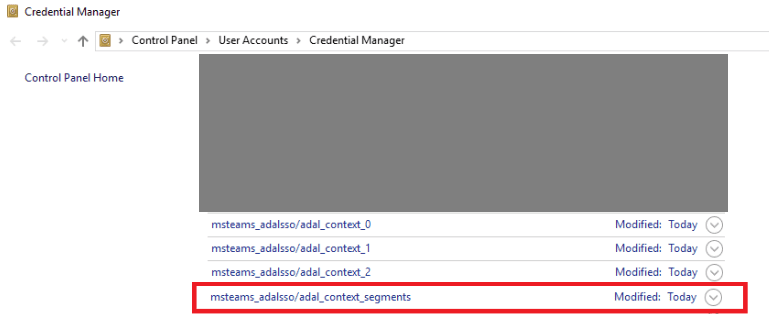
Clearing your login information from the Credential manager may solve this problem.
- Type ‘credential manager‘ in the Windows Search bar and press Enter.
- Click on Windows Credentials.
- Then scroll down to your Teams credentials. Click on your login information and hit the Remove button.

- Restart your machine. Open Teams and try to log in again.
Contact Your Admin
Since error caad0009 often affects Microsoft Teams accounts managed by large organizations, do contact your IT admin. The root cause of this error may be related to your organization’s settings.
- Your admin may have disabled your device. To clarify, you can’t connect to your organization’s network if your device is not recognized.
- Maybe your computer does not appear on the organization’s internal network. Or maybe the VPN failed to recognize your device.
- If your organization uses its own local environment, and it’s not compatible with Azure AD, many users will experience login problems.
Either way, contact your admin and let them know about your problem.
If none of the solutions above worked, uninstall your Microsoft Teams desktop app. Restart your computer and download Teams again from the official website. With this in mind, it is worth mentioning that some users had to reinstall Teams several times to fix this error.





I was having this issue and running updates solved the issue immediatelly.