Skip to content
LogoTechnipages
LogoTechnipages
  • Topics
        • Android
        • Browsers
        • Gaming
        • Hardware
        • Internet
        • iPhone
        • Linux
        • macOS
        • Office
        • Reviews
        • Software
        • Windows
        • Definitions
        • All Recent Posts
  • Product Reviews
  • About

How to Turn off Live Caption in Chrome

Judy SanhzDecember 26, 2022 Comments (0)
Auto-Refresh-Chrome-Tab-Without-Extension

Turning on the Live caption in Chrome can be helpful to make sure you don’t misunderstand anything. It’s also a great tool to use if you have hearing problems. The good news is that you don’t have to install another extension to your browser. The feature can be turned on or off by going to the browser’s settings.

How to Disable the Live Caption on Chrome

If you want to get rid of the live caption for a specific site, you can always simply close it. That way, when you visit another site, you’ll see it. To close the live caption, click on the X located at the top right corner of the player.
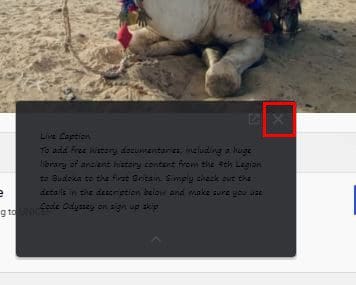
Close Chrome Live Caption

If you only click on the X, it will only go away temporarily. The next time you watch a video, it will pop up again. So, to turn off live caption permanently, you’ll need to go into the browser’s settings. You can do this by clicking on the dots at the top right and choosing the Settings option.
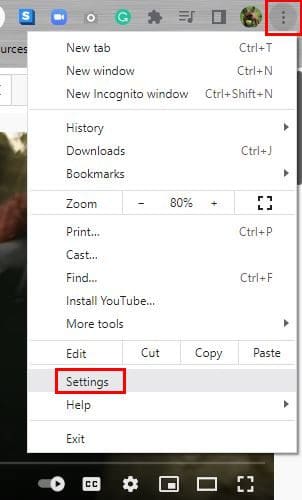
Chrome Settings

Once you’re in Settings, click on Advanced on the left, followed by Accessibility. The following window will show you the option to toggle off the Live caption. This is how you can turn it on or off as many times as possible.

You can also customize how you see the captions as long as you’re there. The Caption preferences option allows you to change things such as the font style, color, and size. A window leading you to your computer’s Settings will open with the closed caption settings. At the top, you’ll see a preview of your changes. So, if you don’t like what you see, you can change it right away.
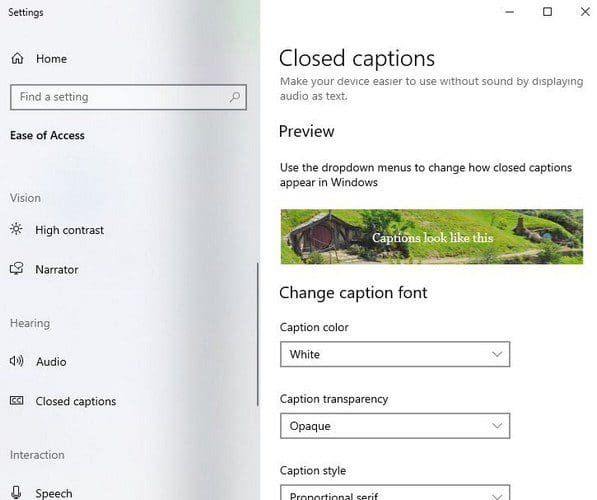
Closed caption settings

Other changes you can make include the caption transparency and the size, and you can also add effects.  You can choose from default, raised, depressed, uniform, and stop shadow effects. Some things to keep in mind about the live caption include that it’s not supported on video calls, and the captions will not be saved on your device.

Conclusion

Live caption in Chrome can be very useful if you have hearing problems. But, if you see that you don’t need it, there’s an easy way to turn it off. It’s possible to quickly enable it in the future if you ever change your mind. You can also personalize it and change things such as the color, font, size, etc. How useful do you find the live caption? Share your thoughts in the comments below, and don’t forget to share the article with others on social media.


Categories: Internet

Author Judy Sanhz

I am a tech geek who loves technology. I have been writing about tech for over a decade, covering various devices and programs. I write about Android, Apple, and Windows devices and programs. I stay updated on the latest gadgets, upgrades, features, and news. I aim to make complicated tech information easy for everyone to read. I've been with TechniPages from the beginning to help others fix their tech issues with the easy-to-follow guides.

You Might Also Like

  • Dolphin for Android: How to Change Homepage

    Mel HawthorneAndroid
  • How to Manage Your Signed-in Devices on Netflix

    Mel HawthorneInternet
  • Twitter: How to Configure Who Can Reply to Your Tweets

    Mel HawthorneInternet
  • How to Stop YouTube From Asking if You Want to “Continue Watching”

    Mel HawthorneInternet

Leave a Reply

Your email address will not be published. Required fields are marked *

  • service outage message on Xbox

    What to Do With a Service Outage Message on Xbox

  • signs your hdd is failing

    Signs That Your HDD Is Failing

  • how to fix error code 0x800705b4 in windows 11

    How to Fix Error Code 0x800705b4 in Windows 11

  • does chromebook need an antivirus

    Does Chromebook Need an Antivirus?

  • top vpns

    Top 5 VPNs to Keep Your Information Private in 2026

profile pic

The Experts Behind Technipages

My name is Mitch Bartlett. I've been working in technology for over 20 years in a wide range of tech jobs from Tech Support to Software Testing. I started this site as a technical guide for myself and it has grown into what I hope is a useful reference for all.

Learn More

technipages logo white
linkedin icon

Technipages is part of Guiding Tech Media, a leading digital media publisher focused on helping people figure out technology. Learn more about our mission and team here.

© 2026 Guiding Tech Media All Rights Reserved

  • About Us
  • Contact
  • Terms of Use
  • Privacy Policy

© 2026 Guiding Tech Media All Rights Reserved

Information from your device can be used to personalize your ad experience.
Do not sell my personal information.

Last Updated on December 26, 2022 by Mitch Bartlett