Getting a discount on anything is always a good thing. You pay less, and what’s left can be used to buy something else you need. But, when you’re not looking for anything in particular, seeing these coupons can get annoying. Not to worry, you won’t have to look at these coupons any longer since Edge has an option to make them go away. It’s easier than downloading new themes for Edge.
The good news is that turning this option off won’t take long. You have more important things to do than go through a sea of options to turn something off. If you ever change your mind in the future, you can always follow the same steps to turn it back on.
Contents
How to Stop Getting Coupons on Microsoft Edge – Desktop
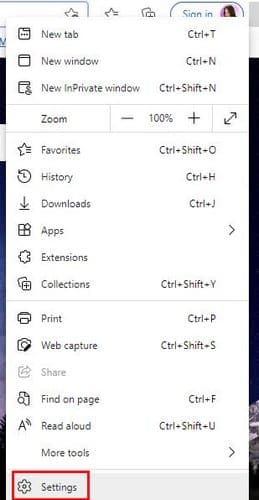
Turning this option off is not something permanent. Edge gives you the option to easily turn it off and on as many times as you want. To disable the coupon option on Microsoft Edge, open the browser and go to Settings by clicking on the dots at the top right.
Once you’re in Setting to Privacy, search, and services. Don’t have Edge in a smaller window since this might prevent it from clearly showing you all the options. If you don’t see the option on the left, you can always use the search option and start typing Privacy. Keep scrolling down until you come across the option that says Save time and Money with Shopping in Microsoft Edge.
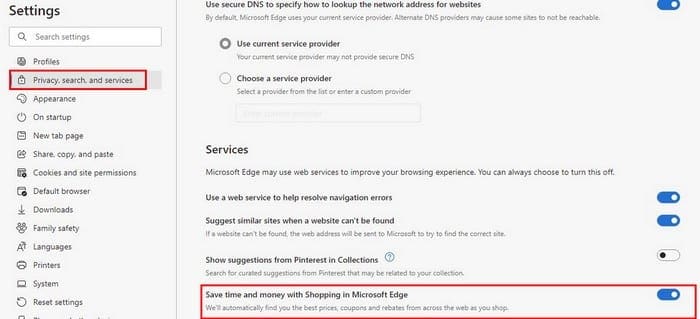
That’s all there is to it. You won’t have to deal with those coupons anymore. As you can see, turning this option off or on if you change your mind is easy.
How to Stop Getting Coupons on Microsoft Edge – Android
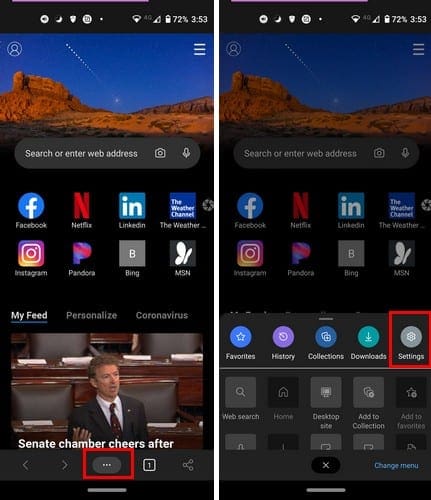
Since you’re not always going to be on your computer, here’s how you can stop getting the coupons on Microsoft Edge for your Android device. Open the app and tap on the dots at the bottom. When the new window appears, tap on the cogwheel to go to Settings.
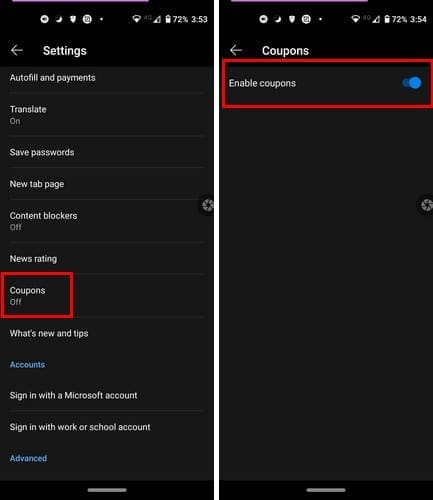
Once you’re in Settings, swipe down until you see the Coupons option. Select it, and you’ll see the option to toggle it or off. If you ever change your mind, follow these same steps to turn it back on.
How to Stop Getting Coupons on Microsoft Edge – iPadOS 14
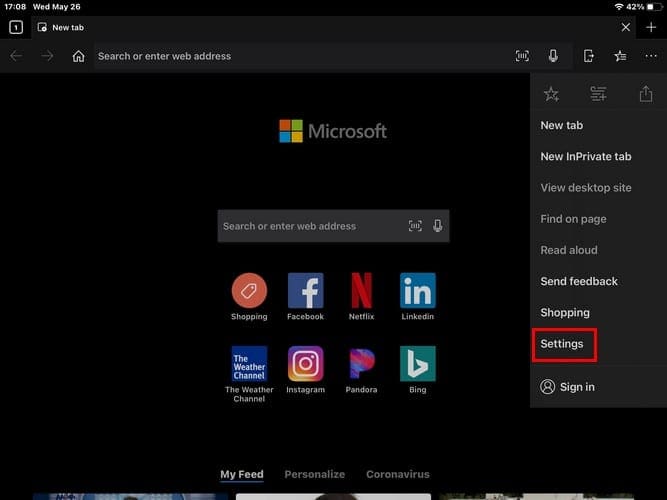
The steps to get rid of the coupons on the iPad are a little different. Once you have Edge open. Tap on the dots at the top right and go to Settings.
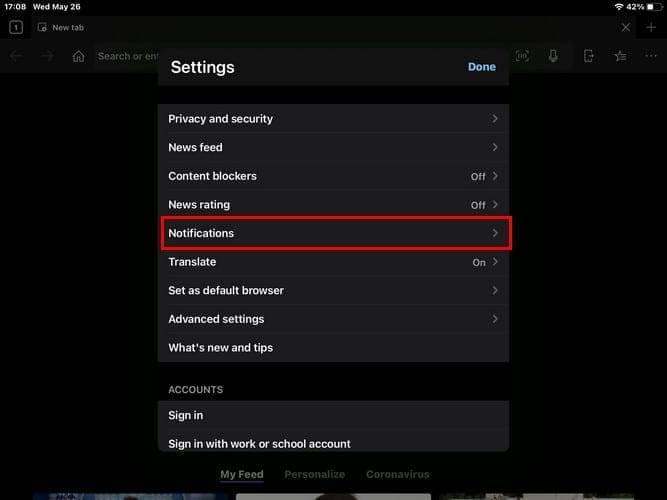
In Settings, look for and tap on the Notifications option.
To finish things off, tap on the Coupons Aler option to toggle it off. That’s all there is to it. To undo this, just follow these same steps. That way, you only have to deal with coupons when you actually need to buy something.
Conclusion
If you don’t find it that annoying, keeping the coupons on might not be such a bad idea. You never know when you might a good discount on something you’ve been meaning to buy but keep putting it off. Maybe the discount is good enough, and you don’t have to pay as much as you thought. How often do you use coupons? Share your thoughts in the comments below, and don’t forget to share the article with others on social media.