Skip to content
LogoTechnipages
LogoTechnipages
  • Topics
        • Android
        • Browsers
        • Gaming
        • Hardware
        • Internet
        • iPhone
        • Linux
        • macOS
        • Office
        • Reviews
        • Software
        • Windows
        • Definitions
        • All Recent Posts
  • Product Reviews
  • About

How to Easily Move Files in Seconds – Microsoft Office App

Judy SanhzOctober 4, 2021 Comments (1)
Microsoft Office App

Transferring files from one device to another is something you regularly do using different apps. For example, you upload a file to Dropbox to later access it on your computer. But, you have to go through the login process. But the good news is that there’s a faster way and with no login.

The Microsoft Office app lets you transfer your files without logging in to your Microsoft account on your computer. For example, you open the app and scan a QR code that’ll give you access to your files on your computer. Easy as that.

Microsoft Office Android App – How to Transfer Files

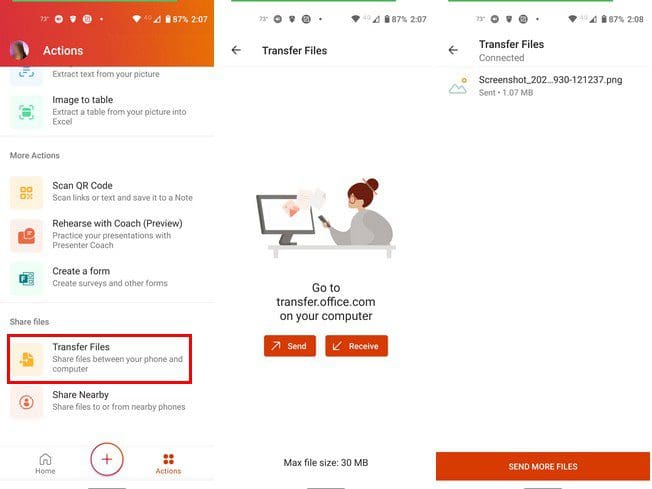
To receive or send files from the Microsoft Office app to your computer. First, you’ll need to open the app on your Android device. Once it’s open,  tap on the Actions option at the bottom right. Swipe all the way down to the Transfer Files section.
Transfer Files Microsoft Office

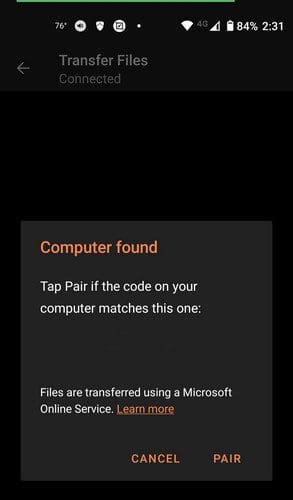
Depending on what you want to do, you’ll need to tap on the Send or Receive button. Next, you’ll need to scan a QR code at the following addy: transfer.office.com on your computer. You’ll be instructed to use your phone to scan a QR code and confirm that the codes you see on your phone are the same ones you see on your computer. If everything is OK, click/tap on the Pair option.
Microsoft Office Transfer Code

Now, you’ll need to choose what file you want to transfer. You’ll see two tabs to choose from; Files and Media. If you choose the media option, your device’s gallery will open to select an image or video.

By taping on the files tab, you’ll see files you have on Excel, for example, but you can also tap on the Browse Device option if you don’t see what you’re looking for. You can choose from options such as Documents, Download, Storage, and SD Card.
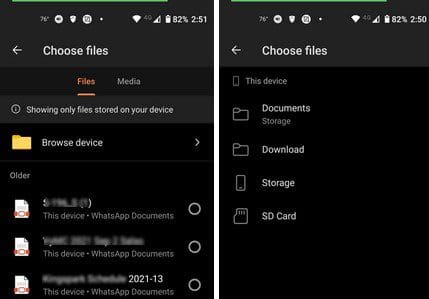
File Location Microsoft Office App

When you transfer a file, you’ll see that it has been received. By placing the cursor over the file, you’ll see the option to download the file to your computer.
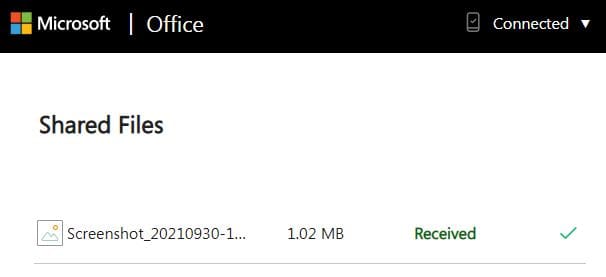
Microsoft Office Received Files

Conclusion

When you send the file from your device to your computer, don’t be surprised if the file is downloaded automatically. If there was a problem with the first download, you could always download it manually. How useful do you find this file transfer option on the Microsoft Office app? Let me know in the comments below, and don’t forget to share the article with others on social media.


Categories: Android

Author Judy Sanhz

I am a tech geek who loves technology. I have been writing about tech for over a decade, covering various devices and programs. I write about Android, Apple, and Windows devices and programs. I stay updated on the latest gadgets, upgrades, features, and news. I aim to make complicated tech information easy for everyone to read. I've been with TechniPages from the beginning to help others fix their tech issues with the easy-to-follow guides.

You Might Also Like

  • Android: How to Use Voice Dial

    Mel HawthorneAndroid
  • samsung-note-10+

    How to Use the Samsung Note 10+ S Pen Gestures

    MonaAndroid
  • Cant-Forward-Media-From-Whatsapp-Fix

    How to Hide Your Online Status on WhatsApp

    Judy SanhzAndroid
  • Best Budget Android Phone 2022 - Google Pixel 6a

    How to Set up Digital Wellbeing on Android

    Andrew MyrickAndroid

Comments

  1. Linda Harrison says:
    October 12, 2021 at 6:01 pm

    Tried using the File Transfer method from my iPhone to my Mac computer. QR code pairing worked. Message said File was sent. Where was it sent? I can’t find it anywhere.

Leave a Reply

Your email address will not be published. Required fields are marked *

  • bluetooth toggle missing windows 11

    What to Do When Your Bluetooth Toggle Is Missing (Windows 11)

  • microsoft paint features

    Unleash Your Inner Artist – Advanced Microsoft Paint Features You Might Not Know About

  • how to make chromebook run faster

    8 Ways to Make Your Chromebook Run Faster

  • error code 0xC0000428

    What Is Error Code 0xC0000428 and How to Fix It

  • windows 11 usb tethering

    Your Guide to USB Tethering on Windows 11

profile pic

The Experts Behind Technipages

My name is Mitch Bartlett. I've been working in technology for over 20 years in a wide range of tech jobs from Tech Support to Software Testing. I started this site as a technical guide for myself and it has grown into what I hope is a useful reference for all.

Learn More

technipages logo white
linkedin icon

Technipages is part of Guiding Tech Media, a leading digital media publisher focused on helping people figure out technology. Learn more about our mission and team here.

© 2026 Guiding Tech Media All Rights Reserved

  • About Us
  • Contact
  • Terms of Use
  • Privacy Policy

© 2026 Guiding Tech Media All Rights Reserved

Information from your device can be used to personalize your ad experience.
Do not sell my personal information.

Last Updated on October 4, 2021 by Judy Sanhz