Skip to content
LogoTechnipages
LogoTechnipages
  • Topics
        • Android
        • Browsers
        • Gaming
        • Hardware
        • Internet
        • iPhone
        • Linux
        • macOS
        • Office
        • Reviews
        • Software
        • Windows
        • Definitions
        • All Recent Posts
  • Product Reviews
  • About

Gmail: How to Auto-Forward Emails From Specific Senders

Madalina DinitaNovember 12, 2021 Comments (3)
automatically-forward-emails-from-specific-sender-gmail

Gmail is a popular email service with millions of users worldwide. There are plenty of ways that you can customize your Gmail mailbox. For example, you can automatically label emails, archive them, automatically forward them, and so on. Speaking of which, if you don’t know how to auto-forward emails from specific senders, head below to learn more.

How to Automatically Forward Emails From a Specific Sender in Gmail

To automatically forward emails from a specific sender, you need to create a filter for that email address. The filter instructs Gmail to forward emails from that sender to a specific recipient.

  1. Launch Gmail and open an email from a specific sender.
  2. Click on More options (the three dots).
  3. Then, select Filter messages like this.filter messages like this gmail
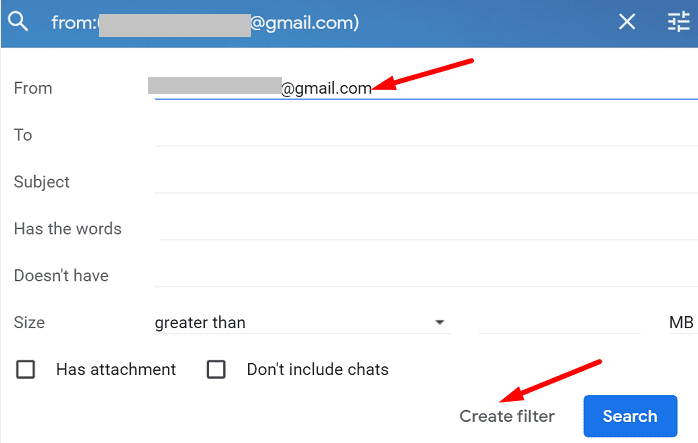
  4. The sender’s email address should be visible in the From field. Double-check it to make sure that’s the address you want to use.
  5. Hit the Create filter button.create-filter-by-sender-gmail
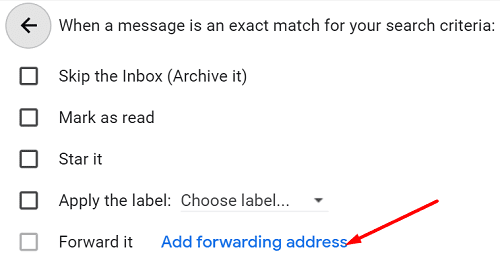
  6. Then, click on Add forwarding address. filter-and-forward-message-gmail
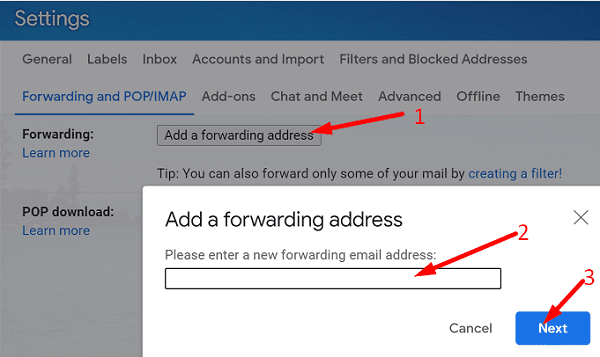
  7. Enter the email address you want to forward the emails to and hit Next.gmail-add-a-forwarding-address
  8. Hit the Proceed button.

Google will send a confirmation code to the recipient to verify permission. The person you’re forwarding the emails to needs to confirm the request.gmail-allow-forwarding-email-request
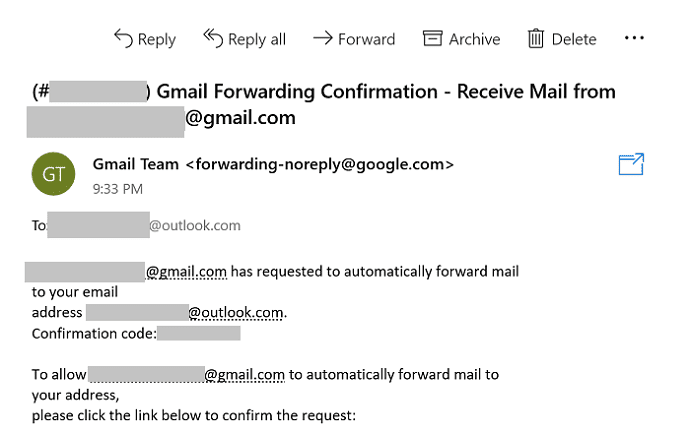
If the forwarding request is not confirmed, you won’t be able to forward emails to that email address.

If you want to disable the forwarding feature, you need to go to Gmail Settings. Then select Filters and Blocked addresses and remove the filter for the respective email address.

Conclusion

To forward emails from a specific sender in Gmail, you need to create a filter for that email address, and then manually add the recipient’s address. The recipient needs to validate your email forwarding request, otherwise, you don’t be able to forward them any emails.

Did you manage to set up email forwarding on your Gmail account? Let us know in the comments below.

Categories: Internet

Author Madalina Dinita

Madalina has been a Windows fan ever since she got her hands on her first Windows XP computer. She is interested in all things technology, especially emerging technologies -- AI and DNA computing in particular.

You Might Also Like

  • fix dashlane not working in chrome

    Fix Dashlane Not Working in Google Chrome

    Madalina DinitaInternet
  • Bitwarden: How to Clear the Clipboard Automatically After Copying a Password

    Mel HawthorneInternet
  • Bitwarden: How to Change Your Master Password Hint

    Judy SanhzInternet
  • fix-error-occurred-chrome-was-searching-for-harmful-software

    Fix Chrome Errors While Searching for Harmful Software

    Madalina DinitaInternet

Comments

  1. Sherry Higdon says:
    August 24, 2022 at 5:31 am

    Super helpful, thank you!

  2. stephen torna says:
    August 16, 2022 at 5:26 pm

    Can you send to a group email. Ex: I want to forward a report I receive every morning to my sales team that has a group email. Is this allowed?

  3. Corrine says:
    August 15, 2022 at 4:32 pm

    Got it! Very helpful. Thank you

Leave a Reply

Your email address will not be published. Required fields are marked *

  • system32 folder opens on startup

    System32 Folder Opens on Startup – How to Fix

  • browser keeps opening hp support

    Browser Keeps Opening HP Support Assistant Tabs 

  • camera not working in vmware

    Camera Not Working in VMware – How to Fix

  • browser screen goes black

    Browser Screen Goes Black Intermittently 

  • computer heating up in hyper v

    Computer Heating Up When Using Hyper-V – How to Fix 

profile pic

The Experts Behind Technipages

My name is Mitch Bartlett. I've been working in technology for over 20 years in a wide range of tech jobs from Tech Support to Software Testing. I started this site as a technical guide for myself and it has grown into what I hope is a useful reference for all.

Learn More

technipages logo white
linkedin icon

Technipages is part of Guiding Tech Media, a leading digital media publisher focused on helping people figure out technology. Learn more about our mission and team here.

© 2026 Guiding Tech Media All Rights Reserved

  • About Us
  • Contact
  • Terms of Use
  • Privacy Policy

© 2026 Guiding Tech Media All Rights Reserved

Information from your device can be used to personalize your ad experience.
Do not sell my personal information.

Last Updated on November 12, 2021 by Mitch Bartlett