Skip to content
LogoTechnipages
LogoTechnipages
  • Topics
        • Android
        • Browsers
        • Gaming
        • Hardware
        • Internet
        • iPhone
        • Linux
        • macOS
        • Office
        • Reviews
        • Software
        • Windows
        • Definitions
        • All Recent Posts
  • Product Reviews
  • About

Fix: Windows Cannot Find Powershell.exe

Madalina DinitaNovember 25, 2021 Comments (0)
fix-windows-cannot-find-powershell.exe

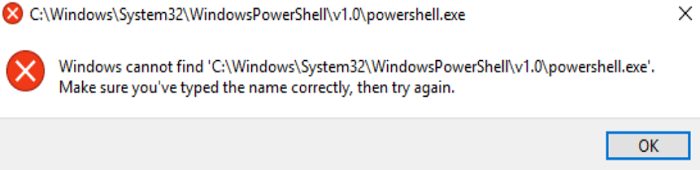
When you try to launch PowerShell, you may sometimes get a strange error message that says PowerShell.exe could not be found. Make sure you type “PowerShell” correctly and restart your computer. If your system still can’t find and launch the tool, follow the troubleshooting steps below.

Contents

  • 1 What to Do If Windows Cannot Find Powershell on Your PC
    • 1.1 Create a PowerShell Shortcut
    • 1.2 Launch PowerShell via Run
    • 1.3 Repair Corrupted System Files
    • 1.4 Reset Your PC
    • 1.5 Conclusion

What to Do If Windows Cannot Find Powershell on Your PC

windows-cannot-find-powershell

Create a PowerShell Shortcut

If you can’t find PowerShell using the Search functionality, go to the folder where the tool is installed and create a desktop shortcut.

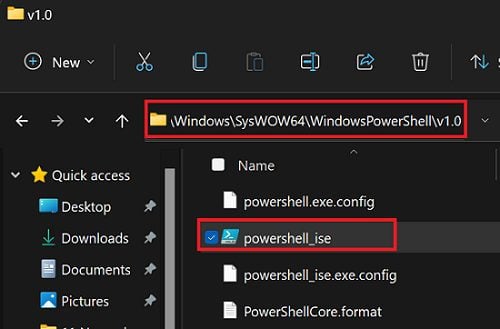
  1. Go to This PC and navigate to C:\Windows\SysWOW64.
  2. Scroll down to WindowsPowerShell.
  3. Open the folder and go to the v1.0 folder.
  4. Right-click on the PowerShell executable file.windows-powershell-executable-file
  5. Click on Create shortcut.
  6. Check if the shortcut is functional.

Alternatively, you can also pin PowerShell to your taskbar. That’s your best option if you frequently use the tool.

Launch PowerShell via Run

Open a new Run window and check if you can launch Powershell.

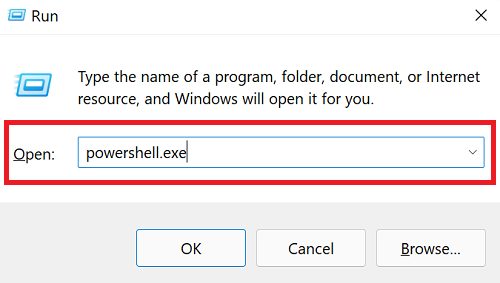
  1. Press the Windows and R keys.
  2. In the new Run window, type powershell.exe.open-powershell-in-Run-window
  3. Hit Enter to launch the tool.

Repair Corrupted System Files

Windows not being able to find and launch PowerShell may indicate some of your system files got corrupted. Check your disk and repair faulty system files.

  1. Launch Command Prompt with admin rights.
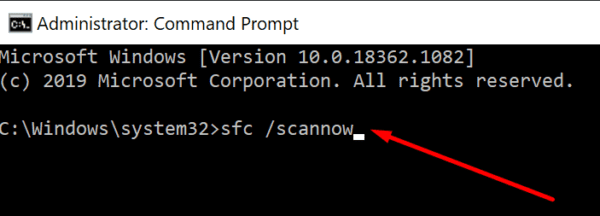
  2. Then, run the following commands, making sure to press Enter after each command:
    • DISM.exe /Online /Cleanup-image /Scanhealth
    • DISM.exe /Online /Cleanup-image /Restorehealth
    • sfc /scannowrun SFC command prompt
  3. Restart your computer and check if you can open PowerShell.
Reset Your PC

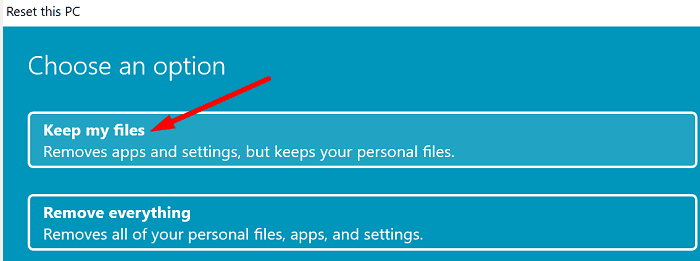
If the issue persists, reset your PC but keep your data and personal files.

  1. Go to Settings.
  2. Click on System.
  3. Select Recovery.
  4. Then click on Reset this PC.
  5. Select Keep my files to keep your personal files.reset-this-PC-keep-my-files
  6. Follow the on-screen instructions to complete the process.
Check if PowerShell is available after reinstalling Windows.

Conclusion

If Windows cannot find PowerShell, go to C:\Windows\SysWOW64\v1.0 and create a PowerShell shortcut. Alternatively, open a new Run window and check if you can launch Powershell. If the issue persists, use DISM and SFC to repair corrupted system files and reset your PC.

Did you manage to solve the problem? Which of these solutions did the trick for you? Let us know in the comments below.


Categories: Windows

Author Madalina Dinita

Madalina has been a Windows fan ever since she got her hands on her first Windows XP computer. She is interested in all things technology, especially emerging technologies -- AI and DNA computing in particular.

You Might Also Like

  • Windows 10, 8 & 7 Enable or Disable Superfetch

    Windows 11: Enable or Disable Superfetch

    Mitch BartlettWindows
  • Fix: Windows Print Spooler Service Won’t Stay Started

    Mitch BartlettWindows
  • Fix-Windows-10-File-History-Error-200-and-201

    How to Cancel Your Microsoft Premium Subscription

    Judy SanhzWindows
  • windows-10-undoing-changes-made-to-your-computer

    Windows 10: Undoing Changes Made to Your Computer

    Madalina DinitaWindows

Leave a Reply

Your email address will not be published. Required fields are marked *

  • top vpns

    Top 5 VPNs to Keep Your Information Private in 2026

  • npu power management bug

    What Is the NPU Power Management Bug and How Do You Fix It?

  • pc can't enroll for windows 10 extended security updates

    PC Can’t Enroll for Windows 10 Extended Security Updates – How to Fix

  • hdd better than an ssd

    When Is an HDD Better Than an SSD?

  • top graphics cards for 2026

    Top 5 Graphics Cards for 2026

profile pic

The Experts Behind Technipages

My name is Mitch Bartlett. I've been working in technology for over 20 years in a wide range of tech jobs from Tech Support to Software Testing. I started this site as a technical guide for myself and it has grown into what I hope is a useful reference for all.

Learn More

technipages logo white
linkedin icon

Technipages is part of Guiding Tech Media, a leading digital media publisher focused on helping people figure out technology. Learn more about our mission and team here.

© 2026 Guiding Tech Media All Rights Reserved

  • About Us
  • Contact
  • Terms of Use
  • Privacy Policy

© 2026 Guiding Tech Media All Rights Reserved

Information from your device can be used to personalize your ad experience.
Do not sell my personal information.

Last Updated on November 25, 2021 by Judy Sanhz