

Many Teams users complained about the app randomly freezing their computers. This issue usually occurs as soon as they log in or shortly after joining a meeting. Oftentimes, nothing really works except for the good old on/off physical switch. Let’s see how you can troubleshoot this issue and prevent it from occurring again on your computer.
Contents
How Do I Stop Microsoft Teams From Freezing My PC?
⇒ Quick Note: Before we dive in, make sure you’re running the latest Teams app version. Check for updates and install the latest Windows 10 OS version as well.
Fix High CPU and Memory Usage
Microsoft Teams may freeze your computer due to high CPU and RAM usage. When the app needs more resources than your computer can provide it with, you’re bound to experience system freezes. The good news is that high CPU and RAM usage doesn’t always translate to computer freezes. If you’re lucky, you’ll only experience random computer slow-downs.
We already published a guide on how to troubleshoot Teams high CPU and RAM usage. Do follow the instructions available there and check if the issue is gone. Basically, you need to:
- Disable the Outlook add-in.
- Close background programs.
- Turn off read receipts.
- Clear the app cache.
- Adjust visual effects for best performance.
- And increase the pagefile size.
If the problem persists, continue with the troubleshooting steps below.
Tweak Video Settings
Attending Teams video meetings on a 4GB RAM computer may put a strain on your hardware. As a matter of fact, 8GB of memory is actually needed for a smooth online meeting experience. So, maybe it’s time to upgrade your computer or purchase a new device.
Meanwhile, try to call with your camera turned off. Enable video content only when you’re taking the floor. Turning on background pictures, blur, View Gallery, or Together Mode requires additional processor and graphics power. Your machine may use more disk to compensate for limited memory in order to power your graphics and video demands. This only adds up to the overall system strain.
So, try to reduce the strain Teams puts on your hardware by doing the following:
- Disable your camera during meetings.
- Turn off background images or blur.
- Disable GPU hardware acceleration from Teams settings.
- Close unnecessary apps.
Enable Maximum Performance Settings
Instead of focusing on extending your battery life, enable maximum performance settings.
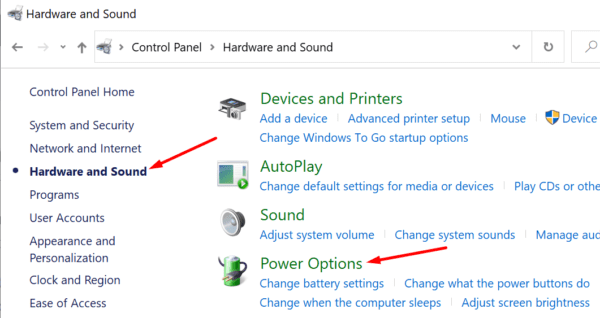
- Go to Control Panel and select Hardware and Sound.
- Then click on Power options.

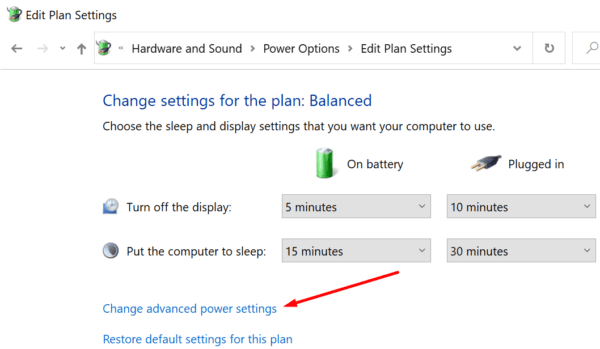
- Click on Change plan settings and then Change advanced power settings.

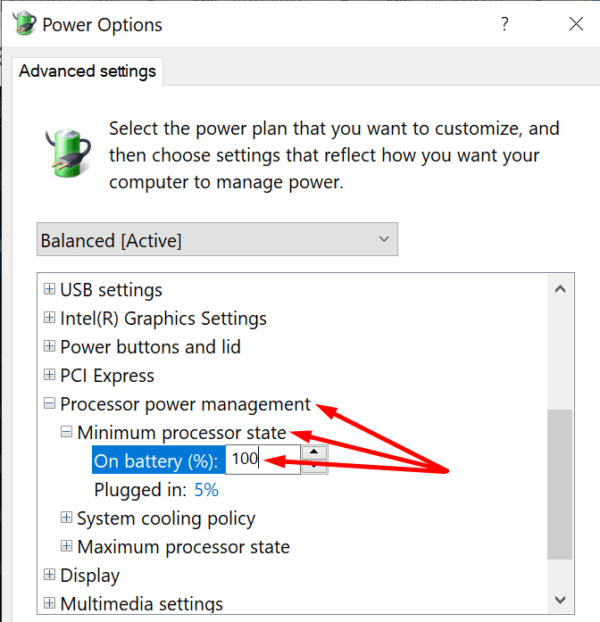
- Locate the Processor power management option.
- Expand the Minimum processor state options.
- When on battery or plugged in, allow your computer to use 100% CPU power.

- Launch Teams again and check if the app still freezes your computer.
Disable Bluetooth Devices
Many users noticed that Teams often freezes computers when there’s an active Bluetooth connection. As a matter of fact, this is not the first Bluetooth-related issue Teams users have experience. As a quick reminder, many users complained about the app randomly disconnecting Bluetooth headphones.
So, go ahead and disconnect your Bluetooth devices if that’s possible. Instead of using an external Bluetooth keyboard and mouse, use your laptop’s built-in keyboard and trackpad. Speaking of which, disconnect all the peripherals that are non-essential to your meetings. Check if you notice any improvements.
Conclusion
If Teams freezes your computer, this indicates the app needs more computer resources than your machine can offer. Adjust your computer settings to the best possible performance, close unnecessary programs, and unplug non-essential peripherals. Let us know if the issue is gone. By the way, if you’ve got additional solutions to troubleshoot this problem, list the steps to follow in the comments below.




Usually use Zoom and never have issues, only on Teams…
Your conclusion is not true. With Windows 10 no issues on any of our machines (400)!
After upgrade to Windows 11 it uses random BSOD’s multiple on daily basis.
thanks ..!! it workss ????????
my lappy has 16gb ram and windows 11 and yet i still can’t avoid the lag. it’s frustrating & nerve-wracking when this happens to me as the presenter.
Poor programing.
“period”.
Teams has gotten steadily heavier on resources to the point where it is virtually unusable. Even the web client suffers with lag. I hope MS do something to slim down the application otherwise it’ll be 16GB minimum RAM.
Easier to uninstall Teams – only use the web app if you must attend Teams meetings. Be sure to uninstall the Teams Systemwide Installer to keep it from coming back.
Teams has caused my computer to stop responding several times in the past week. I’ve got a year-old Dell Optiplex running Windows 10 with all updates, a 9th gen Core i9 16GB memory and only Outlook and Edge running at the same time.
Time to raise a ticket with Microsoft.