This guide is about the Firefox error message: This video file cannot be played. (Error Code: 102630).
We’ll take a look at the possible root-causes of this issue. Since you’re on this page, this also means you want to get rid of this error, not just learn more about it. We did the heavy lifting for you and compiled a list of solutions that will come in handy.
Contents
How to Fix Firefox Not Playing Videos
Start with These Quick Fixes
Reload the browser
Simply reloading the browser may work wonders. Close and restart the browser or use the Refresh button.
Check Your Internet Connection
Restart your computer and then restart or unplug your modem. You need a stable and fast Internet connection when playing videos in your browser, especially if we’re talking about HD videos.
Ensure you have a proper network connection (check the speed). Restart your modem or unplug the power cable if restarting the device did not work.
Try using a cable connection if that’s possible. If you’re using a wireless connection and can’t switch to a cable connection, try changing the Wi-Fi channel.
Disconnecting all the other devices using the connection can help you to free up precious bandwidth. Firefox can then use it to play videos.
Update Firefox
Launch the Mozilla Browser and click on the three horizontal line menu. Select Help. Go to About Firefox.
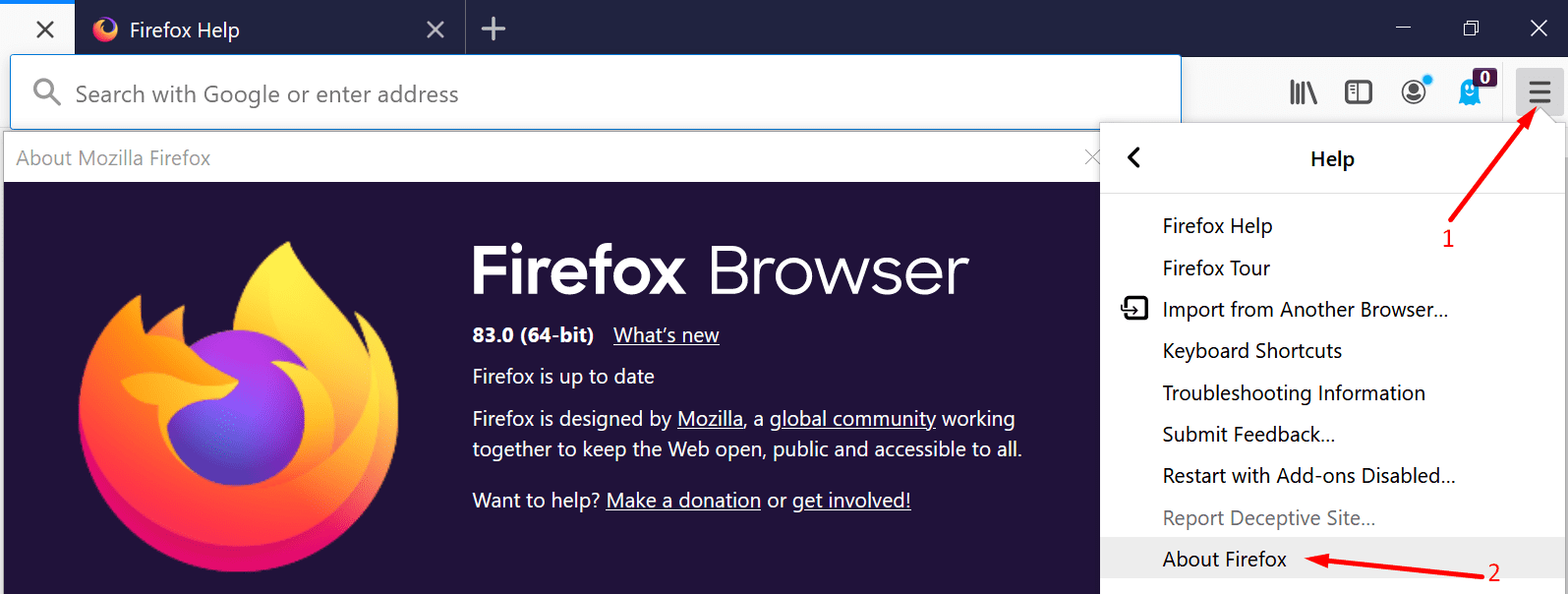
Check for updates to make sure you’re using the latest browser version. Reload the browser and check if the video issue is gone.
Enter Safe Mode
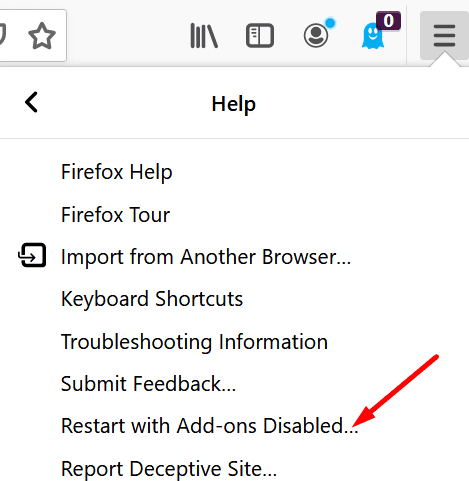
Launch Firefox in Safe Mode to check if something’s blocking the browser from playing videos.
- Launch Mozilla Firefox and click on the browser menu.
- Then navigate to Help.
- To enter Safe Mode, select the option that lets you restart the browser with add-ons disabled.

- Check if the issue persists in Safe Mode.
If the error is gone, continue with the following steps. We’re going to turn off hardware acceleration and then disable the extensions.
Turn off the Extensions
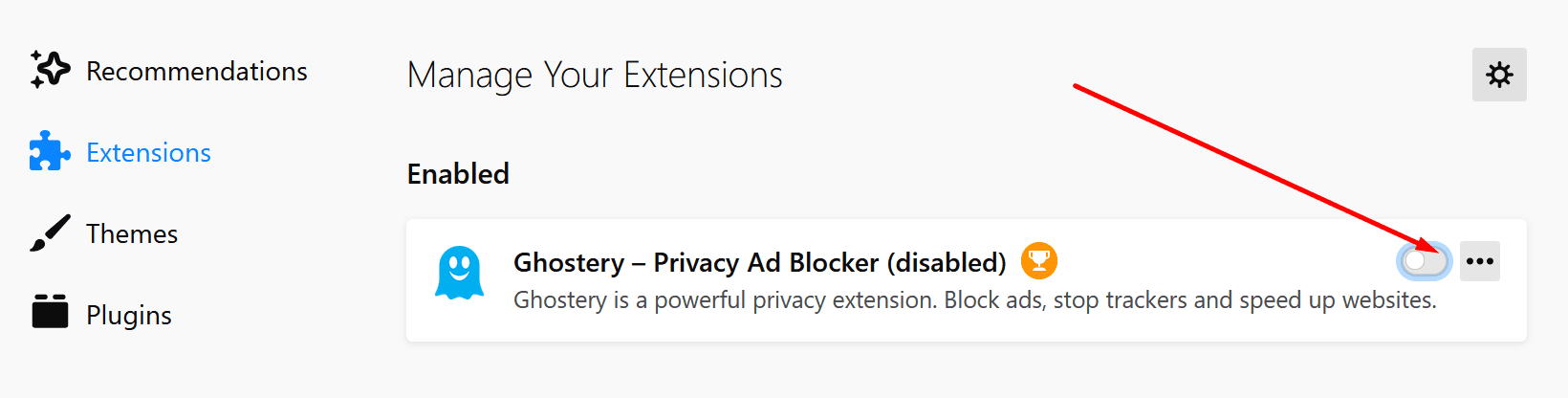
Some of your extensions, especially ad blockers and privacy-focused add-ons, may prevent the browser from playing videos.
To make sure your extensions don’t block videos, simply disable them.
- Click on the browser menu and select Add-ons.
- Select Extensions (left-hand pane).
- Toggle off all your extensions one by one.
Disable Hardware Acceleration
- Click on the menu and select Options.
- Then go to General.
- Scroll down to Performance.
- Uncheck Use recommended performance settings.

- Refresh the browser.

Reset Firefox
Many users noticed their codecs were to blame for this error. For example, if you have the Shark007 codecs installed, you may want to check if they’re preventing Firefox from playing videos on your Windows 10 computer.
Firefox users said they solved this problem by resetting the browser.
- Click on the browser menu and select Help.
- Then select Troubleshooting information.
- Click on Refresh Firefox to restore the browser settings to default.
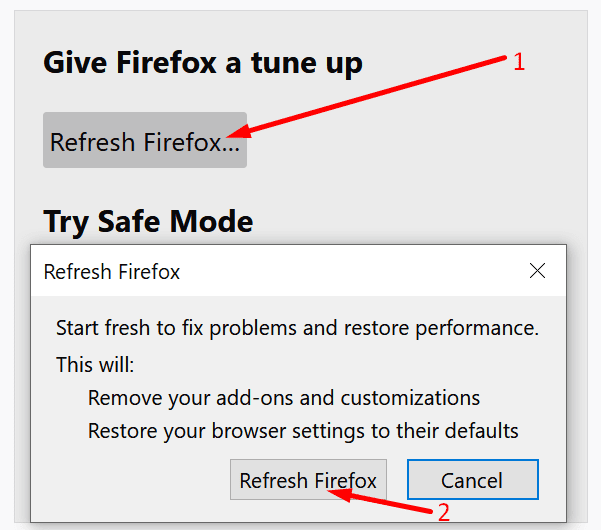
You can also click on Clear startup cache to remove the cache.
Reinstall Firefox
If nothing worked, as a last resort, you can uninstall Firefox.
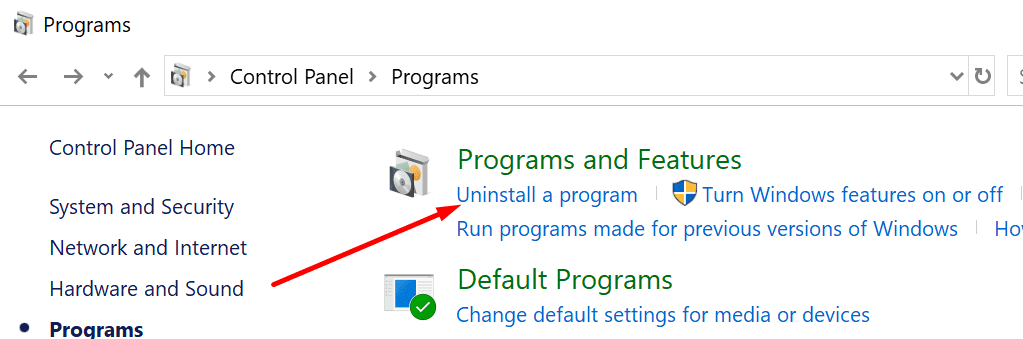
- Go to Control Panel.
- Then select Programs.
- Click on Uninstall a program.

- Select Firefox and uninstall it.
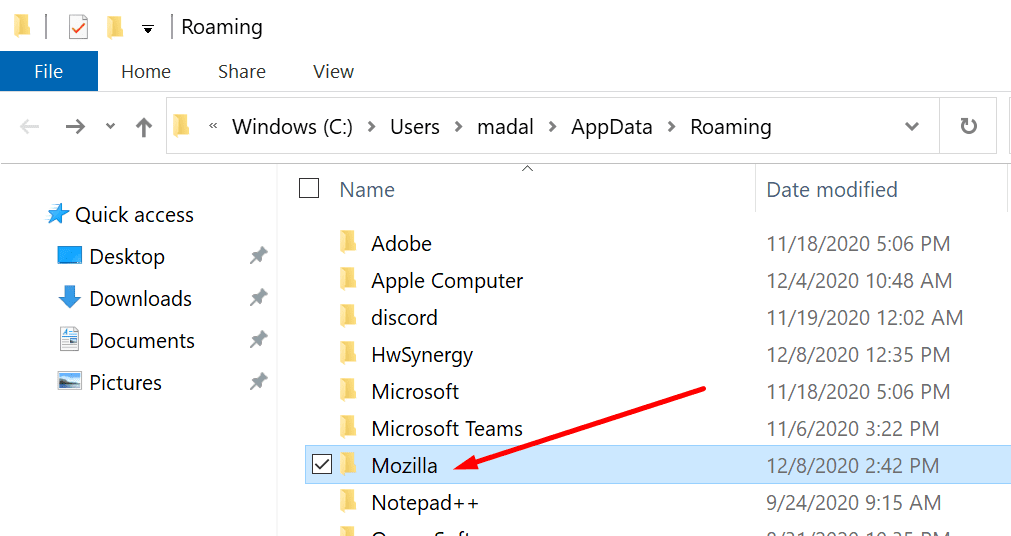
- Then, enter %appdata% in the Windows Search bar.
- Remove the Mozilla folder and restart your computer.

- Go to Mozilla’s website and download Firefox.
- Re-install the browser on your computer. Check if Firefox can play videos now.
Let us know which method worked for you.