
Skip to content
LogoTechnipages
LogoTechnipages
  • Topics
        • Android
        • Browsers
        • Gaming
        • Hardware
        • Internet
        • iPhone
        • Linux
        • macOS
        • Office
        • Reviews
        • Software
        • Windows
        • Definitions
        • All Recent Posts
  • Product Reviews
  • About

Fix: Amazon Photos Couldn’t Find the Items to Upload

Madalina DinitaMarch 22, 2022 Comments (0)
Amazon-Photos-problem-finding-item-to-upload

When you try to manually upload photos to Amazon Prime Photos, you may sometimes get an error message that says the service couldn’t find the items to upload. Restart the app, and check if you notice any changes. If you still can’t upload your photos, follow the steps below.

Contents

  • 1 Amazon Photos: There Was a Problem Finding the Item to Upload
    • 1.1 Check Your Connection
    • 1.2 Ensure Your Photos Meet the File Requirements
    • 1.3 Install the Latest Updates
    • 1.4 Conclusion

Amazon Photos: There Was a Problem Finding the Item to Upload

Check Your Connection

Make sure your Internet connection is working properly. For example, you can enable Airplane Mode for 20 seconds. This will help you refresh your connection. Additionally, try connecting to a different network and check if you notice any improvements. You can unplug your router for two minutes if you’re using a wireless connection.

Ensure Your Photos Meet the File Requirements

Maybe the files you’re trying to upload are the problem, not Amazon Photos. If you’re trying to upload large files, use the Amazon Photos desktop app instead. You can’t upload files larger than 2GB using a mobile device.

Additionally, check if the files you’re trying to upload contain special characters in their filename. As Amazon explains, filenames cannot end in CON, PRN, AUX, NUL, COM[1-9], LPT[1-9], a space, or a period.

Amazon Photos doesn’t support the following image formats:

  • Equirectangular Panoramic Photos
  • Google Motion Photos
  • iOS Burst
  • Leica Photos
  • Lenticular Photos
  • Samsung Motion Photos
  • 3D Photos

Try renaming the problematic files, compress them as .zip files, save them under a different image format, and check if you notice any changes.

For more information, see File Requirements for Amazon Photos and Amazon Drive.

Install the Latest Updates

Be sure to install the latest updates on your device. If you’re using Amazon Photos on a mobile device, update your OS and apps to the latest version. The same is valid for computer users. Outdated software versions may break Amazon Photos’ functionalities.

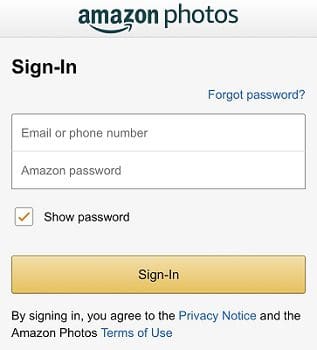
After installing the latest updates, sign out of your Amazon account, and restart your device. Sign back in and check the results.Amazon-Photos-login
If the problem persists, uninstall and reinstall the app.

Conclusion

If Amazon Photos can’t find the files you want to upload, ensure your Internet connection is working properly. Additionally, ensure your photos meet Amazon’s file requirements. Be sure to install the latest updates on your device. If the issue persists, uninstall and reinstall the Amazon Photos app.

Did you manage to solve the problem and upload your pictures to Amazon Photos? Let us know in the comments below.


Categories: Internet

Author Madalina Dinita

Madalina has been a Windows fan ever since she got her hands on her first Windows XP computer. She is interested in all things technology, especially emerging technologies -- AI and DNA computing in particular.

You Might Also Like

  • Always-Start-Chrome-in-Incognito-Mode

    How to Make Chrome Open Incognito Mode by Default

    Madalina DinitaInternet
  • Google-Drive-Couldnt-Preview-File

    Fix: Google Drive Couldn’t Preview File

    Madalina DinitaInternet
  • Deactivate-Facebook-Keep-Messenger

    Can I Deactivate Facebook and Keep Messenger?

    Madalina DinitaInternet
  • Auto-Refresh-Chrome-Tab-Without-Extension

    Chrome: How to Refresh Various Tabs Simultaneously

    Judy SanhzInternet

Leave a Reply

Your email address will not be published. Required fields are marked *

  • fix error code 0x3000008 1

    How to Fix Error Code 0x3000008 for Remote Desktop Connection

  • fix error code 0x80190001 1

    How to Quickly Fix Error 0x80190001 for Microsoft or Outlook Account Login 

  • fix filecoauth.exe application error

    Fix FileCoAuth.exe Application Error 

  • fix error code 0x80010002 in windows update

    How to Fix 0x80010002 Error in Windows Update 

  • an unexpected error is keeping you from copying files

    How to Fix “An Unexpected Error Is Keeping You From Copying” for Files 

profile pic

The Experts Behind Technipages

My name is Mitch Bartlett. I've been working in technology for over 20 years in a wide range of tech jobs from Tech Support to Software Testing. I started this site as a technical guide for myself and it has grown into what I hope is a useful reference for all.

Learn More

technipages logo white
linkedin icon

Technipages is part of Guiding Tech Media, a leading digital media publisher focused on helping people figure out technology. Learn more about our mission and team here.

© 2025 Guiding Tech Media All Rights Reserved

  • About Us
  • Contact
  • Terms of Use
  • Privacy Policy

© 2025 Guiding Tech Media All Rights Reserved

Information from your device can be used to personalize your ad experience.
Do not sell my personal information.

Last Updated on March 22, 2022 by Judy Sanhz