

Microsoft Teams is one of the most popular team collaboration and video meeting programs out there. But despite its popularity, it’s still a work in progress.
Microsoft is working around the clock to improve the app. There’s a dedicated Microsoft Teams UserVoice website where users can suggest improvement ideas. Microsoft then reviews these suggestions and implements the best ones.
But sometimes, turning an idea into a fully-fledged feature can take an awful lot of time. Teams users have been requesting Microsoft to let them disable face tracking for a long time, yet nothing happened.
Contents
Why Do Teams Users Hate Face Tracking?

Just to set things straight: there is currently no option to disable face tracking in Microsoft Teams.
Users don’t like automatic face tracking because this feature changes autofocus as soon as people move their heads or bodies. This creates the impression the camera is moving as users move. And this constant image movement can become really annoying. The host is often unaware of the issue because they cannot see the camera movement. However, all the meeting attendees can clearly see the autofocus changes.
The constant camera autofocus is actually very disturbing, especially when users want to share a whiteboard. Moreover, Teams does not respect specific system-wide autofocus settings during video meetings. For this reason, certain webcam models are literally unusable with the Teams app.
Teams constantly changing webcam settings and forcing the autofocus made many users look for a better alternative. For example, Skype For Business lets users turn off autofocus when they start their computers.
Teams Just Tries to Make the Head the Centre of the Screen
This face tracking and autofocus problem occur when more than two users are attending the meeting. It’s not visible during one-on-one meetings.
The app simply tries to place the host’s head to the center of the screen. It does that by cropping the extra. All the movements users see are actually the app’s attempts to keep the head in the middle as the person talking is moving.
The Solution
As a workaround, you can right-click on the video of the host and select Fit to frame.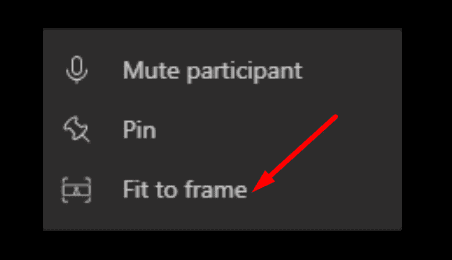
This should block face tracking and bring the cropped area back into the image. Once again, there are currently no specific settings to turn off face tracking in Microsoft Teams.
By the way, we also published a dedicated guide on how to focus on one person on Microsoft Teams.
Conclusion
Many Microsoft Teams users really hate the automatic face tracking feature and autofocus. But the app is only trying to keep the head of the person who’s talking in the middle of the screen. As a quick workaround, you can enable the Fit to frame option to block face tracking. Let’s hope Microsoft adds a specific option to disable Teams face tracking.
⇒ Over to you now: What’s your take on Microsoft Teams’ face tracking feature? Hit the comments below.





This is the worst “feature” ever!!!!!!!!! There’re not enough ! in the world!!!!!!!
Face tracking in Teams is a nightmare. Jeez Microsoft, put users in control of what they buy from you (for the first time in your corporate lives!).
ugggh.
Just got finished trying to troubleshoot a microsoft teams room for the police department in my town. The autofocus “Feature” was confusing them, and they were trying to do some training via video.
Seriously. Can we not have the computers try to “Think for us”?
I mean, come on…. Fictional Skynet was better than this.
I use an actual wall mounted whiteboard during Microsoft Teams training to record group discussions. Despite centering my webcam on the wide board and an area for me to stand at the side, the webcam face tracking adjusts to me and moves the camera away from the whiteboard. This is so frustrating!
Like many others, I want to disable face tracking! It can’t be too difficult to assign an on/off option.
Face Tracking is not Deaf friendly! The Deaf viewers saw my screen moves by face tracking. they had hard time to focus what i was signing in ASL. The face tracking chopped my screen and they couldnt see half my hands. MS Teams is not Deaf Friendly! due to face tracking. and we cant turn it off. thats make us want to go back to Zoom. they have no messy features on the screen.