There’s nothing more frustrating than being in the middle of a project (possibly an urgent one) and opening Clipchamp to the message “unexpected application error”.
As the message suggests, the problem is not expected; therefore, the problem is likely not on your end, and there are many reasons why you are experiencing it.
Contents
- 1 Why Do You See the Clipchamp Unexpected Application Error
- 2 Method 1: Restart the Application
- 3 Method 2: Restart Your Device
- 4 Method 3: Clear Some of Your Storage
- 5 Method 4: Try Both the App and Browser Versions of Clipchamp
- 6 Method 5: Uninstall the Application and Reinstall
- 7 What Else Can You Try?
Why Do You See the Clipchamp Unexpected Application Error
If you’ve experienced an unexpected application error in Clipchamp, either the program hasn’t loaded or it’s suddenly crashed.
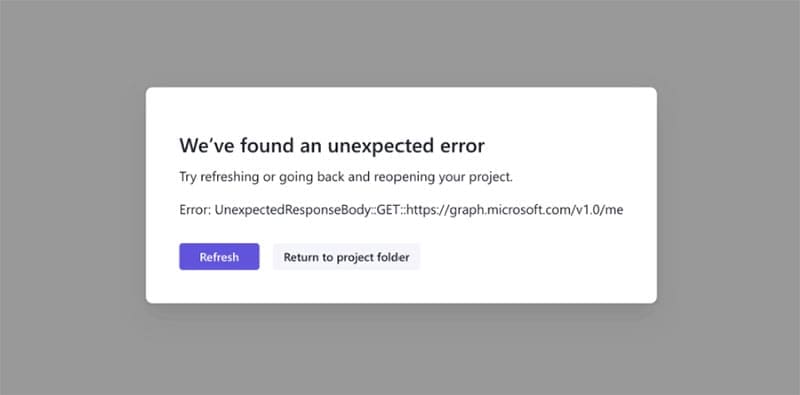
This error means the Microsoft Graph /me request returned a response that the system couldn’t understand.
This usually happens due to:
- Invalid or missing permissions
- Abad token
- Malformed requests
- Server-side glitches
It’s a generic error indicating the client received unexpected data rather than a clear, standard Graph API error.
Here are some methods you can try to solve this issue.
Method 1: Restart the Application
The quickest and most sensible option is to shut down the Clipchamp application, whether you’re using the app or the browser version, and make sure it’s fully closed on your device.
Give the program five minutes before restarting it.
Method 2: Restart Your Device
While the error is likely internal, it doesn’t hurt to restart your phone, laptop, or tablet.
This gives your device a chance to clear any excessive tab usage or applications that might be causing it to work too hard.
Method 3: Clear Some of Your Storage
If you can still access Clipchamp but it keeps crashing when you try to edit projects, try to limit the tools’ digital load. You can do this by:
Before deleting, make sure you’ve exported any important projects.
Step 1: Click on the Home button in the left-hand corner of your screen. Here you’ll see an overview of your projects.
Step 2: Choose the project you’d like to delete. Click on the three dots to expand the project’s action bar and press delete.
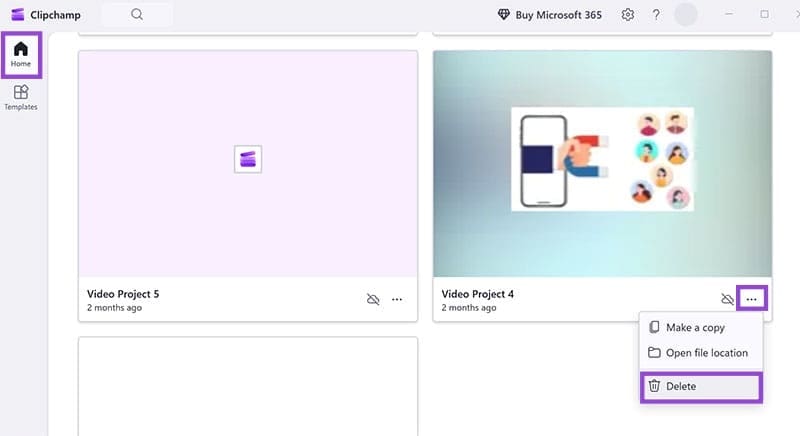
Step 3: Close and relaunch Clipchamp.
Method 4: Try Both the App and Browser Versions of Clipchamp
Clipchamp has both an app and a desktop version. Sometimes you’ll find that the problem is with one format, rather than both.
To access Clipchamp from your web browser, simply type in the URL below and click the “Sign in” button.
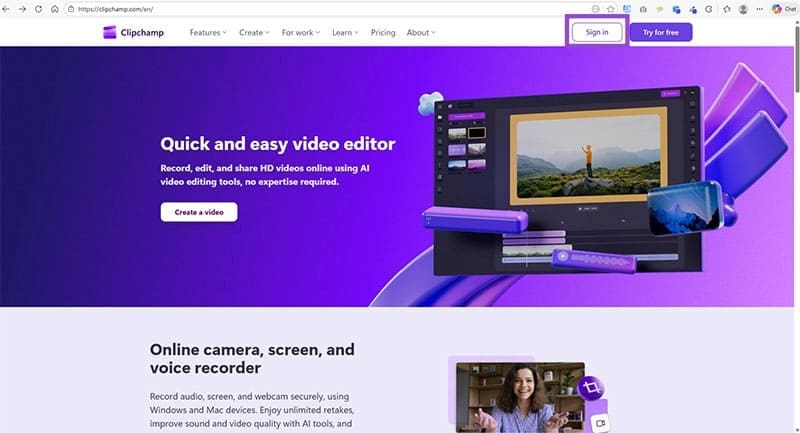
To access the app version of Clipchamp, search for “Clipchamp” in your app store and click the “Install” button.

This might offer a temporary solution.
Method 5: Uninstall the Application and Reinstall
Sometimes, you just need to reboot an application. Whether you are using the mobile app or the desktop app, uninstall the app and then install it again.
Before uninstalling, check that your Clipchamp projects are saved to your cloud storage to ensure you don’t lose any data.
If you’re using the desktop app:
Step 1: Use your desktop search bar to locate the “Microsoft Clipchamp” app.
Step 2: Click the “Uninstall” option in the action list.

Step 3: Redownload the application through the Clipchamp homepage.
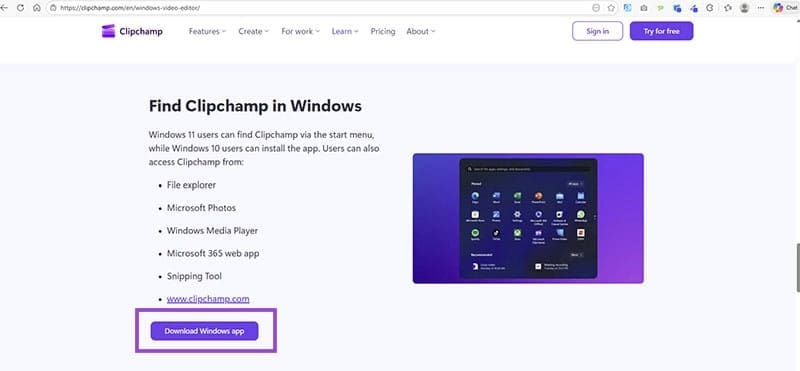
If you’re using the mobile app:
Step 1: Locate the app store on your device.
Step 2: Search for “Clipchamp” in the search bar and select the app.

Step 3: Click the “Uninstall” button on the app overview.

Step 4: Then, click the “Install” button to reinstall the app.
What Else Can You Try?
Check With the Community
You might not be the only user with an issue, as it could it be a program-wide fault? Check tech forums, Reddit, and other social media platforms to see if anybody else has raised issues with Clipchamp.
If yes, this is a problem that needs to be resolved internally by the company, and you’ll have to wait. This can be frustrating, but at least you’ll know that a solution will be there, typically in a few hours or days.
Report the Problem
If you attempt all of the above and still have a problem, it’s best to report the problem.

You can do this through Clipchamp (of course, if you can open it).
Step 1: Click on the profile and speech bubble icon in the right, top corner of the application.

Step 2: This produces a pop-up on the right-hand side, giving you the option to either “Give a compliment” (probably not in this situation), “Report a problem”, or “Make a suggestion”.
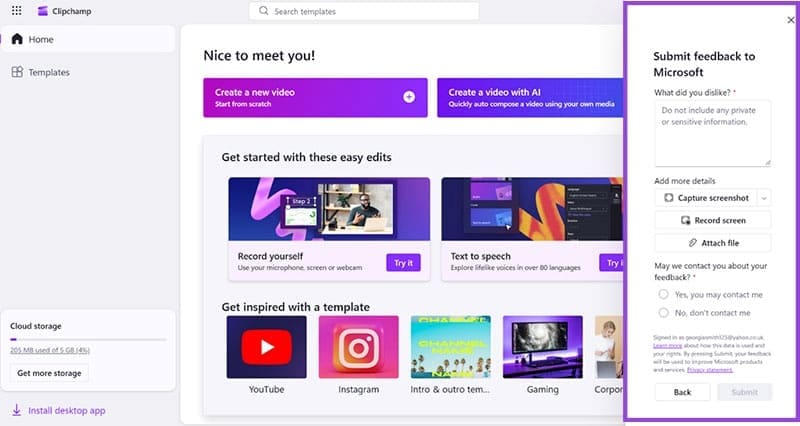
Step 3: Click the “Report a problem” option, and you’ll get another pop-up that allows you to describe your issue, as well as add screenshots, recordings, and additional files.
This isn’t a fast fix, but it might be useful if the problem remains unresolved.
If you can’t open the program at all, we recommend getting in touch with Microsoft directly through their official support channels.