
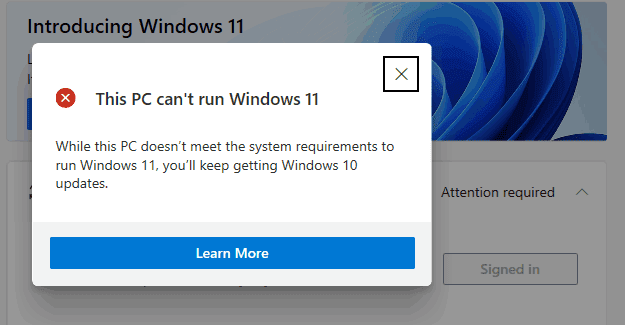
If your computer is not Secure Boot capable, you won’t upgrade to Windows 11. When you check for updates, you’ll get an error message that says, “This PC can’t run Windows 11. Here’s why: The PC must support Secure Boot“.
As a quick reminder, Secure Boot is a security feature that blocks malware from loading when your computer starts up. The good news is that most modern computers support Secure Boot. However, this option is sometimes disabled in the PC firmware settings, aka BIOS. That’s the first software that starts up when you boot up your computer, before Windows.
Enabling Secure Boot in BIOS settings should help you get rid of this error and upgrade to Windows 11.
Contents
How Do I Fix “This PC Must Support Secure Boot”?
Enable Secure Boot
- Navigate to Settings.
- Select Update and Security.
- Click on Recovery.
- Then hit the Restart Now button under Advanced startup.
- Select Troubleshoot.
- Go to Advanced options.
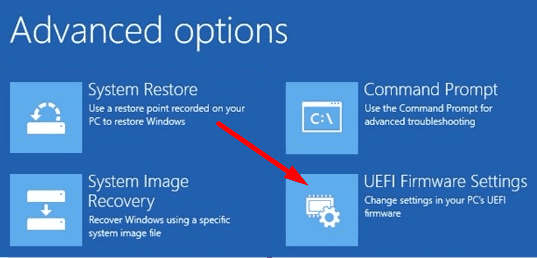
- Select UEFI Firmware Settings.

Windows 11 Advanced Options - Restart your computer.
- Go to UEFI Settings.
- Click on the Boot tab.
- Enable Secure Boot.

Windows 11 Secure Boot Enable - Exit UEFI Settings and save the changes.

You may also need to change your boot mode settings from Legacy BIOS to UEFI/BIOS. If your device supports both modes, make UEFI your first or only option.
UEFI settings are different depending on your manufacturer. For more information on finding the correct UEFI settings, go to your PC manufacturer’s support page.
How to edit UEFI settings on different computer models:
Bypass TPM for Windows 11
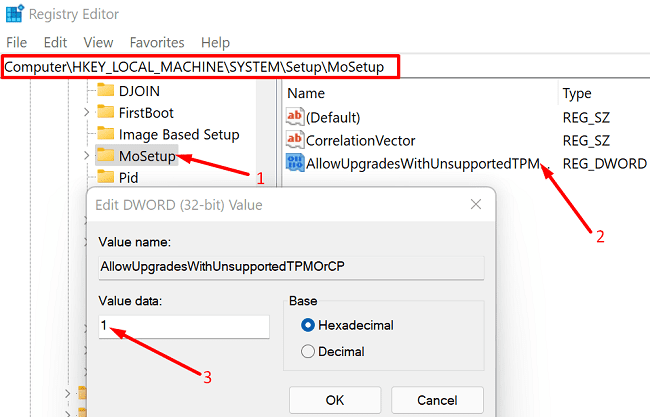
Alternatively, you can also bypass TPM and Secure Boot altogether and force-upgrade to Windows 11. You can use this solution if your machine doesn’t support TPM or uses an unsupported TPM version. Tweak your Registry and create a new entry that allows upgrading on unsupported TPM.
- Open the Registry Editor.
- Go to HKEY_LOCALMACHINE\SYSTEM\Setup\MoSetup.
- Right-click on MoSetup, and add a new DWORD entry.
- Name it AllowUpgradesWithUnsupportedTPMOrCPU.
- Double-click on the new entry and set its value to 1.

- Then go to the Windows 11 download page and manually install the OS.
⇒ Quick Note: TPM enhances Secure Boot. As a quick reminder, Secure Boot uses TPM for OS validation during loading.
As expected, Microsoft doesn’t recommend bypassing TPM. Installing Windows 11 on unsupported hardware may cause all sorts of unexpected issues, including crashes and security issues. The safest solution is to buy a new computer that meets the Windows 11 system requirements.
Conclusion
If you can’t upgrade to Windows 11 because your computer doesn’t support Secure Boot, go to UEFI settings and enable Secure Boot. Alternatively, you can also tweak your Registry and allow upgrades on unsupported TPM. However, Microsoft doesn’t recommend going down this path.
Have you upgraded to Windows 11? Do you like the new OS version? Share your thoughts in the comments below.




Doesnt work. Changing to UEFI halts my bios. Cant find any version of W11 that has the extended version that allows bypass of Secure Boot Check. Also tried the LabConfig key setup to manually bypass. NOthing works….have been able to bypass TPM check but not Secure Boot