When you first got your computer, your computer had random numbers and letters for a name. For some, it might not be such a big deal for the computer to have a default name, but if you prefer to change it, it can quickly be done. By changing the name, you can make your computer stand out from the rest, and if you ever change your mind about the new name, you can always change it again. But you might want to do it at the end of your day since you must restart your computer to apply the new name.
Contents
How to Change the Name of Your Windows 11 Computer
To give your Windows 11 computer a new name, you must go to Settings. Pressing the Windows and I keys is the fastest way to get to settings. Or, if you prefer, you can also click on the Windows Start icon and click on the Settings app. Click on System on the left and scroll down until you see the About option.

The Rename this PC button will be at the top right. You’ll need to enter the new name in the blue box that appears. You’ll see your current name, and when you’ve entered the new name, click on the Next button. You’ll need to restart your computer to have the new name applied, but you can choose to do it now or later. Another method you can try to change the name of your PC is by using the Command Prompt.
Using the Command Prompt to Change the Name of Your PC
If you’re comfortable using the Command Prompt, there is a command you can try to rename your computer. You can open the Command Prompt by entering its name in the search bar and opening it as an administrator. Once it’s open, enter the following command: wmic computersystem where name=”%computername%” call rename name=”NewPCName”
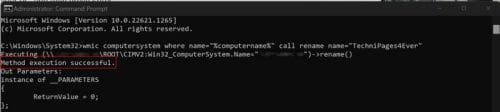
Where it says NewPCName, this is where you add the name you want to give your computer. Don’t forget to press Enter; you should see a message that the command was processed successfully. Restarting your computer will be necessary. You can do this by right-clicking on the Windows Start icon, placing the cursor on the sign-out or shut-down option, and choosing the restart option. Or, you can click on the Windows Start icon, followed by the power button and then the Restart option.
How to Rename Your Windows 11 Computer Using System Properties
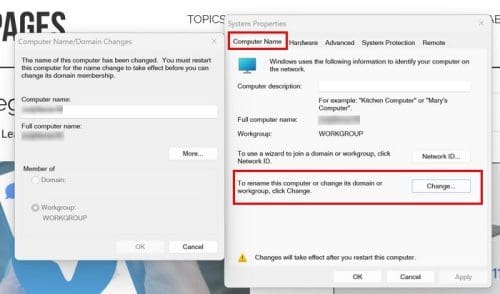
Another option you have to rename your computer is through System Properties. You can access it by pressing the Windows and R keys. When the Run box appears, type sysdm.cpl and click the OK button. When you’re in the System Properties window, ensure you are on the Computer Name tab. At the bottom, click the Change button to the right where it says: To rename this computer or change its domain or workgroup, click Change. Add the new name in the Computer Name field and click OK. Remember to restart your PC.
How to Change the Name of Your Windows 11 Computer Using PowerShell
You can also use PowerShell as an administrator to change the name of your computer. Right-click on the Windows Start icon and choose the Terminal Admin option. Once it’s open, enter the following command: Rename-Computer -NewName “Newname” Replace where it says new name with the new name you want to give your computer. You’ll see a message letting you know the change will occur when you restart your computer.

Further Reading
It’s also possible to rename in other areas. For example, if you told your Zoom participants to put their first and last names and they haven’t: here is how you can rename them. Also, here is what you can do if you can’t rename a file on your Windows computer. A time-saving tip you might be interested in is how you can rename multiple files on your Windows computer. These are a few suggestions if you’re still in a reading mood, but if you want to read some more, you can always use the search bar to look for more articles.
Conclusion
When you rename your computer, it’s easier to find your device. And, if you’re unhappy with the new name, you can change it anytime. Remember to restart your computer for the new name to be applied. There is more than one way to rename your computer, so if one doesn’t work, you have other options to go with. Which option are you going to go with to rename your computer? Share your thoughts in the comments below, and don’t forget to share the article with others on social media.