

Naming files is a must if you want to be able to find them later. If you don’t name your files according to their content, you could waste a lot of time. But, even if you name them correctly, you may think of an even better name than the original after a while. If you only have to change the name of a few files, you’ll be done rather quickly, but if you have a lot of files whose name you need to change, then that could be a problem.
When you need to change the name of one file, you right-click and name it. But, can the same method is applied when you need to batch rename files? There is more than one way to batch rename files on your Windows computer. One method is longer than the other, but the one you go with will depend on what works for you better.
Contents
How to Batch Rename Files Using Windows File Explorer
One way you can batch rename files is from the File Explorer. Once you have the File Explorer open the folder that has the files you want to rename. The fastest way to batch rename all of your files is by selecting them all; you can do this by clicking on an empty area right out the first file and dragging the cursor over the file you want to choose. If they were selected correctly, they’d be highlighted in blue.
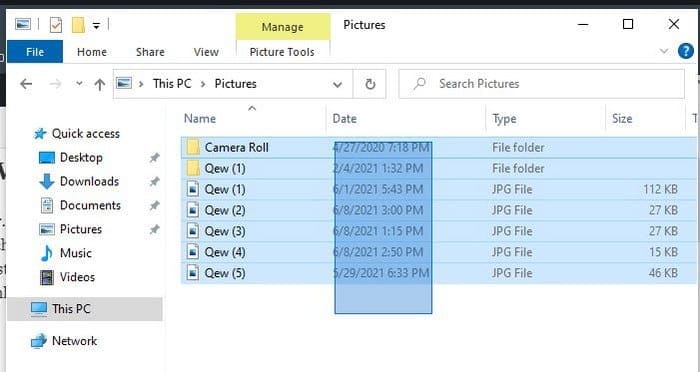
Once the files are selected, right-click on any of the files and click on rename. Give your file a new name, and when you press Enter, the new name will be applied to all the files. If for some reason, you’re having trouble naming your files with this method, there is another method you can try.
Without leaving File Explorer, go to the folder that has the files you want to rename. Click on the View tab, followed by the Details option.

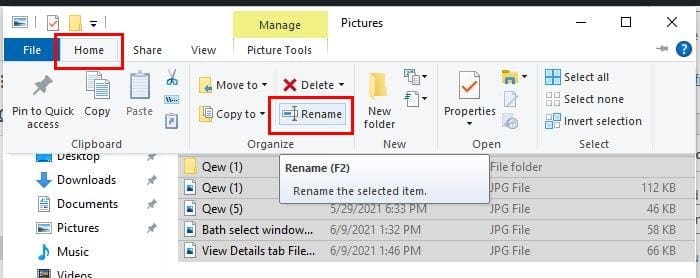
Now, click on the Home tab, followed by the Select All option near the upper right of the File Explorer. You can also use the Ctrl+A keyboard shortcut to select all the files. Also, if you need to rename various files, but not all of them, you can also try pressing the Ctrl button and then clicking on the files. Once you’ve chosen the files, right-click anywhere on the highlighted files and rename them. Once you’re done, click on the Enter key, and all the files will have the same name. A final option would be to click on the Home tab, followed by the Rename option.
How to Rename Windows 10 Files Using PowerShell
If you’re not too familiar with PowerShell, it’s best to stick to the File Explorer to name your files. But, if you feel confident about using it, open it by searching for it in the search bar. Once it’s open, you’ll need to type the path to the files you want to rename. For example, you can type cd documents\files. Also, by typing 1s, you can see a list of the files in the location.
To begin the renaming process, type: Rename-Item “Old-file-name.extension” “New-file-name.extension”. If the file you want to rename doesn’t have any spaces, then the equation marks won’t be necessary. For example, the command you would need to enter would look like this: Rename-Item Dog_show_20_notes.txt Mountain_pics_2020_notes.txt.
The previous command is to rename only one file but to rename multiple files, you’ll need to use the following command: ls | %{Rename-Item $_ -NewName (“NEW-FILE-NAME-{0}.EXTENSION” -f $nr++)}. Where it says new file name, you’ll need to add where the files you want to rename are, and in extension, whether they’re JPG or not in extension.
How to Rename Files Using the Command Prompt – Windows 10
Since the PowerShell is more powerful than the Command Prompt, you might feel more comfortable using this last one. If you’re only looking to rename one file, you’ll need to enter the following: cd %USERPROFILE%\Documents\files. This path is an example; if the path is different, change where it says Documents and files and replace it with the correct path. If you can’t remember what file you have in a specific location, you can take a peek by entering dir.
ren “OLD-FILENAME.EXTENSION” “NEW-FILENAME.EXTENSION” is the command you’ll need to enter to rename a single file. Where it says old file name, you’ll need to add the file’s current name, and where it says new file name, the file’s new name. Keep in mind that quotation marks are only necessary if the file’s name has spaces.
If you have various files you want to rename, then the command you’ll need to use is the following: cd %USERPROFILE%\Documents\files. This example is so you know what it should look like with the path and everything, but if your files are elsewhere, just make the necessary changes. To rename various files, you’ll need to enter the following command: ren *.FILE-EXTENSION ???-FILE-NAME.*. Where it says file extension, you’ll need to do exactly that, the extensions the file you want to rename have. The part where it says file name should have part of the name you want to add to the files.
Conclusion
If you want to keep things simple and go with the fastest way to rename single or various files, your best bet is the file explorer. Do you have a lot of files to rename? Let me know in the comments below, and don’t forget to share the article with others on social media.




I prefer to use a program: Directory Report
It can preview your changes, and
can undo the rename if you make a mistake