Skip to content
LogoTechnipages
LogoTechnipages
  • Topics
        • Android
        • Browsers
        • Gaming
        • Hardware
        • Internet
        • iPhone
        • Linux
        • macOS
        • Office
        • Reviews
        • Software
        • Windows
        • Definitions
        • All Recent Posts
  • Product Reviews
  • About

Windows 11: How to Enable/Disable Touchscreen

Judy SanhzJune 1, 2022 Comments (2)
Windows-11-Not-Displaying-Weather-Widget

Does someone in your family find it funny to touch your screen while using it? If you have to deal with this, then disabling the touchscreen is something you might consider. Or maybe you turned it off but can’t remember to turn it back on. Either way, you’ll see your options to turn on or off the touchscreen on your Windows 11 computer. Remember that you can change what you’ve done at any time.

Contents

  • 1 How to Turn on Touchscreen on Windows 11
  • 2 How to Turn off Touchscreen in Windows 11
    • 2.1 Conclusion

How to Turn on Touchscreen on Windows 11

To turn on the touchscreen on your Windows 11 computer, you’ll need to type Device Manager in the search bar. Once it’s open, look for the Human Interface Devices option on the list.

Windows 11 Touchscreen


Below this option, you’ll see a long list of options. One of those options should be the HID-compliant touch screen option. If you can’t find this option and you’re sure you’ve looked carefully, then that means that your Windows 11 computer doesn’t support touch. If you do see it click on it.

HID-compliant touchscreen Windows 11

After selecting the option, click on the Action option at the top. From the list of options, make sure to choose the enable device option. Choose the HID-compliant touchscreen options > Actions > Enable Device.

How to Turn off Touchscreen in Windows 11

If you ever need to turn off the touchscreen for whatever reason, here’s what you’ll need to do. Search for and open the Device Manager. Click on the Human Interface Devices option to see all listed options when it opens. Choose the HID-compliant touch screen option and select the Action option at the top. Choose the Disable device option from the list.

Disable Touchscreen Windows 11

You’ll see a confirmation message asking you if you’re sure that you want to turn it off. If you’re sure, click on the Yes option. Now choose the HID-compliant touch screen > Action > Disable device > Yes. Don’t worry if you change your mind about turning the touchscreen on or off. You can reverse the changes at any time.

If what you find annoying about the touchscreen is the touch indicator, then you don’t have to turn off the feature. You can simply go into Settings, turn off the touch indicator, and keep the touchscreen on. As long as you’re there, you can also make the touch indicator larger if you ever need that option. You’ll need to go to Settings > Accessibility > Mouse pointer and touch > toggle off the Touch indicator option.
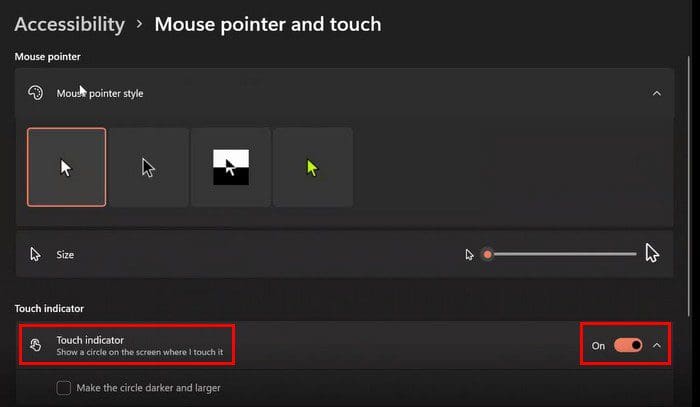
Touchscreen indicator Windows 11

Conclusion

As you can see, turning the touchscreen on or off is a simple task. Even if you change your mind later on, you can always change your option and go back to how things were before. The touchscreen option is helpful, but it may not be something that everyone wants. Do you find the touchscreen useful? Share your thoughts in the comments below, and don’t forget to share the article with others on social media.

Categories: Windows

Author Judy Sanhz

I am a tech geek who loves technology. I have been writing about tech for over a decade, covering various devices and programs. I write about Android, Apple, and Windows devices and programs. I stay updated on the latest gadgets, upgrades, features, and news. I aim to make complicated tech information easy for everyone to read. I've been with TechniPages from the beginning to help others fix their tech issues with the easy-to-follow guides.

You Might Also Like

  • Windows 11 22H2 Download The Ultimate Guide (Photo: Courtesy of Microsoft)

    How to Enable Live Captions in Windows 11

    Judy SanhzWindows
  • Windows Header

    Windows 11: How to Enable/Disable “Manage” Selection Under “This PC”

    Judy SanhzWindows
  • Enable Login Header

    Windows 11: How to Turn on Auto Login

    Judy SanhzWindows
  • Fix Dynamic Lock Not Working on Windows 11

    Judy SanhzWindows

Comments

  1. goofy ah post says:
    September 21, 2022 at 6:54 pm

    this dont work fam

  2. Betty Morgan says:
    September 19, 2022 at 1:14 pm

    how do you change the favorite list that has folders so the scroll continues without opening the folder automatically

Leave a Reply

Your email address will not be published. Required fields are marked *

  • system32 folder opens on startup

    System32 Folder Opens on Startup – How to Fix

  • browser keeps opening hp support

    Browser Keeps Opening HP Support Assistant Tabs 

  • camera not working in vmware

    Camera Not Working in VMware – How to Fix

  • browser screen goes black

    Browser Screen Goes Black Intermittently 

  • computer heating up in hyper v

    Computer Heating Up When Using Hyper-V – How to Fix 

profile pic

The Experts Behind Technipages

My name is Mitch Bartlett. I've been working in technology for over 20 years in a wide range of tech jobs from Tech Support to Software Testing. I started this site as a technical guide for myself and it has grown into what I hope is a useful reference for all.

Learn More

technipages logo white
linkedin icon

Technipages is part of Guiding Tech Media, a leading digital media publisher focused on helping people figure out technology. Learn more about our mission and team here.

© 2026 Guiding Tech Media All Rights Reserved

  • About Us
  • Contact
  • Terms of Use
  • Privacy Policy

© 2026 Guiding Tech Media All Rights Reserved

Information from your device can be used to personalize your ad experience.
Do not sell my personal information.

Last Updated on June 1, 2022 by Judy Sanhz