Thanks to the Listening Activity on Spotify, you can see what your friends are listening to. That’s one way of discovering new music you didn’t know about and may add to your playlist. But not everyone feels comfortable with others knowing what they are listening to. To keep your listening preferences private, you must turn off Listening Activity on Spotify to protect your privacy. Keep reading to see how you turn this feature off on your Android device and Windows 11 computer.
Contents
How to Turn Off Listening Activity on Spotify for Windows App
Many users like to listen to music while they work but prefer not to share what they are listening to with their followers. To turn off Listening Activity for Spotify on your Windows computer, you’ll need to use the Windows app since the options you’ll need to access are unavailable if you access Spotify using your preferred browser. Once you open Spotify, click on your profile picture and go to Settings.
Once in settings, scroll down to the Social section and toggle off the Share my listening activity on Spotify option.
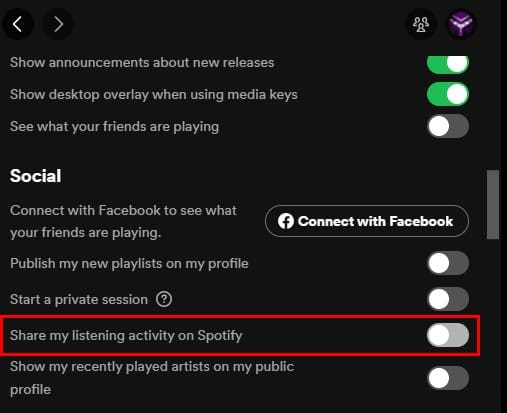
In this area, you’ll also see the Start a Private Session option right above the Share my listening activity on Spotify. If it’s only that one listening session you want to keep private, starting a private session is a great alternative. Another way to start a Private Session is by clicking on your profile picture and choosing the Private Session option.
Remember that by starting a Private Session, Spotify won’t be able to recommend songs you may like since this feature hides your music preference from the algorithms. It’s like using Incognito Mode on Chrome but for Spotify. When you turn off Friend Activity (Steps on how to do this in the section below), your friends won’t know what you’re listening to, but Spotify will pick up on what you like to listen to.
How to Turn Off Friend Activity on Spotify
The Friend Activity option is a great way to share what you’re listening to with friends, but sometimes you want some time to yourself. You can do that by turning this feature off by clicking on the three dots at the top left and choosing the View option. The Friend Activity option will be the last one on the list.
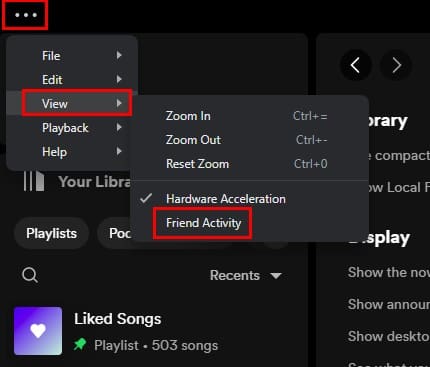
Ensure that there is no check mark next to Friend Activity. The See What your friends are Playing option is also affected when you turn this feature on or off. If there is a checkmark on Friend Activity, this other option is on, and vice versa.
Additional Tips to Make Your Spotify Account Private
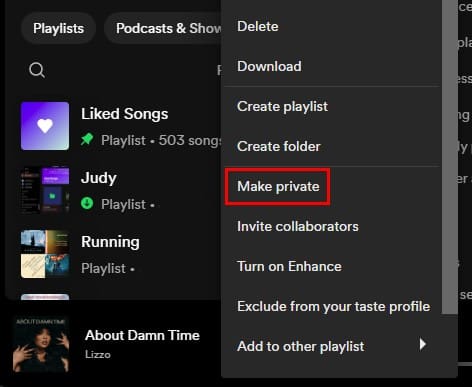
Other features you can turn off to add an extra layer of privacy are Publish my new playlists on my profile and Show my recently played artists on my public profile. Both options can be found in the Social section of Spotify’s settings. If you want to keep only one or a few playlists to yourself, you can also right-click on a playlist and choose the Make Private option. The changes will be applied instantly. You can only make private playlists that you have created. The option is not available for playlists that Spotify has made.
How to Turn Off Listening Activity on Spotify on Android
It’s also possible to turn off the Listening Activity option on your Android device, but if your Android device is not set as the main listening device, the Social section in settings will be unavailable.
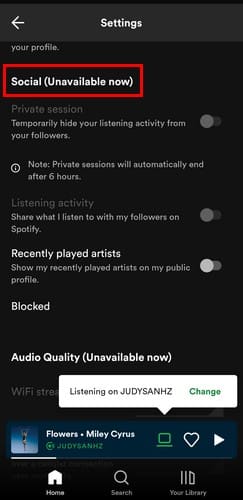
It’s in the Social section where you’ll find the Listening Activity option you want to turn off. You can make your Android device your main listening device by tapping on the Current Device option, which looks like a small speaker. Choose the This Device option, and all the options in the Social section will now be available.
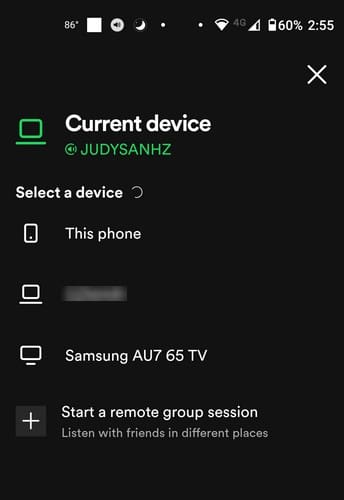
Once you can access the options in the Social section, tap on the cogwheel at the top right to go to Settings. Swipe down to and toggle off the Share what I listen to with my followers on Spotify and Recently played artists options. In that section, you’ll also find the Private Session option for more listening privacy. If you enable Private Session, you’ll see how the Listening Activity option is turned off.
Further Reading
Another privacy setting you can do on Spotify is hide or unhide a song on Spotify. Here are the steps to do that. But once you have the privacy settings that way you like, you can do other things, such as use Spotify to learn another language and other playlist tips and tricks you want to know about. But since things can go wrong with Spotify, here is how you can fix when you can’t log into Spotify with the correct password.
Conclusion
The idea that others know what you’re listening to may sound creepy to some. Good thing that there are options you can turn off to help keep your listening activity private on Spotify. If you ever change your mind and want to share your playlists, you can turn them back on. You’ll have more options on the Windows app than on Android, but at least you can manage the listening activity option from both. Are you going to keep the listening activity option off permanently? Share your thoughts in the comments below, and don’t forget to share the article with others on social media.