
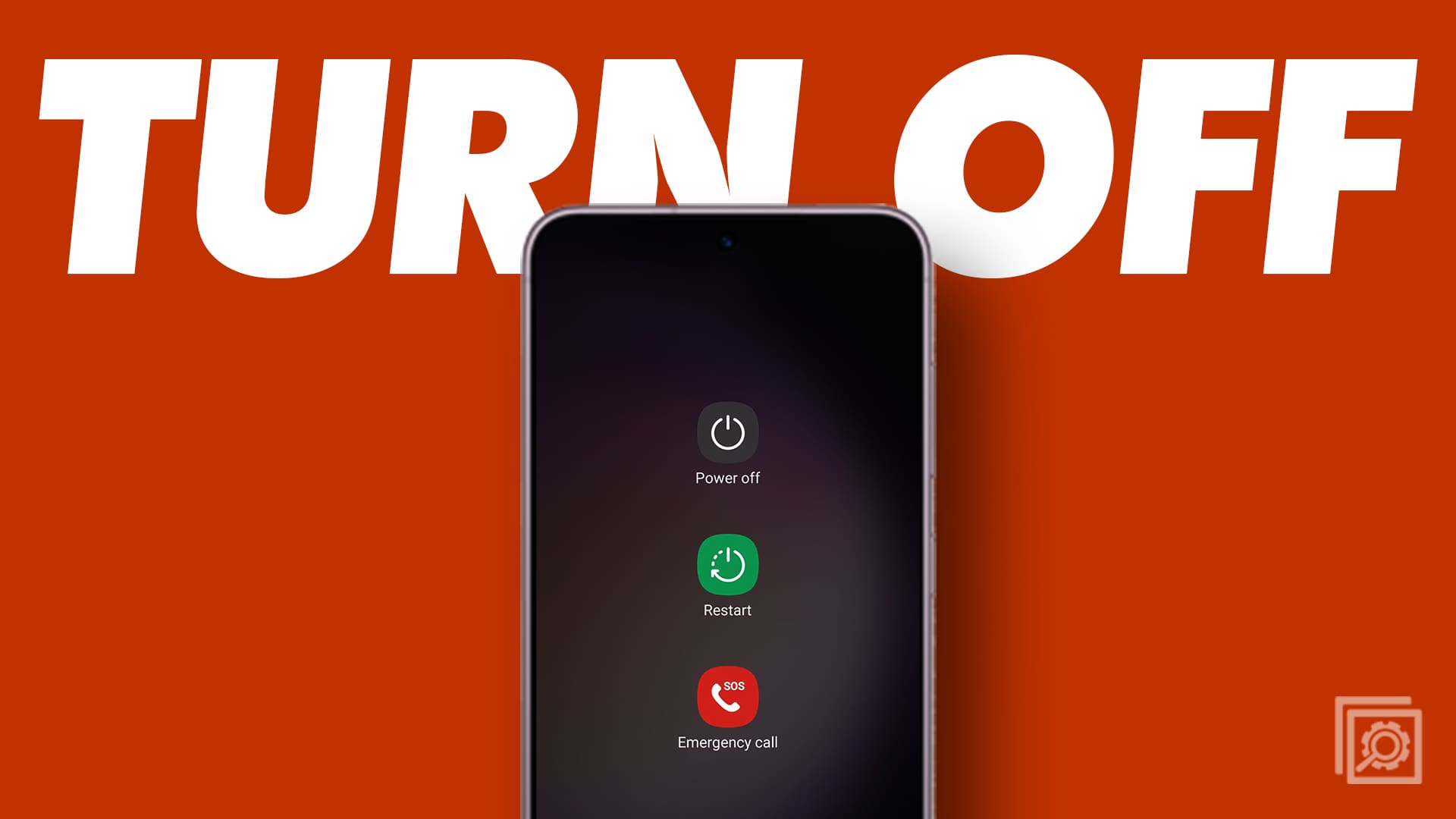
Samsung’s latest and greatest Galaxy has arrived for 2023, as the Galaxy S23 trio of devices is now available. These devices were highly anticipated for multiple reasons. The Galaxy S23 Ultra has officially replaced the Galaxy Note, which was canceled last year. After you get your phone, you’re going to want to know about the basics, and today we’re taking a look at how to turn off Galaxy S23.
Contents
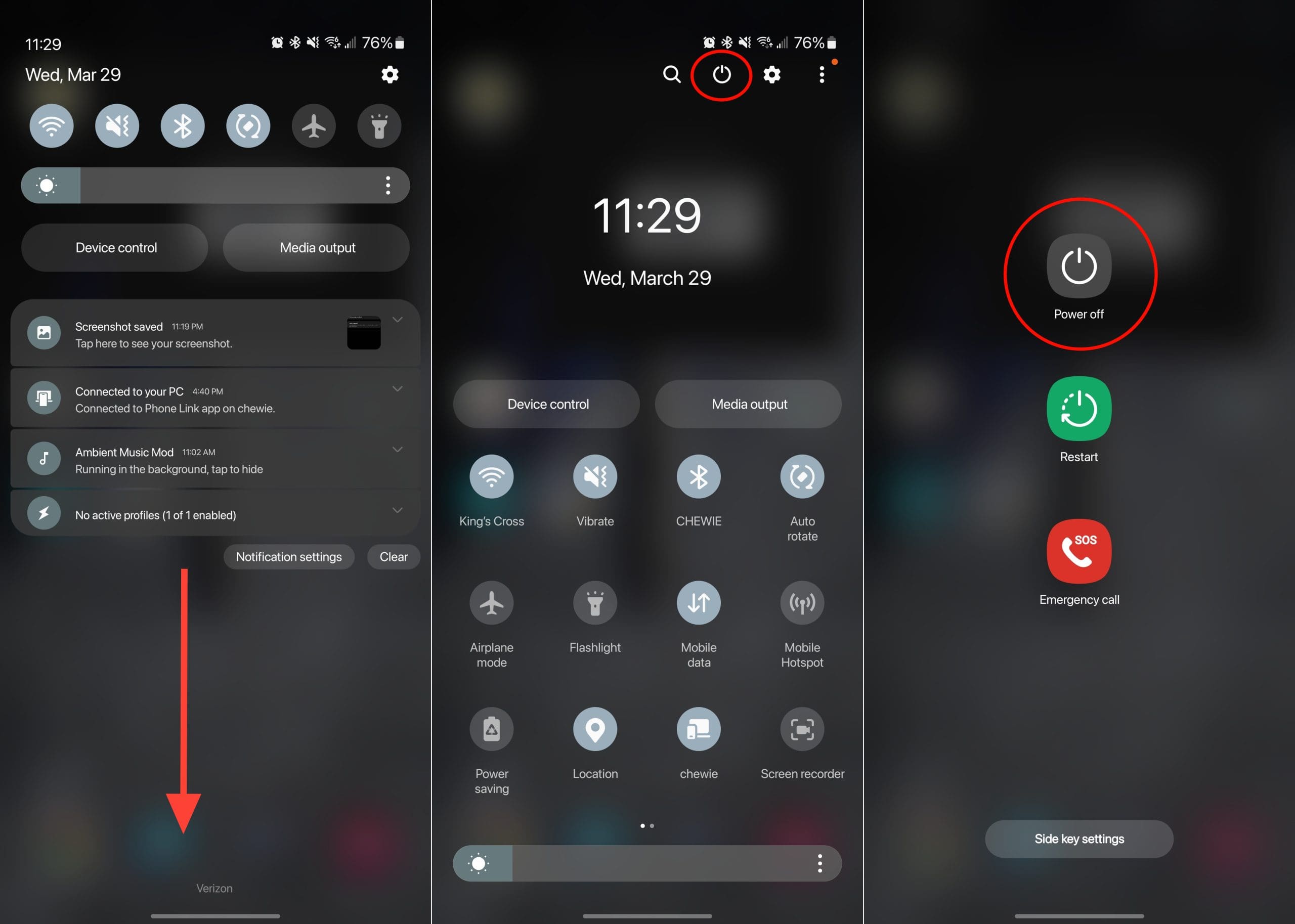
Turn off Galaxy S23 from Quick Settings
When it comes to turning off Galaxy S23, the easiest way to do so is from the Quick Settings panel. No special configurations need to be done, as this method works right out of the box.
- Unlock your Galaxy S23 and go to the Home Screen.
- Swipe down on the Home Screen to reveal the Notification Shade.
- Swipe down again to reveal the Quick Settings panel.
- Tap the Power Button in the top right corner.
- Tap either Power Off or Restart.
Bring Back Power Menu
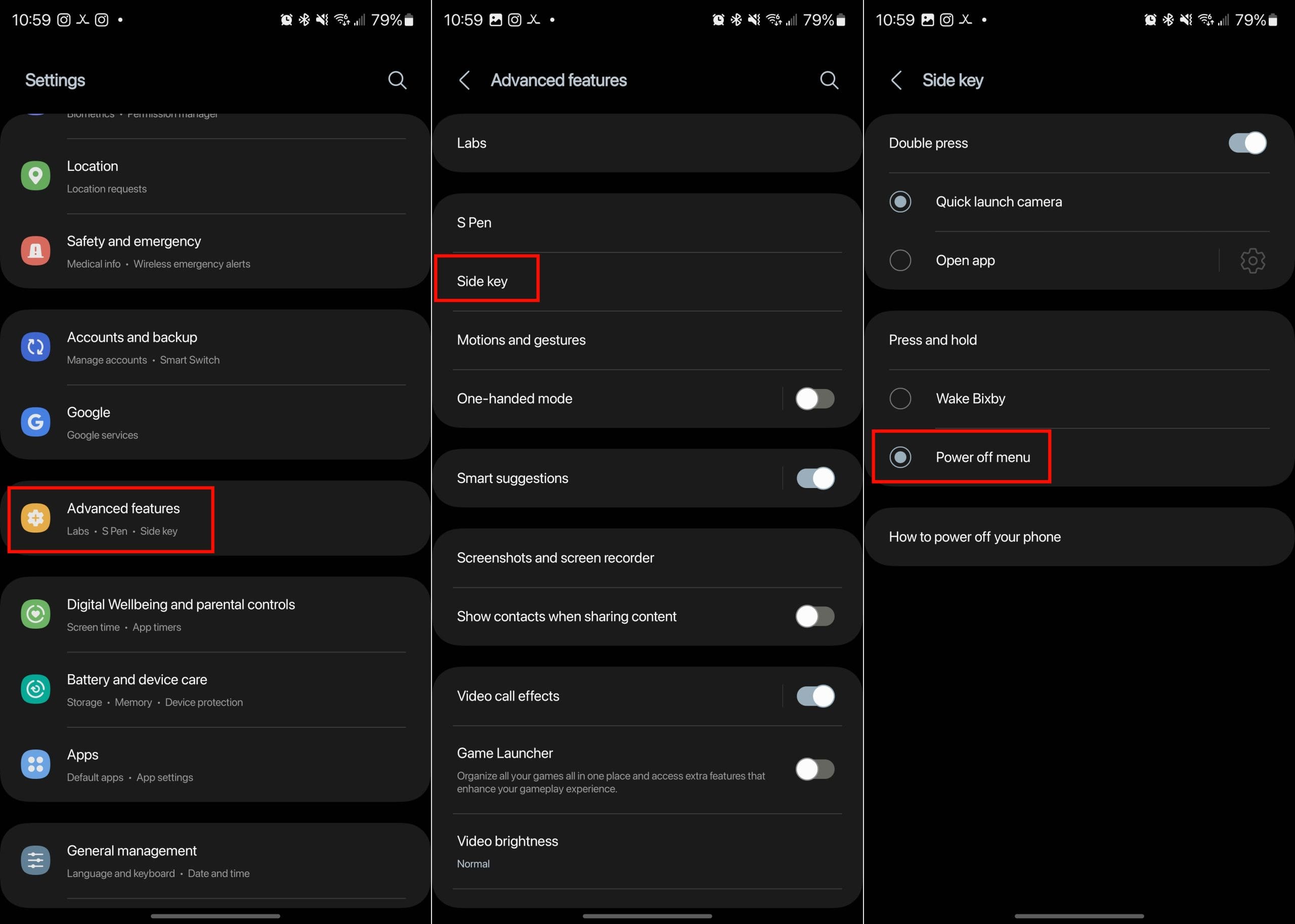
To try and force Galaxy S23 owners to use Bixby, Samsung has changed how the Power (Side) button works on your Galaxy phones. Out of the box, pressing and holding the side button will only activate Bixby, which can be rather frustrating to some. However, Samsung also makes it possible for you to bring back the old Power Menu by pressing and holding the side button. Want to make Bixby go away? Here’s how you can do so:
- Open the Settings app on your Galaxy S23.
- Scroll down and tap Advanced features.
- Tap Side key.
- Under Press and hold, tap Power off menu.
- Exit the Settings app.
- Press and hold the Side button until the Power Off menu appears.
- Tap Power off menu.
Other Ways to Turn off Galaxy S23
As we mentioned before, Samsung has changed how the Power button works on its devices. However, if you either enjoy using Bixby or just want to know all of the ways to turn off the smartphone, you’re in luck. There’s a way to turn off your new phone while still being able to press and hold the buttons on the side of the phone.
- Press and hold the Side and Volume down keys at the same time.
- Once the Power Off Menu appears, select either Power Off or Restart.
The last and final method that you can use to turn off Galaxy S23 is to use Bixby. This is Samsung’s version of Google Assistant and is the default virtual assistant on every Samsung phone. If you have not already disabled Bixby, you can activate the assistant and have Bixby turn off your phone with your voice.
Conclusion
As you can see, there are different ways to turn off your S23. Some are more straightforward than others, but it gets the job done. Which method is your favorite? Share your thoughts in the comments below, and don’t forget to share the article with others on social media.




On the s10e, Is the power button on the right side supposed to sit flush to the phone or is it supposed to stick out like the two buttons on the left side? Thanks!
My S10e has only two buttons. Both on the right side. The upper button is volume up/down and the lower is the power button