Skip to content
LogoTechnipages
LogoTechnipages
  • Topics
        • Android
        • Browsers
        • Gaming
        • Hardware
        • Internet
        • iPhone
        • Linux
        • macOS
        • Office
        • Reviews
        • Software
        • Windows
        • Definitions
        • All Recent Posts
  • Product Reviews
  • About

Spotify: How to Access Your Listening History

Judy SanhzMarch 22, 2022 Comments (0)
Loop-Song-Spotify

Have you ever listened to a song in loop and forgotten to save it to your playlist? It’s happened to all of us, but now you might be stuck trying to remember the song’s name. The good news is that there is a way you can get the song’s name without wasting any more time.

How to Find Your Spotify Listening History on Android

Once you have the Spotify app open, make sure you’re on the app’s home screen. At the top, you’re going to see three icons. The one to the right of the bell icon is the recently played option. Tap on it, and you’ll see all the songs you or someone else listened to.

View Spotify recently played

Once you see what songs you’ve recently played, you can add that song you liked to your playlist by tapping on the dots to the right. When the options appear, make sure to tap on the Add to playlist option.

Desktop App

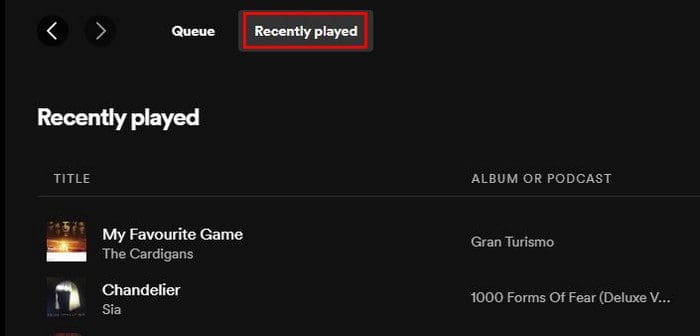
To view your recently played songs on the desktop client, you’ll need to click on the Queue icon. It’s the icon to the right of the mic icon. It looks like two and a half lines with the play icon at the top left.

Recently played spotify

Make sure to click on the Recently Played option at the top to view your list. Look for the song you like and click on the three dots to the right. That’s where you’ll find various options on what you can do with the song, and that includes adding it to your playlist.
Recently played tab Spotify

If you use Spotify on your browser, you’re not going to find a specific tab where you can view your recently played. It’s going to be even easier to find since it will be on the main page. All you have to do is scroll down until you come across the recently played section. It’s that easy.

Conclusion

It can be unpleasant to forget to save a song you recently heard and liked to your playlist. Good thing that Spotify has a section where you can view all those songs and even add them to your playlist. Now that you know where to look, those days when you panicked when you couldn’t remember the song’s name are gone. How many songs did you recover that to the recently played section? Let me know in the comments below, and don’t forget to share the article with others on social media.


Categories: Android

Author Judy Sanhz

I am a tech geek who loves technology. I have been writing about tech for over a decade, covering various devices and programs. I write about Android, Apple, and Windows devices and programs. I stay updated on the latest gadgets, upgrades, features, and news. I aim to make complicated tech information easy for everyone to read. I've been with TechniPages from the beginning to help others fix their tech issues with the easy-to-follow guides.

You Might Also Like

  • Galaxy Tab S3: Cut, Copy and Paste

    Mitch BartlettAndroid
  • WhatsApp: How to Change Your Phone Number

    Judy SanhzAndroid
  • fix microsoft teams background activity restricted

    Fix Microsoft Teams Background Activity Is Restricted

    Madalina DinitaAndroid
  • Samsung Galaxy S21 can't Activate Wi-Fi Calling

    Samsung Galaxy S 21 Plus: How to Check How Much Memory Is Left

    Judy SanhzAndroid

Leave a Reply

Your email address will not be published. Required fields are marked *

  • how to make chromebook run faster

    8 Ways to Make Your Chromebook Run Faster

  • error code 0xC0000428

    What Is Error Code 0xC0000428 and How to Fix It

  • windows 11 usb tethering

    Your Guide to USB Tethering on Windows 11

  • find the serial number of a laptop

    6 Ways to Find the Serial Number for Your Laptop

  • battery issues after windows 11 update

    Battery Issues After Windows 11 Update? Here’s the Fix

profile pic

The Experts Behind Technipages

My name is Mitch Bartlett. I've been working in technology for over 20 years in a wide range of tech jobs from Tech Support to Software Testing. I started this site as a technical guide for myself and it has grown into what I hope is a useful reference for all.

Learn More

technipages logo white
linkedin icon

Technipages is part of Guiding Tech Media, a leading digital media publisher focused on helping people figure out technology. Learn more about our mission and team here.

© 2026 Guiding Tech Media All Rights Reserved

  • About Us
  • Contact
  • Terms of Use
  • Privacy Policy

© 2026 Guiding Tech Media All Rights Reserved

Information from your device can be used to personalize your ad experience.
Do not sell my personal information.

Last Updated on March 22, 2022 by Judy Sanhz