Skip to content
LogoTechnipages
LogoTechnipages
  • Topics
        • Android
        • Browsers
        • Gaming
        • Hardware
        • Internet
        • iPhone
        • Linux
        • macOS
        • Office
        • Reviews
        • Software
        • Windows
        • Definitions
        • All Recent Posts
  • Product Reviews
  • About

Slack: How To Configure Who Can Use “@Everyone”, “@Channel”, and “@Here”

Mel HawthorneFebruary 7, 2021 Comments (1)

In Slack, if you want to draw someone’s attention to a specific message in a channel you can choose to mention them in the message. To mention a user, you need to use the “@” symbol then type their name or select their name from the suggested list. If you mention someone in a message, they will receive a notification about the mention.

Slack also includes three special mentions: “@Everyone”, “@Channel”, and “@Here”. Mentioning “@Everyone” will notify every member of the server of the message. “@Channel” will send a notification to everyone that is a member of the channel the message was posted in. “@Here” only notifies members of the current channel that are currently online.

These group mentions can be useful for announcements and for trying to get attention quickly, however, if they’re used often, they can get annoying as the messages are generally not that interesting or relevant to most people. One of the things you can do to help prevent that from happening is to restrict the use of these group mentions.

To restrict the use of group mentions you need to go into the workspace setting permissions. To get there, you first need to click on the workspace name in the top-right corner. Next, in the dropdown menu, select “Settings & administration”, then “Workspace settings” to open the workspace settings in a new tab.
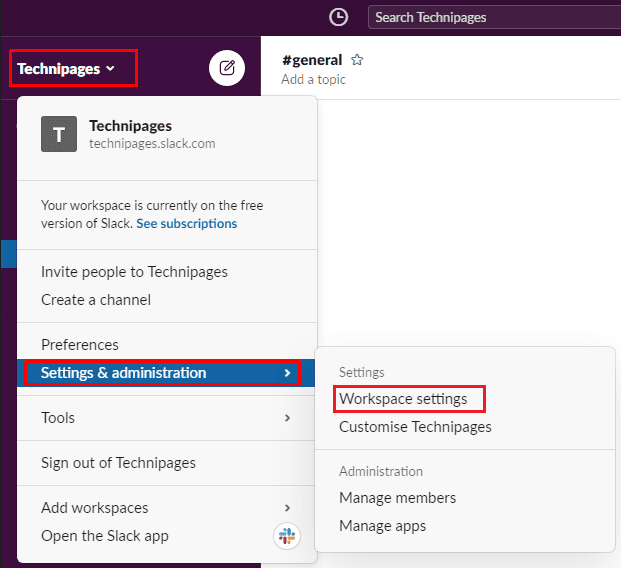
To get to the workspace settings, click on the workspace name in the sidebar, then select “Settings & administration” and “Workspace settings”.

Switch to the “Permissions” tab at the top of the page, then click on the “Expand” button for the “Messaging” permissions.

Click “Expand” next to “Messaging” in the “Permissions” tab.

Configure the first two dropdown options to be unrestricted, restricted to any non-guest member, restricted to workspace owners and admins, or restricted to just workspace admins. You can also configure the third dropdown box to adjust if there should be a warning when trying to use a group mention in a channel that has six or more members.
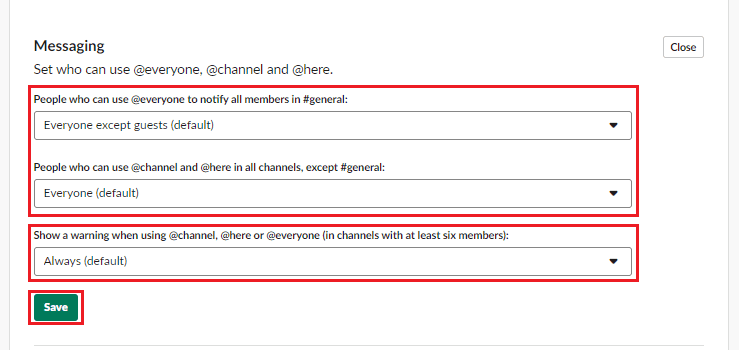
Restrict access to the use of the group mentions with the first two dropdown boxes in the “Messaging” permissions.

While it’s always nice to hear from people in your space, sometimes a little peace and quiet is needed too, so don’t hesitate to use the workspace privacy settings to restrict access to the group mentions in your workspace.


Categories: Internet | Software

Author Mel Hawthorne

You Might Also Like

  • How to Add a Friend in Discord

    Mel HawthorneInternet
  • Slack: How to Delete a Workspace

    Mel HawthorneInternet
  • Dropbox: How To Transfer a Large File To Friends

    Mel HawthorneInternet
  • Dropbox: How To Review Your Security Settings

    Mel HawthorneInternet

Comments

  1. Pat Bradshaw says:
    May 10, 2022 at 6:53 am

    I have an announcement channel on telegram and want to change it to a chat channel can’t seem to figure it out. I’ll keep working on it.

Leave a Reply

Your email address will not be published. Required fields are marked *

  • fix error 0x9cfc7550

    How to Fix Error 0x9cfc7550 (We Couldn’t Create a New Partition) in Windows 

  • fix error code 0x3000008 1

    How to Fix Error Code 0x3000008 for Remote Desktop Connection

  • fix error code 0x80190001 1

    How to Quickly Fix Error 0x80190001 for Microsoft or Outlook Account Login 

  • fix filecoauth.exe application error

    Fix FileCoAuth.exe Application Error 

  • fix error code 0x80010002 in windows update

    How to Fix 0x80010002 Error in Windows Update 

profile pic

The Experts Behind Technipages

My name is Mitch Bartlett. I've been working in technology for over 20 years in a wide range of tech jobs from Tech Support to Software Testing. I started this site as a technical guide for myself and it has grown into what I hope is a useful reference for all.

Learn More

technipages logo white
linkedin icon

Technipages is part of Guiding Tech Media, a leading digital media publisher focused on helping people figure out technology. Learn more about our mission and team here.

© 2025 Guiding Tech Media All Rights Reserved

  • About Us
  • Contact
  • Terms of Use
  • Privacy Policy

© 2025 Guiding Tech Media All Rights Reserved

Information from your device can be used to personalize your ad experience.
Do not sell my personal information.

Last Updated on February 7, 2021 by Mitch Bartlett