Using dark mode for any app has its advantages. Dark mode makes looking at your display easier and also gives the app a different look. No wonder dark mode is a popular option on many apps, including Skype, and many want to know how to enable dark mode. The feature has its benefits, such as reducing eye strain, which is very helpful in low-light areas. You also enjoy an extended battery on your device and sleep better since dark mode has reduced blue light emission. Keep reading to see how you can start enjoying the dark mode feature on Skype.
How to Enable Dark Mode on Skype for Windows
Turning on dark mode on Skype is quick and easy. So, even if you don’t have much time on your hands, you can get it done. Open the Skype app for Windows and click on your profile picture. When the list of options appears, click on Settings and the Appearance option on the left.
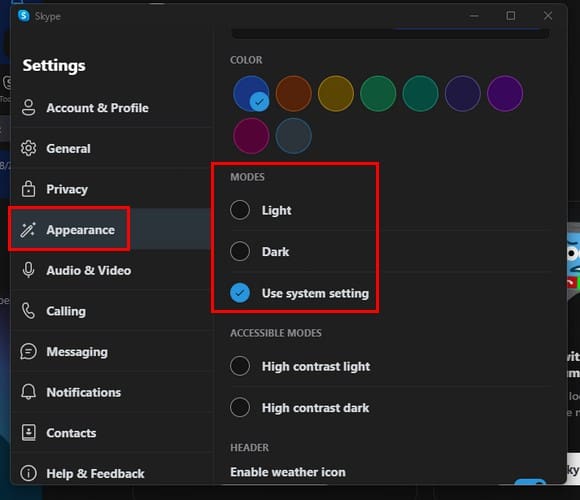
It’ll be applied without restarting the app as soon as you choose a mode. This is a good option since you can have a good look on the spot and close the app, knowing you made the choice that looks better for you. In the Accessible Modes section, you’ll see another dark mode option called High Contrast Dark that uses monochrome white on a dark appearance.
Above the dark mode option you can also choose what color your messages will be. You can give your Skype messages a new look as long as you’re there. You can choose from colors such as:
- Blue
- Orange
- Yellow
- Green
- Purple
- Red
- Grey
Choose your color, and it’ll be applied as soon you click on the new color. That’s all there is to it. Enjoy using dark mode on Skype.
Further Reading
The dark mode is also available on many other apps. For example, here are the steps to turn on dark mode on Microsoft Teams and Facebook. If you’re a Snapchat user, here are the steps to follow to use dark mode. WhatsApp and Mastodon users, here is how you can use dark mode on those apps. Remember to use the search bar to look at how you can enable dark mode on other apps or tips on different topics.
Conclusion
The dark mode is becoming a feature that’s expected on most apps due to its popularity. Not only does it help protect your sight, but it also gives the app you’re using a different look. With a few clicks here and there, you can use this popular option. Do you think you’re going to keep dark mode on permanently? Share your thoughts in the comments below, and don’t forget to share the article with others on social media.