
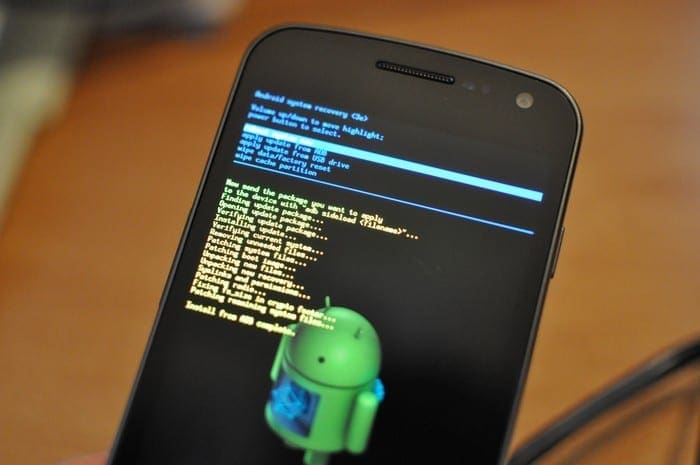
Android devices can act strangely for various reasons. You may have some corrupt files that are preventing your apps from working correctly. Your Moto G6 may freeze for reasons you can’t explain, but before you even think about a factory reset, the fix may be as simple as a soft reset.
You may look for general instructions on either how to soft or hard reset an Android phone, but if it’s for your particular device, even better. The following guidelines will show you how you can easily soft/hard reset your phone, so those annoying problems can finally go away.
Contents
How to Soft Reset a Motorola G6 Smartphone
By merely hearing the word reset, it may make your skin crawl. But, it’s not as bad as it sounds. A soft reset on any device is simply turning it off and back on again. That’s it. To the right of your Moto G6, you’ll have the volume buttons at the top and the single power button below it.
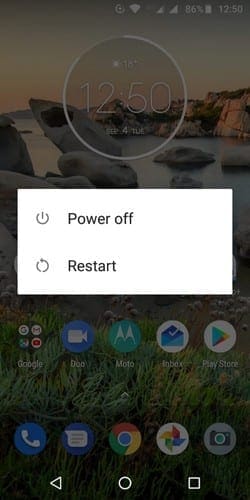
Long-press on the power button until you see the options to either restart or turn off your smartphone. Click on the restart option, and the phone will do the rest. You’ve just done a soft reset, that won’t erase anything on your device. Once it reboots, everything will be just where you left it.
Factory Reset Option 1
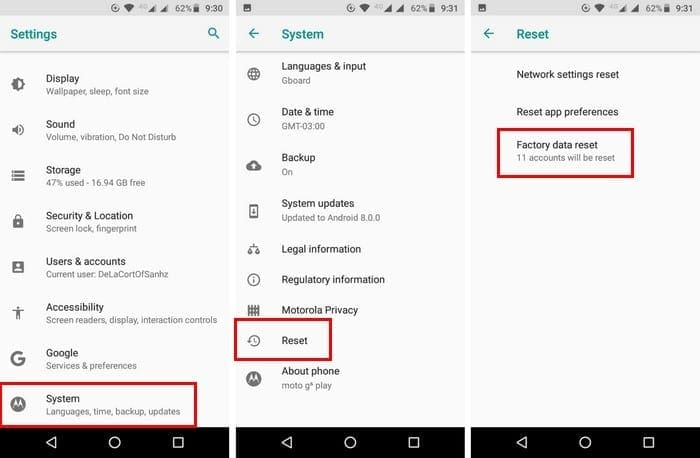
A hard reset is also known as a factory reset. What this does is that is that it leaves your Android device in the state you first received it when you first bought it. To reset your phone, go to Settings > System > Reset > Factory data reset. The last and final step would be to tap on the erase everything button.
When your Moto is up and running after the reset, you’ll need to set up all your accounts again. This includes your Google accounts and all the accounts you may have on other apps. This may take a while, depending on how many accounts you have, and this is where you may have to change your password as well. You may need to change your password to access your accounts if you’ve forgotten your password.
Factory Reset Option 2
To reset your Moto G6, you’ll need to first turn it off. Before turning it on, long-press the volume down button and while not letting go of this last button, press and release the power button. When the Boot Mode screen appears, you can let go of the volume down button. From the Bootloader section, choose Recovery Mode. You can use the volume buttons to move through the options and press the power button to select.
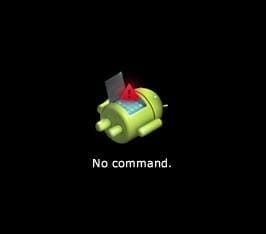
When you see the Android with the exclamation mark, the steps you’ll need perform the steps in a timely manner. Try not to press the button longer than five seconds. Long-press the power button, followed by the volume up button and then let go. Choose Wipe Data Factory Reset and select Yes.
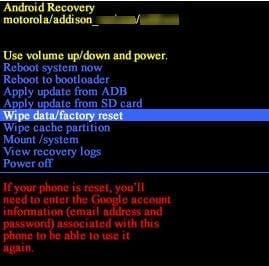
In the next screen, you should see the option that says Userdata personalized content, use the power button to select it. The reset will take some time, so now would be a good time to get that cup of coffee. The final step would be to select the Reboot system now option and wait it out.
Conclusion
Make sure that you think long and hard before going through with a hard reset since it means starting from scratch. But, if you look at the bright side of a hard reset, you wipe all those junk files that are taking up valuable space on your Moto G6. After a reset, you’ll notice that your phone will work faster and that you can begin only to add files you need. Why are you considering a hard reset? Let me know in the comments.



No one is addressing the accidental Hard Reset screen. It took nothing for me to try to turn on my phone in the dark, to come up with this little robot-looking image. All I was trying to do was turn the phone on. So how do I get out of the hard reset screen? It does not offer a back button. I do not want to lose anything, and I do not need to reset my phone.
Thanks for that. A factory reset was needed for the “Roaming Provider keeps stopping” syndrome, but using the power and volume buttons. It was successful, and the instructions were very clear.
We have two Moto g6s. For the past week, Consumer Cellular has told us the reason we get “Service Unavailable” when accessing VoiceMail is a system issue on their end. However, my VM is restored; the other phone isn’t. They are the same model, purchased at the same time (though CC show one is on an account slightly longer than the other. Strange), I have both sitting in front of me. And the VM does not work on one, but does on the other. CC says “it’s a tower issue.” When I say, “yes, but both phones are in the same place their answer is “it’s a tower issue. Sorry for the inconvenience.” Now, I have gone into the phones and turned off notifications, changed notifications, also I deleted the file manager on the phone where the VM isn’t working. Apparently there is no way to get the File manager back as there is no way to actually speak to Motorola as there is no way to actually get tech support on anything you buy anymore. So, hence, I may have to do the hard reset “just because.”
my motog6 has one installed app that refuses to open,, PF mobile, keeps saying app not responding, I have uninstalled and reinstalled several times same thing, all other apps work fine, this all happened after my phone updated to new operating system
Mine would go as far as the exclamation Android and the turn on as if nothing were to have happened
when i do the wipe data/factory reset , it says ( even in your screen shot) if your phone is reset you will need to enter google account blah blah) i then hard reset and it does say it is formating …. then the wipe is complete.
once the phone restarts it still wnats the google acount or pin! this has never happend to me and i have rebooted many phones! is this because the person restarted it through settings before doing this???
Have the same issue as Gary
Phone is slow to respond to open anything, play videos
@Gary Kansky, Sounds like the volume down button is being pressed so you’re taking a screen shot.
(Vol Dwn + Power is Screenshot…)
Could be you’re case is tight or something’s gotten behind the button.
Just bought a new Motorola MOTO G6 and it will not shut off, I press the power button and it clicks like a picture being taken then shrinks to nothing-back to the screen again. Press power button and again it sounds like a picture being taken, WTF.