
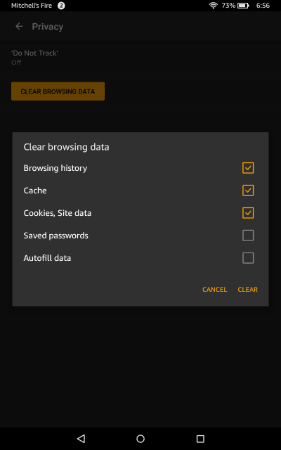
You may want to clear the cache, history, or cookies on the Amazon Fire Silk web browser to keep things tuned up and working properly when browsing the Internet. Keep reading to learn how to erase Amazon Fire browsing data in no time!
If you’re a Fire user, you know how convenient and efficient it is to browse the web, shop online, and stream your favorite content on this Amazon tablet. However, with all these web browsing activities, the Silk browser’s history, cache, and cookies can start to pile up. This browsing data congestion slows down your device.
But you can relax since I’m here to bail you out from this Amazon Fire tablet crisis! In this troubleshooting article, I’ll guide you through the simple steps to clear the Amazon Fire browser cache, history, and cookies, so you can enjoy a smoother and faster browsing experience. Let’s get started now!
Contents
Reasons to Clear Browsing Data on Amazon Fire
Clearing Fire HD browser cache, history, and cookies benefit you in many ways. I’ve outlined all the common reasons here:
- Clearing cache, cookies, history, and overall Amazon Fire browsing data reduces storage usage by the Silk browser. This in turn reduces the overall storage use and helps improve device performance.
- When you regularly clear your browsing history and cookies on your Amazon Fire tablet, you can help protect your privacy by preventing others from seeing your online activities.
- I highly recommend deleting cookies and cache from the Silk browser so that third-party websites can’t track your activities on your Amazon tablet and show personalized ads wherever you go. If you face the same issue on the Chrome browser on a PC or Chromebook, start using the Privacy Badger Chrome Extension.
- Browser cache tends to load an old browser unless you force refresh the page. So by clearing the cache regularly, you ensure that the Silk browser always takes you to an updated website.
Amazon Fire: Clear Browsing Data From Device Settings
You can use the Amazon Fire Settings menu to erase browsing data for the Silk browser. Here’s how:
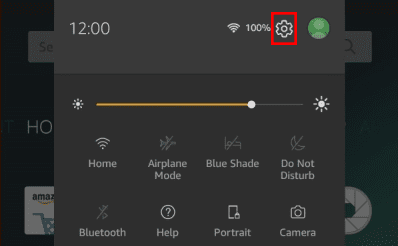
- On the Fire HD Home Screen, swipe down from the top of the device.
- Touch the Settings (cogwheel) icon to the right of the battery percentage indicator.

The Settings icon on Amazon Fire - Inside Settings, touch the Apps & Games option and tap the Amazon Application Settings option.
- Tap on the Silk Browser menu and select the Privacy option.
- You should now see the Clear browsing data. Tap on it.
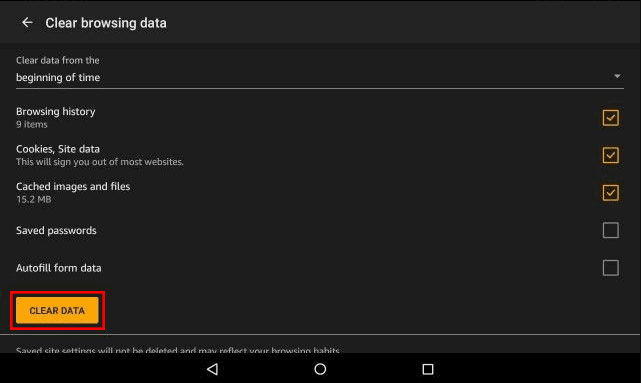
- Select checkboxes for Browsing history, Cookies, Site data, Cached images and files, Saved passwords, and Autofill form data.

Learn how to clear cache, browsing history, and cookies in Amazon Fire on FireOS Settings - Now, tap the Clear Data button.
If you side loaded third-party browsers like Google Chrome or Firefox via APK files, you need to go to Manage All Applications after you arrive on the Apps & Games screen. Then, follow these steps:
- Open Chrome or Firefox.
- Inside the app setting screen, touch Storage & Cache.
- Tap Clear Cache to just delete the app cache.
- If you want to delete all browsing data in a single click, tap Clear Data.
- On the pop-up window that shows up, touch Clear to confirm the action.
Amazon Fire: Clear Browsing Data From the Silk Browser
Are you feeling that the Silk browser is a little bit sluggish when browsing on it? Then, you can use the following steps to clear browsing data to speed up the app. No need to distract your focus by going to another app like FireOS Settings to fix this.
- Open the Silk browser.

Open the Amazon Silk browser app - In the top-left corner, just to the left of the Search icon, tap the hamburger menu.
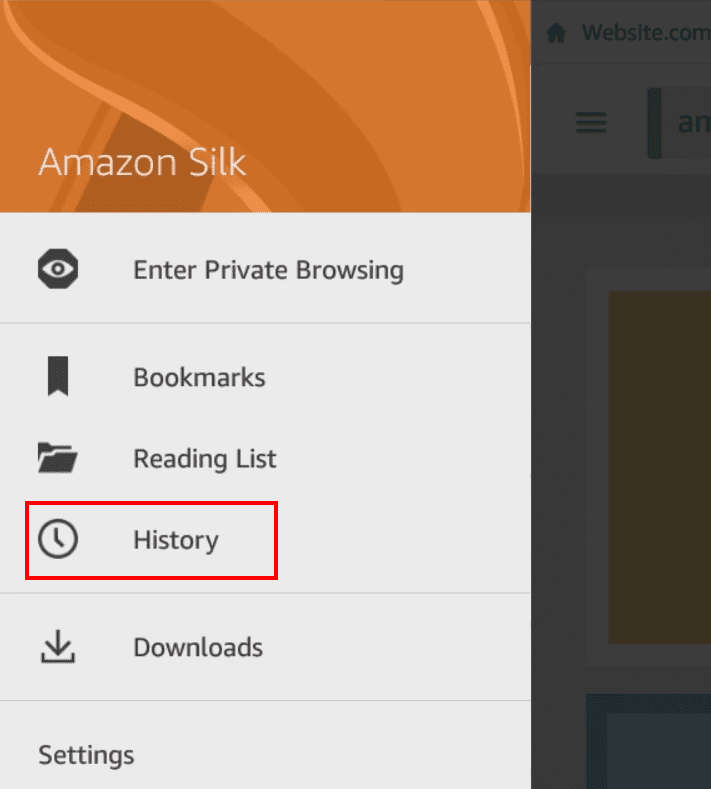
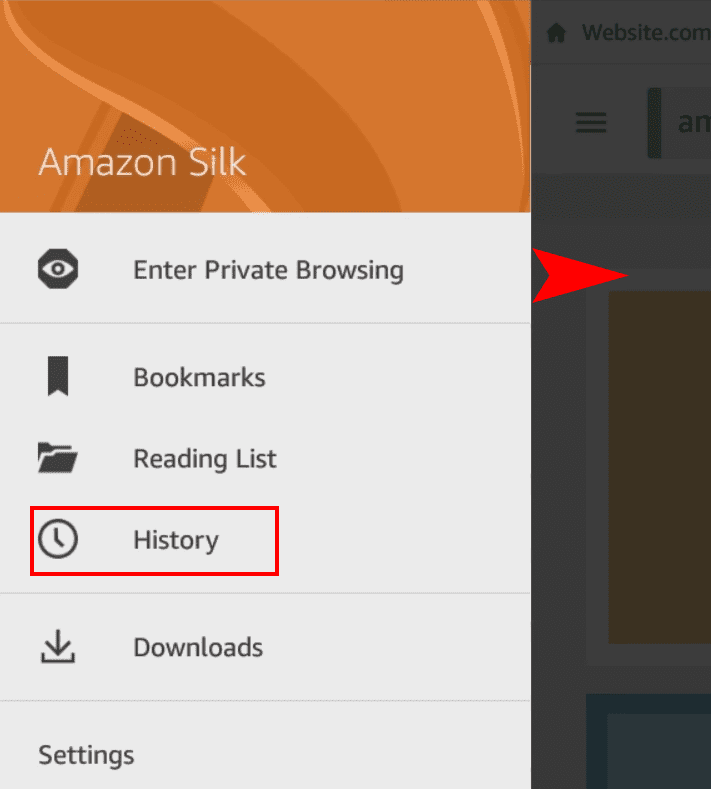
- The Amazon Silk left-side navigation panel will show up.
- Alternatively, you can swipe from the left edge of your Fire HD tablet,

Amazon silk History on the left side navigation pane - On the Amazon Silk navigation panel, you should find History. Tap on it.
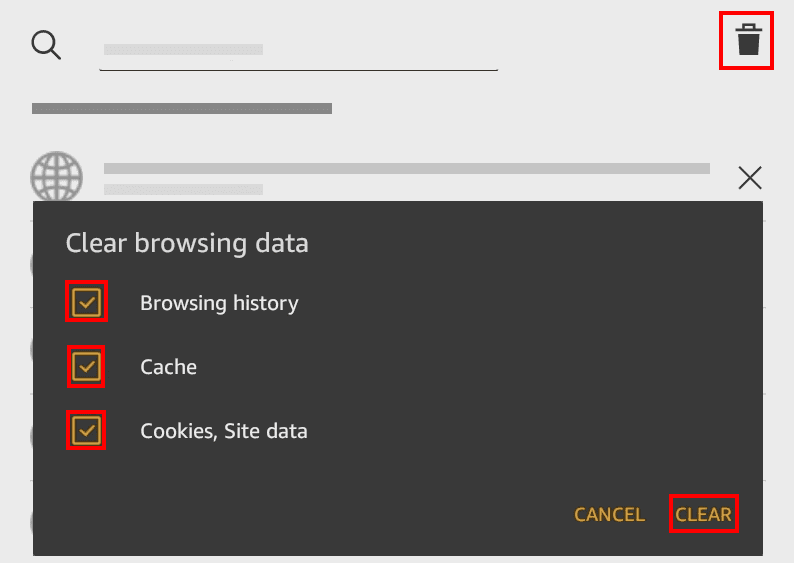
- On the right side below the History tab, touch the Trash Can icon.
- You should now arrive on the Clear browsing data screen, showing the following:
- Browsing history
- Cookies and site data
- Cached images and files

Clear browsing data on the Amazon Silk app
- There, checkmark the check boxes of the above options and hit the Clear Data button.

That’s it! You’ve successfully boosted the Silk browser and also prevented people from discovering your browsing activities. If you need access to advanced browsing data, tap the Settings option on the Amazon Silk navigation pane. There, you should find the Advanced button. Tap on it to discover more browsing data you can delete or customize.
How to Clear Select Browsing History on Amazon Fire
Don’t want to delete all browsing data of Silk? Here’s how you can cherry-pick browsing data for deletion:
- Open the Silk browser and swipe to the right from the left edge of the screen.

Swipe to the right from the left edge of Silk browser - On the Amazon Silk navigation pane, tap on the History button.
- Tap the delete (X) icon to the right of the visited websites.
- Simply tap the delete (X) button to erase the browsing data.
- To delete older entries, scroll down until you find what you’re looking for.
Conclusion
Use any of the above methods to erase browsing data from your Fire HD Silk browser. Leave a comment below about your experience while performing the steps.




My browsing history and cookies are still not clearing.
Confused! Followed instructions but nothing cleared.
????
No. It doesn’t offer a solution that works
How do I delete the drop down on my kindle when looking up movies? All movies and genres I’ve looked up appear and I want to get rid of them.
I’m having the same problem as Larry above….spinning for ever.
I have the same problem as described in the previous comment. I’ve timed it. After five minutes of clearing, it’s still “clearing.” This all started within the past week.
I’m having problems clearing my browsing history on my kindle hd 8,it always cleared them fine,now it just sets there and spins seems like forever?
I cleared everything. Then rebooted tablet. Checked history. Everything still there for the last 6 weeks. I also assume that the cookies are likewise there. So much for privacy.
How do I check the history of my kids Kindle Fire not just clear history
I click onto silk browser app on my kindle fire to delete my history but I get a web site on how do delete?
Which tells me to click on my silk browser app???
Totally confused,
Sharon
I have 3.96GB being used in miscellaneous that I can’t delete. Now it says I have low storage. How do I feel this space up?
I
When I follow the above steps and click on “clear data” to delete cookies and cached image and files, nothing is cleared. I simply get returned to the “privacy” screen. What am I missing?
Thank goodness for you!
I have spent hours searching how to clear ALL silk browser history since the big kindle update (biggest mistake) of 2016.
Thanks so much!!
This worked perfectly for me!
How do i keep google as my search provider ? I changed it to google search but silk browser keeps using bing!